Field registration workflows break down at the handoff. A representative visits a new contact, fills in a paper form or a generic spreadsheet, and sends a photo to a group chat. Someone in the office adds it to the CRM manually. A follow-up reminder gets added to a calendar, also manually, if it gets added at all. By the third step, details have already been transcribed wrong or skipped entirely.
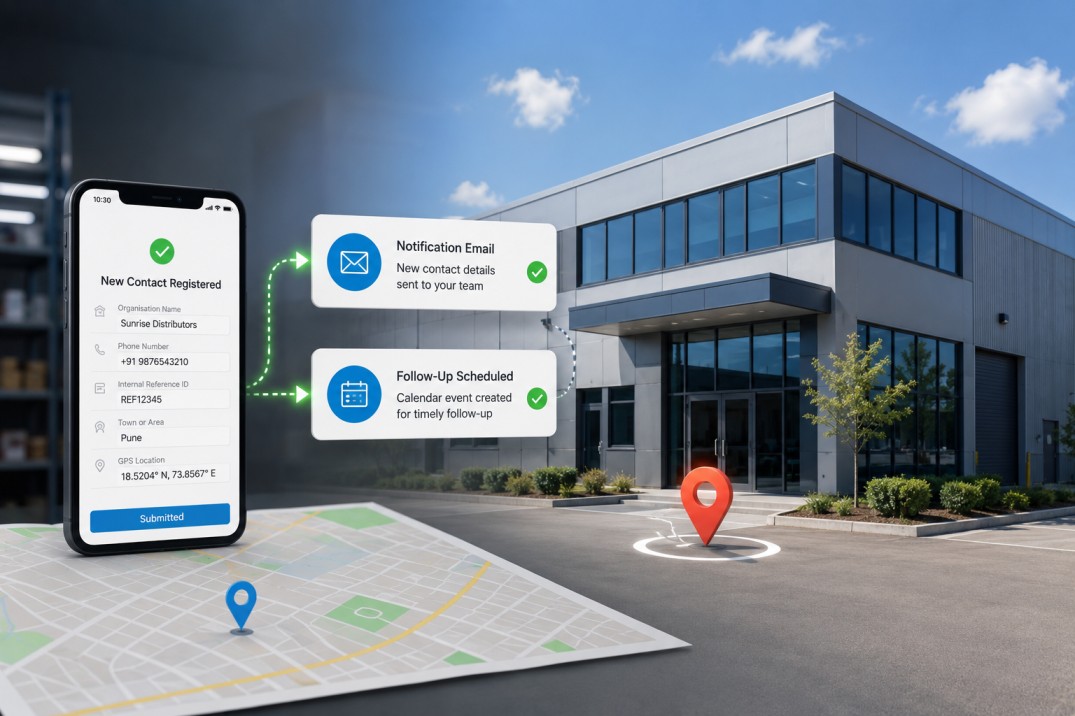
Building the registration form as a structured app in Clappia solves the whole chain at once. The form captures validated contact details, a GPS location pin, and an internal reference ID on the device. When it is submitted, a notification email goes out automatically and a follow-up calendar event is created in the same action, with the contact's details and location already populated. Nothing needs to be transcribed or forwarded. This guide walks through the full build from a blank app to a live onboarding form with both automations running.
The setup described here applies to any field team that registers new contacts during visits: sales teams onboarding partners, service teams logging new site contacts, field agents registering outlets or locations, or any similar workflow where a visit creates a record that needs to be tracked and followed up. You can follow this set up to build your own app or use it as a guideline to modify according to your operations.
Clappia is a no-code app builder for field operations. You build forms by adding blocks (individual field types like text inputs, phone fields, GPS capture) to an app in a visual editor. When a user fills in the form and submits it, Clappia stores the entry as a submission. Workflows are automation rules attached to an app: you define a trigger (such as On Save) and one or more actions (such as send an email or create a calendar event) that run automatically.
If you have not used Clappia before, you can sign up and start building at clappia.com. Everything in this guide is done through the visual builder. No coding is required at any step.
The finished app is a single-page form with five fields in one section. When submitted, it triggers two automated actions in parallel: an email notification and a Google Calendar event. Here is the complete picture before the build begins:
| Component | What It Does |
|---|---|
| Organisation Name field | Captures the full registered name of the contact or firm |
| Phone Number field | Captures a contact number with a locked country dial code to enforce consistent formatting |
| Internal Reference ID field | Captures the unique internal identifier used by your organisation to track this contact |
| Town or Area field | Captures the location name in plain text for human-readable records |
| GPS Location field | Captures device coordinates with a map preview; auto-fills from device GPS; allows manual correction |
| Email workflow action | Sends a notification to your team with all five field values and a link to the submission |
| Google Calendar workflow action | Creates a one-time follow-up event with the contact's name, details, and GPS location |
Step 1: Create the App and Add a Section
Log in to Clappia and create a new app. Give it a name that reflects its purpose, such as Contact Registration or Field Onboarding. Once the app is created, you will be in the form builder.
Add a section to the form. In Clappia, a section is a labelled grouping of fields, similar to a section heading in a paper form. Name this section Contact Details or a name that matches your use case. In the section settings, you can add a description that appears as instructional text above the fields. Use this to give field representatives a brief instruction:
Enable device GPS before opening this form. Enter the full registered name and the internal ID assigned by your team.
This section will hold all five fields. There are no conditional sections or repeating groups in this form: everything is always visible and all fields are required.
Step 2: Add the Five Fields
Field 1: Organisation Name
Add a Single Line Text block and label it Organisation Name. In the block settings, set the guidance text (the placeholder hint inside the input) to:
Enter the full legal or registered name of the organisation
Enable the Required toggle. This prevents submission if the field is left empty.
Field 2: Phone Number
Add a Phone Number block and label it Phone Number. This block displays a country flag and dial code alongside the number input and validates the number format for the selected country. In the block settings, set the default country code to your operating region and enable the option to lock it so users cannot change it. This enforces a consistent phone number format across all submissions. Mark the field as required.
Field 3: Internal Reference ID
Add another Single Line Text block labelled Internal Reference ID. Set the guidance text to:
Enter the internal ID assigned by your sales or territory team
Mark as required. Every submission without an ID creates an unlinked record that cannot be matched to your internal systems without manual intervention.
Field 4: Town or Area
Add a Single Line Text block labelled Town or Area. Set the guidance text to:
Enter the town, area, or district where this contact operates
This field captures the human-readable location name separately from the GPS pin. GPS coordinates are precise but not immediately readable in a list view or an email. The town name makes submissions scannable at a glance. Mark as required.
Field 5: GPS Location
Add a GPS Location block labelled GPS Location. Configure the following settings:
Mark the GPS field as required. A submission without a location pin cannot be used in the calendar event location or mapped later.
| Field | Block Type | Required | Key Setting |
|---|---|---|---|
| Organisation Name | Single Line Text | Yes | Guidance text: full registered name |
| Phone Number | Phone Number | Yes | Country code locked to your default region |
| Internal Reference ID | Single Line Text | Yes | Guidance text: ID from sales or territory team |
| Town or Area | Single Line Text | Yes | Guidance text: town, area, or district |
| GPS Location | GPS Location | Yes | Default to current location; map on; manual input on; reverse geocoding off; boundary 1 |
Step 3: Configure App Settings
With the fields in place, open the app settings and configure the following options. In Clappia, app settings control behaviour at the app level rather than at the field level.
Step 4: Configure the Automated Follow-Up Workflow
This is the step that turns the form from a data capture tool into a complete handoff process. Clappia's workflow feature lets you define automation rules that run when specific events happen. Open the workflow settings for your app and create a new workflow. Set the trigger to On Save, which fires whenever a submission is created or updated. Then add two actions to run in parallel.
Action 1: How to Configure the Automated Email Notification Workflow
Add an Email action. This sends an automated email to your team whenever a new contact is registered. Configure the following:
New Contact Registered: {Organisation Name}
Organisation: {Organisation Name}
Phone: {Phone Number}
Area: {Town or Area}
Reference ID: {Internal Reference ID}
GPS: {GPS Location}
When this email is sent, each {field name} placeholder is replaced with the actual value from the submission. So {Organisation Name} becomes the name the field representative typed, {GPS Location} becomes the coordinates, and so on. You can also add a link to the submission record directly in the body, giving the recipient one-click access to the full form entry in Clappia.
Action 2: How to Set Up the Google Calendar Follow-Up Event
Add a Google Calendar action. This creates a follow-up event automatically in the calendar of the assigned team member, so a scheduled reminder exists the moment the registration is submitted. Configure the following:
Follow-up: {Organisation Name}
Phone: {Phone Number}
Area: {Town or Area}
Reference ID: {Internal Reference ID}
The calendar event is created with the contact's GPS coordinates as the event location. The person attending the follow-up can tap the event location on their phone and navigate directly to the site, without looking anything up separately.
How the Email and Calendar Actions Run in Parallel
When a field representative submits the form, both the email and the calendar event fire simultaneously as parallel actions in the workflow. Neither waits for the other to complete. This means the team notification and the follow-up event are both in place within seconds of the submission being saved, without anyone in the back office having to do anything.
If the submission is updated later, the workflow triggers again. The email and calendar event fire again with the updated data. This keeps the team notified of any changes to the record and creates a new calendar event reflecting the updated details. You can refine this behaviour in the workflow settings if you only want the event created on the first submission, not on updates.
Set up user permissions in Clappia's user management settings. The recommended structure for this type of form is:
| Role | Access Level | What They Can Do |
|---|---|---|
| Field Representative | Submit Only | Fill in and submit the form; view their own submissions; save drafts |
| Team Manager | View Only | See all submissions; filter by town, date, or representative |
| Admin | Full Access | Edit the form, manage workflow settings, manage user access |
The Clappia mobile app (Android and iOS) supports offline mode automatically. Field representatives can open the form, fill it in, and save a draft or submit without network connectivity. The GPS Location block captures coordinates from the device's built-in GPS, which works offline. When connectivity returns, the submission syncs to the server and the workflow fires: the email is sent and the calendar event is created at that point.
Note that the map preview in the GPS block requires a network connection to load map tiles. If the device is offline when the form opens, the GPS field will still capture coordinates, but the map will not display. Field representatives should be aware of this and, if possible, open the form while connected to verify the pin before going offline.
The form and workflow described above are intentionally simple. The five fields and two automated actions cover the core use case, but the same structure adapts directly to a range of related scenarios.
Building a field onboarding app in Clappia takes one app, five fields, one section, three app settings, and two workflow actions. The result is a form that a field representative can complete in under two minutes on their phone, and that automatically notifies the team and creates a follow-up calendar event without any back-office intervention.
The key design decisions that make it reliable are: a locked phone format that prevents dial code errors, a required internal ID that ensures every record is linkable to your systems, a GPS block with map preview and manual correction that produces accurate location data, and retain values that save time when multiple contacts are registered in a single session.
To build this today, create a new app in Clappia, follow the steps above, and your field team can start using it on the same day.
L374, 1st Floor, 5th Main Rd, Sector 6, HSR Layout, Bengaluru, Karnataka 560102, India
3500 S DuPont Hwy, Dover,
Kent 19901, Delaware, USA


.svg)




3500 S DuPont Hwy, Dover,
Kent 19901, Delaware, USA
L374, 1st Floor, 5th Main Rd, Sector 6, HSR Layout, Bengaluru, Karnataka 560102, India

resized.jpg)

.avif)