

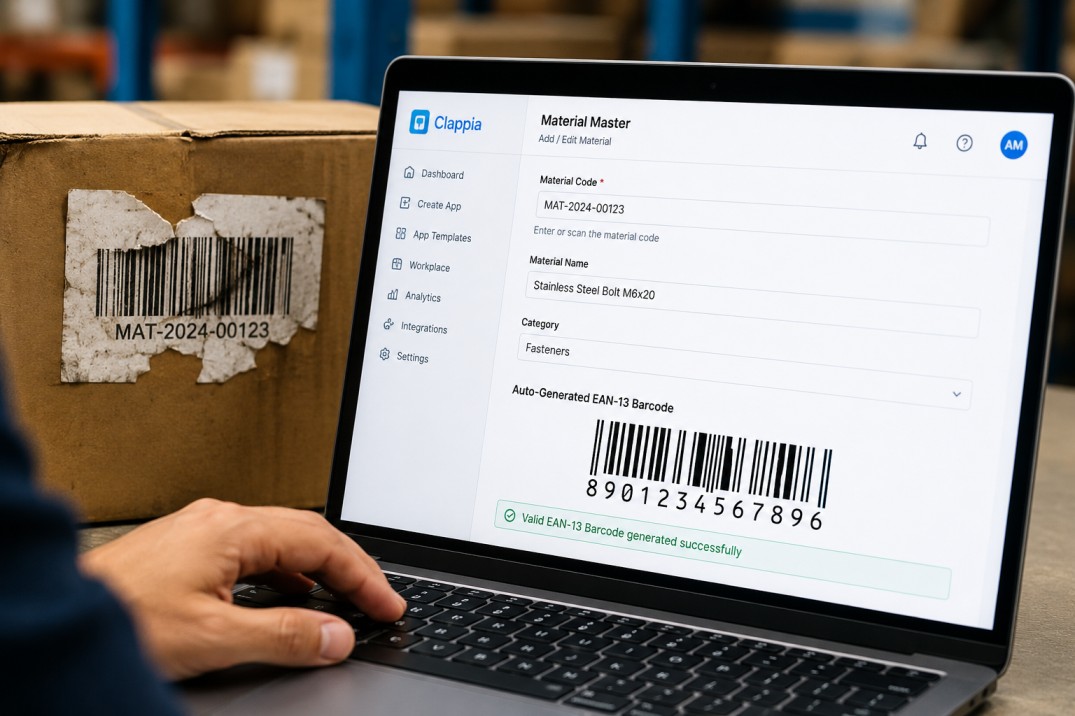
Product identification is one of those problems that looks solved until it is not. Most organisations that manage physical stock across multiple locations have a product master of some kind, internal codes are assigned to every SKU, and EAN barcodes are printed on packaging. On paper, every product has a clear identifier. In practice, barcode labels get damaged, products move between locations without their labels, and field auditors encounter items they can identify by their internal code but cannot scan. When that happens, the audit record either gets a blank EAN field or a manually typed value that may or may not be correct.
The cleaner solution is to compute the EAN from the material code rather than relying on the physical label. If your organisation uses a consistent internal coding system with a registered GS1 company prefix, every material code has a deterministic EAN, and that EAN can be calculated automatically by a formula. The result is a product master where EANs are generated, not guessed, and an audit app where the computed EAN flows into the exception log the same way a scanned EAN does.
This article explains how to set this up in Clappia: building a product master that auto-generates EANs from material codes, mirroring that logic in the audit app's manual entry flow, and ensuring the exception log always receives a consistent, valid EAN regardless of whether the auditor scanned a barcode or selected a product by material code.
An EAN (European Article Number, also used globally as a GTIN-13) is more than a barcode format. It is the identifier that connects a physical product on a shelf to its record in every system that tracks it: the product master, the inventory system, the audit log, and any downstream analytics. When that identifier is inconsistent across systems, even small discrepancies create problems.
In a field audit workflow, EAN inconsistency surfaces in two specific ways. First, when an auditor scans a product, the EAN from the scan is recorded in the exception log. When a different auditor manually selects the same product and the EAN is typed or left blank, the log entry looks like a different product. Reports that aggregate by EAN will split what should be a single product line into multiple records. Second, when a product's barcode label is damaged and the auditor cannot scan it, there is no fallback that produces a guaranteed correct EAN without a formula.
An EAN that is calculated from the material code is more reliable than one that is typed from memory or read from a damaged label. The formula applies the same logic every time, which means the same material code always produces the same EAN.
Understanding how the formula works requires knowing what an EAN-13 contains. A standard EAN-13 barcode has 13 digits structured as follows:
The check digit algorithm works as follows: multiply alternating digits of the 12-digit number by 1 and 3, sum all the results, then subtract the sum from the nearest equal or higher multiple of 10. The result is the check digit.
In a Clappia formula, this calculation can be implemented using arithmetic operations on the material code's digits. The specific prefix and digit positions you use will depend on your organisation's GS1 registration and your internal material code format. The formula structure described below uses a generic pattern; you will substitute your own company prefix.
Create a Clappia app for your product master. This app holds one record per SKU and serves as the reference that both the manual entry lookup and the EAN formula draw from. Add the following fields:
| Field | Block Type | Purpose |
|---|---|---|
| Material Code | Single Line Text | The internal product identifier; primary key for all lookups in this system |
| Product Description | Single Line Text | The product name or description displayed to auditors during manual selection |
| EAN Code | Single Line Text | The official registered EAN, if available; can be left blank if auto-generation covers all products |
| MRP | Number | The master retail price; used as the reference value in audit price comparisons |
| Revised MRP | Number | An updated price if the original MRP has been officially amended |
| EAN (Computed) | Formula block | Auto-calculated EAN derived from the Material Code; the focus of this article |
The EAN (Computed) field uses a Formula block. In Clappia, formula fields reference other fields in the same form using curly brace notation: {Field Name}. The formula block evaluates the expression whenever the input fields change, and displays the result as a read-only value.
The EAN formula takes your organisation's GS1 company prefix, appends the material code digits that serve as the item reference, and then computes the check digit using the standard EAN-13 algorithm. The general structure of the formula in Clappia is:
Formula field: EAN (Computed)
Input variable: {Material Code}
Logic: concatenate company prefix + item reference from {Material Code} + check digit
Output: a 13-digit string displayed as a read-only EAN value
In Clappia's formula syntax, mathematical operations use standard arithmetic operators and string functions. The check digit calculation involves extracting individual digits from the 12-digit prefix-plus-item-reference string, multiplying alternating digits by 1 and 3, summing the results, and subtracting from the next multiple of 10. This can be expressed as a single formula expression using Clappia's built-in formula functions for arithmetic and string manipulation.
Once configured, the formula field displays the computed EAN immediately when a Material Code is entered. The user does not need to type the EAN, calculate it manually, or look it up in a separate system. They enter the material code and the EAN appears alongside it as a computed, read-only field.
When an admin adds a new product to the master, they enter the Material Code, Product Description, and MRP. The EAN (Computed) field populates automatically. If the product also has a registered EAN printed on its packaging, they can enter it in the EAN Code field for reference. The two EAN fields, the computed one and the registered one, should match for products whose labels are intact. If they do not, it signals either a data entry error in the material code or a discrepancy in the GS1 registration.
This dual-field approach is intentional. The registered EAN from the label is the ground truth for products with readable barcodes. The computed EAN is the fallback for everything else. Having both on the same record makes it easy to spot discrepancies during master data maintenance.
The audit app needs to produce a consistent EAN in its manual entry flow, using the same logic as the product master. This is done by adding a second Formula block to the audit form, configured identically to the one in the product master.
In the manual entry section of the audit app, after the auditor selects a material code via the product lookup, the following happens:
The formula in the audit app uses the same input variable, {Material Code}, which in this context is the material code the auditor selected in the product lookup field. The formula expression is identical to the one in the product master:
Formula field: EAN Code (Auto) [in audit app manual entry section]
Input variable: {Material Code} [the selected product's code]
Logic: same prefix + item reference + check digit calculation as product master
Output: 13-digit read-only EAN, displayed alongside the master-pulled EAN Code
The auditor does not interact with this field. It is there as a cross-reference tool: if the EAN Code pulled from the master and the EAN Code (Auto) computed by the formula do not match, something is wrong with the master data for that product. This makes the formula field a passive data quality check embedded in the audit workflow itself.
When both EAN values match, the auditor can proceed with confidence. When they do not, the discrepancy is visible on screen before the submission is saved, giving the auditor a chance to flag it in the Remarks field.
In scan mode, the EAN comes from the physical barcode on the product. The Barcode Scanner block reads the EAN directly from the label and auto-fills it alongside the material code, master MRP, and product name pulled from the product master. There is no formula involved: the EAN is whatever the barcode says.
This is why the product master needs both the computed and the registered EAN. In scan mode, the registered EAN is what gets recorded. In manual entry mode, the computed EAN Code (Auto) is what gets recorded. For the exception log to treat them as the same product, these two values need to be the same number. If your GS1 prefix and item reference mapping are set up correctly, they will be.
The comparison table below shows what each mode contributes to the EAN field in the exception log:
| Aspect | Scan Mode | Manual Entry Mode |
|---|---|---|
| EAN source | Physical barcode read by the device camera | Formula calculation from material code using company prefix and check digit logic |
| Formula block involved | No; EAN comes from the scan | Yes; EAN Code (Auto) formula block in the manual entry section |
| Auditor interaction with EAN | None; auto-filled from scan | None; computed and displayed as read-only |
| EAN recorded in exception log | Scanned EAN Code | Computed EAN Code (Auto) |
| Fallback if barcode is damaged | Not applicable; scan fails if barcode is unreadable | Not needed; formula always produces an EAN from the material code |
| Data quality check | None built in; assumes barcode is correct | Dual-EAN display lets auditor spot master data discrepancies on screen |
The exception log workflow fires when the auditor records a price exception and saves the form. The workflow's field mapping handles both modes by conditionally selecting the right EAN source:
In both cases, the exception log receives a 13-digit EAN value that was either read from a physical label or calculated from the material code using a deterministic formula. Neither path involves manual typing of the EAN by the auditor, which eliminates transcription errors from both modes.
The full set of fields written to the exception log entry looks like this, regardless of which mode was used:
| Exception Log Field | Source |
|---|---|
| Date | Auto-captured hidden date field in the audit app |
| Time | Auto-captured hidden time field in the audit app |
| Store Name | From store identification section of the audit form |
| Location ID | From store identification section; the unique store identifier |
| Material Code | Scanned (from barcode lookup) or selected (from manual product lookup) |
| Product Description | Auto-filled from product master in both modes |
| EAN Code | Scanned EAN Code (scan mode) or EAN Code (Auto) formula result (manual mode) |
| Observed MRP | Physical MRP entered by the auditor in either mode |
| Total Quantity | Physical Quantity (scan mode) or Total Quantity (manual mode) |
| Remarks | From the verification page; applies to both modes |
The EAN field in the exception log is always populated, always a valid 13-digit value, and always corresponds to the material code of the product being audited. This consistency is what allows the exception log to be aggregated by EAN across audit sessions from different stores, different auditors, and different capture modes without any post-processing.
The auto-generated EAN is only as reliable as the material codes in the product master. A few maintenance practices keep the system working correctly over time:
The product master is an admin-maintained app. In Clappia, user permissions are configured at the app level. Field auditors should have no direct access to the product master: they interact with its data only through the audit app's lookup blocks. Admins or data managers hold full access to add, edit, and import product records.
The formula calculation in both the product master and the audit app runs client-side in Clappia, which means it works in offline mode. An auditor with no network connection can select a material code, see the EAN Code (Auto) compute instantly, and complete the audit entry without any server interaction. The lookup against the product master for description and MRP also works offline once the reference data is cached on the device.
This offline capability is particularly relevant to the EAN auto-generation use case. Damaged barcodes and missing labels are more common in environments with heavy stock movement, which are often the same environments where network coverage is unreliable. The formula ensures the auditor always has a valid EAN to record, even when both the label and the network are unavailable.
Auto-generating EAN codes from material codes in Clappia involves two coordinated Formula blocks: one in the product master that computes and stores the EAN alongside each material code, and one in the audit app's manual entry section that recomputes the same EAN at the point of product selection. Both blocks use the same logic: your organisation's GS1 company prefix concatenated with the item reference digits from the material code, followed by a check digit calculated using the standard EAN-13 algorithm.
The result is a product identification system where the EAN is never typed manually, never blank, and always consistent between the product master and the audit record. Scan mode uses the physical barcode. Manual entry mode uses the formula. The exception log receives a valid EAN from both paths and treats them identically.
For any organisation managing product audits across multiple locations where barcode availability cannot be guaranteed, this pattern removes one of the most persistent sources of data inconsistency in field audit records. The setup requires a product master with accurate material codes, a correctly configured Formula block, and a workflow that maps the right EAN source to the exception log based on which capture mode was used.
Get started by building your product master in Clappia and adding the EAN Formula block as described above. The formula runs without any coding and is available immediately once the product master app is created.
L374, 1st Floor, 5th Main Rd, Sector 6, HSR Layout, Bengaluru, Karnataka 560102, India
3500 S DuPont Hwy, Dover,
Kent 19901, Delaware, USA


.svg)




3500 S DuPont Hwy, Dover,
Kent 19901, Delaware, USA
L374, 1st Floor, 5th Main Rd, Sector 6, HSR Layout, Bengaluru, Karnataka 560102, India






.png)