.jpg)
A paper attendance register works well enough when everyone works a standard day shift and no one crosses midnight. The moment shift patterns get more complex, the register starts creating work rather than recording it. A night shift worker who signs in at 22:00 and signs out at 06:00 the next morning has their attendance split across two pages. Someone has to manually join those two entries, decide which date the shift belongs to, and calculate the hours. Multiply that by dozens of workers and several shifts a week, and month-end payroll becomes a reconstruction exercise.
This guide explains how to build a QR-based attendance system in Clappia that solves the night shift problem at the point of capture, not at the end of the month. Each scan takes a few seconds, pulls the employee's pay details automatically, handles post-midnight attribution with a single flag, and fills a structured daily ledger that calculates hours per shift segment. Monthly totals accumulate automatically without any manual aggregation step.
The core issue is that a paper register records the time a punch happens, not the shift it belongs to. A worker who clocks in at 23:00 and clocks out at 07:00 has their data on two separate pages in two separate dates. The register has no concept of a shift that spans calendar days. The person reconciling payroll has to recognise that these two entries are related, link them, attribute them to the correct date, and calculate the gap between them.
This works when the payroll team knows the shift schedules intimately and the workforce is small. It stops working reliably when the team grows, when shifts rotate, when workers do split shifts with breaks, or when the payroll team changes. The errors that result are not dramatic, but they compound: a few minutes here, a missed pairing there, and by month-end the numbers no longer match what workers expect.
The problem with paper attendance for shift workers is not that it fails completely. It is that it requires sustained manual expertise to work correctly, and every person who processes the data is a potential point of error.
The system is built across four connected Clappia apps. In Clappia, an app is a form that collects data and can trigger automated actions. These four apps work as a pipeline: the Employee Master holds the source data, the Scanner records each punch, the Attendance Ledger builds the daily record, and the Wages Sheet accumulates the monthly total.
| App | What It Does |
|---|---|
| Employee Master | Stores every employee's details, pay parameters, and generates a unique QR code per employee. This is the source the scanner reads from on every punch. |
| Attendance Scanner | The mobile app used to record each punch. Scanning an employee's QR code pulls their details automatically. The operator confirms the date, time, and whether the punch is after midnight. |
| Attendance Ledger | Holds the complete daily attendance record per employee: up to six timestamps across three in/out segments, with per-segment hour calculations and a daily total. |
| Wages Sheet | Holds the monthly running total of worked hours and minutes per employee. Updated automatically as each day's ledger closes. |
Step 1: Set Up the Employee Master
Every punch in the system pulls data from the Employee Master, so this app needs to be set up and populated before anything else. Create a new app in Clappia and add the following fields. In Clappia, each field is added as a block; a Single Line Text block is appropriate for most of these, with a Dropdown block for fields with defined options.
The Hourly Rate formula uses two fields: {Daily Wages} and {Daily Hours}. The formula divides the wages value by the hours value. When an admin enters a daily wage and selects a daily hours option, the hourly rate populates automatically as a read-only result. This value carries into every scan and into the attendance ledger as part of the payroll context stored with each daily record.
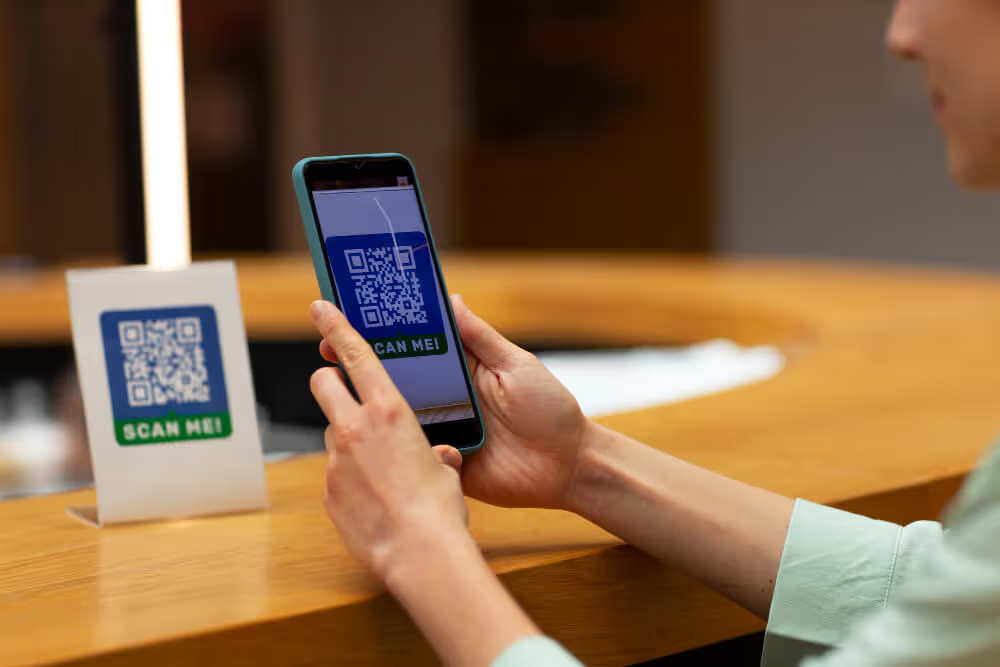
Once the employee records are created, each one generates a unique QR code. This QR code is what workers carry (printed on an ID card, a badge, or a sticker) and scan at each punch.
Step 2: Build the Attendance Scanner App
The scanner is the mobile app your operators use at each punch point. Create a new Clappia app and add the following:
Add a Barcode Scanner block as the primary input. Configure it to look up the scanned code against the Employee Master. When a QR code is scanned successfully, the following fields auto-fill from the matched employee record:
All of these auto-filled fields should be set as read-only. The operator cannot edit them; they are pulled from the master and confirm to the operator that the right employee was scanned.
Add a Date block labelled Attendance Date with a default value of today. Add a Time block labelled Attendance Time with a default value of the current time. In most cases the operator accepts the defaults; the fields are editable for corrections.
This is the field that makes night shift handling work. Add a Yes/No block labelled After Midnight. When the operator answers Yes, it tells the system that this punch, even though it is timestamped on the current calendar date, should be attributed to the previous calendar day.
For example: a worker clocked in at 23:00 on Monday. They clock out at 06:00 on Tuesday. The clock-out scan happens on Tuesday, but it belongs to Monday's shift. The operator marks After Midnight as Yes on the clock-out scan. The system then attributes that punch to Monday's ledger record rather than creating a new record for Tuesday.
Step 3: How the Automation Processes Each Punch
The scanner app's workflow handles the logic of organising each punch into the right ledger record. When a scan is saved, two automated processes run simultaneously.
Creating or Updating the Daily Ledger Record
The first process checks whether a ledger record already exists for this employee on the relevant date (accounting for the After Midnight flag). Based on what it finds:
The system also creates a corresponding record in the Wages Sheet on the first punch of each day. This record starts with zero hours and minutes and accumulates as the day's ledger is completed.
The second process runs immediately on every scan. It retrieves the earliest scan recorded for the same employee and date combination and checks whether the time gap between that scan and the current one is less than ten time units. If the gap is very small, the scan is flagged as a potential duplicate.
This check does not block the submission or reject the punch. It creates a read-only flag that supervisors can monitor. A pattern of near-duplicate scans for the same employee on the same day can indicate a worker scanning in on behalf of someone else, or a device issue causing repeated scans. The flag surfaces this without disrupting the normal workflow.
Step 4: The Attendance Ledger and Hour Calculations
The Attendance Ledger is built automatically by the scanner's workflow; operators do not fill it in manually. Each employee has one ledger record per working day. The ledger supports up to three in/out segments per day, covering complex shift patterns that include breaks or split shifts.
Each segment consists of a time-in and a time-out field. For segments that can cross midnight (the second, fourth, and sixth time fields), the ledger also stores a companion date field and a midnight flag. This is how the system knows whether a time-out happened on the same calendar day as the time-in, or the next day.
| Segment | Time In | Time Out | Midnight Flag | Companion Date |
|---|---|---|---|---|
| Segment 1 | Time 1 | Time 2 | After Midnight (Seg 2) | Date 2 |
| Segment 2 | Time 3 | Time 4 | After Midnight (Seg 4) | Date 4 |
| Segment 3 | Time 5 | Time 6 | After Midnight (Seg 6) | Date 6 |
The ledger uses Formula blocks to calculate worked hours and minutes for each segment. The formula for each segment calculates the difference between the time-in and time-out, adjusted if the time-out is on a different calendar day. In Clappia formula syntax, field values are referenced with curly braces:
Segment 1 hours: calculated from {Time 1} and {Time 2}, adjusted using {After Midnight (Seg 2)} and {Date 2}
Segment 2 hours: calculated from {Time 3} and {Time 4}, adjusted using {After Midnight (Seg 4)} and {Date 4}
Segment 3 hours: calculated from {Time 5} and {Time 6}, adjusted using {After Midnight (Seg 6)} and {Date 6}
Each formula produces a hours value and a minutes value separately. The daily total is the sum of all three segments, with minutes carrying over into hours when they reach 60. So if segment 1 produces 3 hours 45 minutes and segment 2 produces 2 hours 25 minutes, the daily total is 6 hours 10 minutes, not 6 hours 70 minutes.
The ledger also stores an Exit Date and Exit Time that summarise the last recorded clock-out. When the second time segment's midnight flag is confirmed, the exit date and time update to reflect that segment's time-out. If a third segment is present and its flag is confirmed, they update again to the third segment's time-out. This provides a clear, single exit record regardless of how many segments were worked.
Step 5: Monthly Hours in the Wages Sheet
The Wages Sheet accumulates each day's total hours and minutes into a running monthly total per employee. It is updated automatically by the Attendance Ledger as each day closes; no one transfers data manually.
The sheet holds a cumulative worked hours and minutes total for the month. As each day is completed in the ledger, those hours and minutes are added to the running total. Two specific dates each month have dedicated fields in the wages sheet: the 9th and the 10th. When a ledger record for one of those dates is edited, the wages sheet recalculates the monthly total correctly rather than adding the corrected value on top of the original.
The recalculation logic for the 9th works as follows:
Updated monthly hours = previous monthly hours + today's hours - previous 9th hours
The same pattern applies for the 10th. This approach handles corrections cleanly: if a supervisor edits a ledger entry to fix a wrong time, the monthly total in the wages sheet reflects the corrected value automatically rather than double-counting.
How to Test That Night Shift Punches Are Attributed Correctly
Before deploying the system, test these specific scenarios to confirm the midnight attribution is working correctly:
Each of these tests checks a specific part of the system that is prone to errors in manual processes. Confirming them before the first live shift ensures the system is trustworthy from day one.
Configure user permissions in Clappia's user management settings. The scanner app should be accessible to the operators conducting the scans; Submit Only access is appropriate since they only need to record punches and do not need to see other employees' records. HR and payroll staff need View access to the Attendance Ledger and Wages Sheet to review and process records. Admins hold Full Access to manage the Employee Master and configure app settings.
The Clappia mobile app, available on Android and iOS, supports offline mode. Scans can be recorded and queued locally when network connectivity is unavailable, such as in basement facilities or remote sites. The automated workflows that create and update ledger records fire after the submission syncs when connectivity returns. For the QR code lookup to work offline, the Employee Master data needs to be cached on the scanning device, which happens automatically when the app is opened on Wi-Fi before the shift begins.
Replacing a paper register with a QR-based system in Clappia addresses the night shift problem directly rather than as an afterthought. The After Midnight flag on the scanner tells the system which calendar day a punch belongs to, regardless of when the clock says the scan happened. The Attendance Ledger handles up to three in/out segments per day with separate hour calculations for each, and midnight crossings are handled through companion date fields and flags rather than manual linking. Monthly totals accumulate automatically in the Wages Sheet with correction-safe recalculation when historical records are edited.
The result is a system where month-end payroll uses numbers that built themselves day by day, rather than numbers that someone assembled from a paper register under time pressure. The difference in accuracy is significant, and the difference in effort is substantial.
To start building, create your Employee Master first in Clappia, populate it with your workforce, and then build the Scanner, Ledger, and Wages Sheet in sequence. The complete system can be configured without any coding.
 Get Started – It’s Free
L374, 1st Floor, 5th Main Rd, Sector 6, HSR Layout, Bengaluru, Karnataka 560102, India
3500 S DuPont Hwy, Dover,
Kent 19901, Delaware, USA


.svg)




3500 S DuPont Hwy, Dover,
Kent 19901, Delaware, USA
L374, 1st Floor, 5th Main Rd, Sector 6, HSR Layout, Bengaluru, Karnataka 560102, India
.jpg)