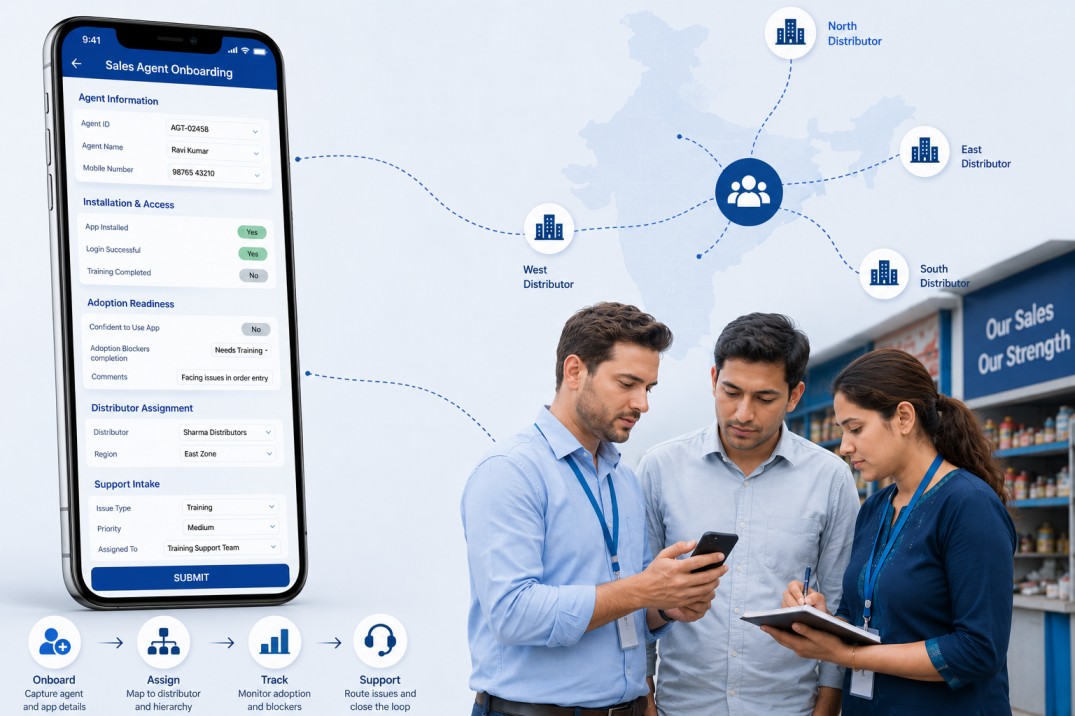
Rolling out a sales app across a network of field distributors and agents runs into the same problem at scale: no one knows who has installed the app, who cannot use it, or why. Support requests arrive through WhatsApp messages and phone calls, each one formatted differently. By the time a coordinator tries to escalate a case, half the information needed is missing.
A structured intake form built in Clappia fixes this at the point of data collection. Every field representative fills in the same form, capturing installation status, agent contact details, adoption blockers, the responsible distributor, and the support path to follow. The result is a consistent record for every case, whether the agent has the app running or cannot install it at all. This article walks through exactly how to build that form.
The setup described here is generalised for any field sales network rolling out a mobile tool, not just one industry. The field names and dropdown options are yours to adapt using Clappia's no-code form builder.
In Clappia, an app is a form that collects structured data and stores each entry as a submission. This particular form is a single-page intake tool. It has no automated workflows attached, which keeps it simple and fast. The data it collects feeds your team's follow-up process manually, giving coordinators everything they need to act without requiring complex automation to get started.
The form captures seven pieces of information across seven fields. Three of those fields are required before submission; the other four are optional and give agents flexibility when some information is not available on the spot. Three of the seven sections are collapsed by default when the form opens, keeping the screen clean and reducing the visual load for field representatives working quickly on a phone.
| Field | Type | Required? | Default State | Purpose |
|---|---|---|---|---|
| App Installed? | Yes/No | No | Expanded | Records whether the agent currently has the sales app installed on their device |
| Master Code | Number | No | Expanded | Captures an authorisation or activation code if the agent has one; left blank if not yet issued |
| Agent Contact Number | Phone Number | Yes | Expanded | The agent's phone number for follow-up; primary identifier for the record |
| Contact Email | Text | No | Expanded | An email address for the agent; optional but useful for digital follow-up |
| Reason for Non-Adoption | Radio (single select) | No | Collapsed | If the agent is not using the app, captures the specific blocker from a defined list |
| Assigned Distributor | Radio (single select) | Yes | Collapsed | Selects the distributor responsible for this agent from a predefined list |
| Support Route | Text | Yes | Collapsed | Documents the escalation path or internal steps to follow for this case |
Create a new app in Clappia. In Clappia's form builder, you add blocks, which are individual field types such as a text input, a phone number field, or a radio button group. Add the blocks in the order below. Each one is a separate section in the form, and you can configure whether it opens, expands or collapses when the form loads.
Field 1: App Installed?
Add a Yes/No block labelled App Installed?. This is the first question on the form. Mark it as optional since some agents may be mid-installation and the status is genuinely unknown at the time of intake. Set this section to expand by default so it is immediately visible.
This field is intentionally not linked to any conditional logic in this configuration. It records the status for reporting purposes without showing or hiding other fields based on the answer. If you want to conditionally show the Reason for Non-Adoption section only when the answer is No, you can add a Display Condition to that section later.
Field 2: Master Code
Add a Number block labelled Master Code. This captures a numeric authorisation or activation code that some agents require to access the sales app. Mark it as optional. Agents who have not yet been issued a code can leave this blank without blocking submission. Set it to expand by default.
Field 3: Agent Contact Number
Add a Phone Number block labelled Agent Contact Number. This is the primary identifier for the record and should be marked as required. In the block settings, set the default country dial code to match your operating region. If your network spans multiple countries, create a separate version of the form for each region with the appropriate default code, or leave the country selector unlocked so agents choose their own.
Mark this field required. Without a contact number, the submission cannot be used for follow-up and the record has no reliable way to be linked back to a specific agent.
Field 4: Contact Email
Add a Single Line Text block labelled Contact Email. Mark as optional. This captures an email address for digital follow-up. You can add a Validation rule to check that the entered value matches a standard email format if you want to prevent mistyped addresses, but the field does not need to be restricted to any specific email provider. Set it to expand by default.
Field 5: Reason for Non-Adoption
Add a Radio Button block labelled Reason for Not Using the App. Configure it with a list of defined blocker options. The options should reflect the real reasons agents in your network cannot or are not using the app. A starting set for a mobile sales app rollout:
In Clappia, Radio Button options are displayed as chips on mobile, which makes selection fast with a single tap. Mark this field as optional and configure its section to be collapsed by default. This keeps it out of the way for the majority of interactions where an agent has the app installed and this field is not relevant. The coordinator expands it only when needed.
Field 6: Assigned Distributor
Add a second Radio Button block labelled Assigned Distributor. Populate the options with the names of your distributors or regional responsible parties. This field identifies which entity is accountable for the agent being onboarded. Mark it as required and configure its section to be collapsed by default.
Making this required ensures every submission is attributed to a distributor, which is important for any analysis of adoption rates by territory or responsible party. Because the section is collapsed, coordinators must actively expand and select an option before they can submit the form, preventing accidental blank submissions.
Field 7: Support Route
Add a Multi-Line Text block labelled Support Route. This captures the escalation path or internal steps to follow for this specific case: which team handles it, what the next action is, or which process applies. Mark it as required and set it to ‘collapsed’ by default.
A free-text field is appropriate here because support routes vary by case. A Single Line Text block would also work if your support routes are short codes or standard labels rather than descriptive text. Use whichever suits how your team records escalation paths.
In Clappia, each section of a form can be set to open, collapsed or expanded. A collapsed section shows only its heading when the form loads; the user taps to expand it and see the fields inside. This is a deliberate design choice for mobile forms where the full list of fields can feel overwhelming.
The three collapsed sections in this form (Reason for Non-Adoption, Assigned Distributor, and Support Route) are the ones that require more deliberate input. They are not quick, factual captures like a phone number or a Yes/No. Collapsing them by default means the form presents only the most immediate fields first, and the coordinator works through the fuller detail once the basics are confirmed. This reduces errors from fields being skipped or submitted blank by habit.
Collapsing sections that require more thought keeps the form feeling short even when it captures significant detail. On a mobile device, a form that looks like three fields is far easier to complete than one that shows seven at once.
Some forms need to trigger emails, approvals, or integrations the moment they are submitted. This one does not, and that is intentional. In Clappia, workflows are optional. A form that simply captures and stores structured data is a valid and useful tool on its own.
For a sales app onboarding intake, the value is in the data itself: a consistent, searchable record of every agent's status, contact details, blocker, and assigned distributor. The follow-up actions those records drive can be handled by a coordinator reviewing submissions in Clappia and acting on each one according to the Support Route field. As your process matures, you can add workflows in Clappia later, such as an automated email notification to the assigned distributor, without rebuilding the form.
Before your team starts using the form, configure a few settings in Clappia:
In Clappia, user permissions are set per app. For this form, a simple two-level structure works:
| Role | Access Level | What They Can Do |
|---|---|---|
| Field Coordinator | Submit Only | Fill in and submit the form; view their own past submissions |
| Manager or Admin | Full Access | View all submissions; filter by distributor, status, or date; export data; configure the app |
The field names and options described above are a starting configuration. Clappia's form builder lets you modify any of them without technical skills:
Once coordinators are actively submitting intake records, Clappia's Analytics feature lets you build dashboards directly from the submission data. Useful views for a sales app rollout include:
These views do not require any data export. They are built inside Clappia on the live submission data and update in real time as new records come in.
A single-page intake form with seven structured fields gives your team a consistent record for every agent interaction during a sales app rollout. Three required fields (contact number, assigned distributor, and support route) ensure every submission is actionable. Three collapsed sections keep the mobile form fast and uncluttered. No workflows are needed to get started; the data itself is the value, and automation can be layered on once the process is running.
The form is built entirely in Clappia's no-code builder and runs on the mobile app offline. Field names, dropdown options, and validation rules are all configurable without technical skills, making it straightforward to adapt for any network, region, or sales tool rollout.
To build this form, create a new app in Clappia and add the seven blocks described above in order. The entire setup takes under an hour and your coordinators can start submitting intake records the same day.
 Get Started – It’s Free
L374, 1st Floor, 5th Main Rd, Sector 6, HSR Layout, Bengaluru, Karnataka 560102, India
3500 S DuPont Hwy, Dover,
Kent 19901, Delaware, USA


.svg)




3500 S DuPont Hwy, Dover,
Kent 19901, Delaware, USA
L374, 1st Floor, 5th Main Rd, Sector 6, HSR Layout, Bengaluru, Karnataka 560102, India


%20(1).avif)

.jpg)