

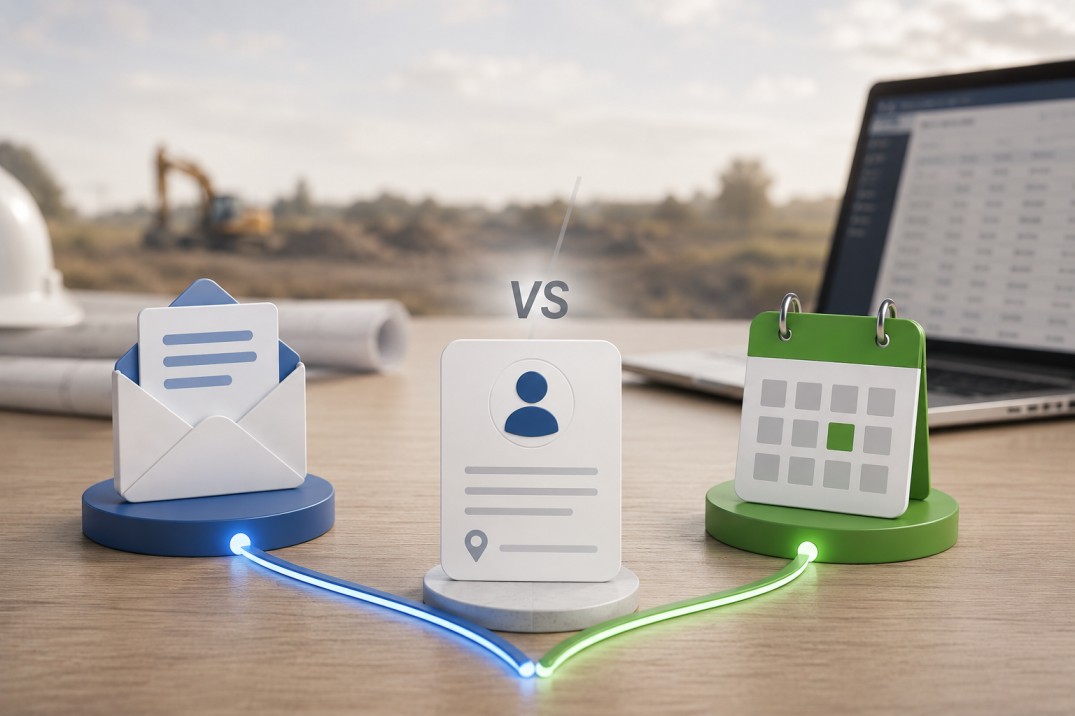
When a field representative submits a new contact registration, two things need to happen: someone on the team needs to know about it right now, and someone needs to act on it within a defined window. Those are different requirements that do not always belong to the same person or the same tool.
An email notification reaches an inbox immediately and stays there as a record. A calendar event blocks time in a schedule and sends a reminder at the right moment. Neither does both jobs well on its own. Email sits unread until someone gets to it; a calendar event without the contact's details requires the attendee to go hunting for the record before the follow-up starts.
In Clappia, when a field registration form is submitted, the workflow can fire both actions simultaneously as parallel steps: an email notification and a Google Calendar event, each carrying the submission's data, each serving a distinct purpose. This article compares the two handoff mechanisms, explains what each one is well suited for, and shows how to configure both with meaningful content rather than placeholder defaults.
In Clappia, a workflow is an automation rule attached to an app. For a field registration form, the trigger is set to On Save, which fires whenever a submission is created or updated. Two actions are added to run in parallel: one sends an email, the other creates a calendar event. Both actions have access to the same submission data and both start at the same moment.
Field values from the submission are referenced in both actions using curly brace notation. Writing {Organisation Name} in an email subject or a calendar event description inserts the actual value from the submission when the action runs. This is what makes both handoffs specific to the contact being registered, rather than generic notifications that require the recipient to look up the details separately.
An email notification fired immediately after a form submission serves as an announcement and a record. It lands in the recipient's inbox at the moment of registration, regardless of whether they are in front of their computer or phone. It stays in the inbox as a searchable reference and can be forwarded, replied to, or archived. For most teams, it is the fastest way to get information from the field to the office.
Email works best as the handoff mechanism when the primary need is awareness: someone at the organisation needs to know a new contact has been registered. That person may or may not be responsible for the follow-up themselves. Sales managers monitoring territory progress, operations teams tracking new registrations, and CRM administrators who need to create corresponding records in another system are all well-served by email. They need the information quickly; they may act on it at their own pace.
What to Put in the Subject Line
The subject line is the only part of the email that gets read before the recipient decides to open it. A vague subject like New Submission or Form Notification tells the recipient nothing. They have to open it to know what it is about, which adds friction. A specific subject line does the opposite: it tells the recipient exactly what registered and where, before they even open the email.
Two subject line patterns that work well:
New Contact Registered: {Organisation Name} - {Town or Area}
Contact Added ({Internal Reference ID}): {Organisation Name}
The first pattern is better for recipients who scan by location or organisation name. The second is better for teams that use the internal reference ID as their primary identifier in downstream systems.
What to Put in the Email Body
The body should contain everything the recipient needs to act on the registration without opening Clappia. That means all five submission fields, plus a direct link to the submission record. A useful template:
A new contact has been registered.
Organisation: {Organisation Name}
Phone: {Phone Number}
Area: {Town or Area}
Reference ID: {Internal Reference ID}
GPS: {GPS Location}
View the full record: [submission link]
The GPS coordinates are included because some recipients will paste them directly into a maps application or a routing tool. A link to the Clappia submission record is included because some recipients will want to see the full form, add a note, or update a field. Including both means the email works as a standalone document and as a gateway to the full record.
Who Should Receive the Email
Email recipients should be people who need to know about every registration as it happens. The To field should include direct stakeholders: the territory manager, the operations coordinator, or the team inbox that handles new contact processing. CC recipients are people who want visibility but are not expected to act: a regional director, a CRM administrator, or a compliance team that logs all registrations.
Avoid over-notifying. If the email goes to ten people who are not responsible for any action, it trains the most important recipients to treat the notification as low-signal noise. Keep the To list short and direct.
A calendar event does something email cannot: it occupies time in someone's schedule. It converts a registration into a committed follow-up task with a specific date, time, and location. The recipient does not have to remember to act on the email or transfer it to a task list. The event appears on their calendar at the right moment with a reminder, and it contains the contact's details in the description so they are ready to act when the time comes.
Calendar events work best when the follow-up action is time-sensitive and location-specific. A sales visit to a new partner, a service check on a newly registered site, or an onboarding call scheduled within an SLA window are all situations where a calendar event is more effective than an email reminder. The event creates commitment and provides navigation context through the GPS-mapped location.
Writing a Useful Event Title
The event title appears in the calendar view and in the reminder notification. It needs to identify the contact clearly so the attendee knows what the event is for without opening it. Two effective patterns:
Follow-up: {Organisation Name}
New Contact Visit: {Organisation Name} ({Town or Area})
The second pattern is more useful for teams with high registration volume, where a name alone might not distinguish one event from several on the same day.
Writing a Useful Event Description
The event description is what the attendee reads when they open the calendar event before the follow-up. It should contain everything they need to start the visit or call without opening any other app. A template that covers this:
Contact: {Organisation Name}
Phone: {Phone Number}
Area: {Town or Area}
Reference ID: {Internal Reference ID}
View registration record: [submission link]
The phone number in the description is there so the attendee can call the contact directly from the calendar event on their phone. The reference ID is there so they can pull up the account in any internal system without searching. The link to the submission record gives them the option to review the full form entry, check the GPS pin, or add notes after the visit.
Setting the Event Location from GPS
In Clappia's Google Calendar integration, the event location field can be mapped to {GPS Location} from the submission. When the event is created, Google Calendar uses the coordinates as a clickable location link. The attendee can tap it in their phone's calendar app and navigate directly to the site. This is the feature that makes the calendar event genuinely location-aware rather than just a reminder with a text address.
This is also why GPS accuracy in the registration form matters for the calendar workflow specifically. A GPS pin two streets away from the actual site will send the attendee to the wrong location. If your team will be using the event location for navigation, the GPS capture in the form needs to be accurate, which means showing a map preview in the form and allowing manual correction.
Setting Start and End Times Based on Your SLA
The event timing should reflect your team's follow-up commitment. If your SLA is that a new contact gets a visit or a call within one business day of registration, the event start time should be the next business day. If the SLA is within three days, the start time should be three business days out.
In Clappia's calendar workflow settings, you can set the event start date relative to the submission date. A 30-minute event at 10:00 AM on the next business day is a reasonable default. Define the end time as 30 minutes after the start. Adjust the window based on how long the follow-up activity actually takes: a brief introductory call needs less time than a site visit.
Setting a 0-minute reminder in the event configuration means the notification appears the moment the event starts. If your team needs preparation time, set the reminder to 15 or 30 minutes before the event instead.
| Aspect | Email Notification | Calendar Event |
|---|---|---|
| Primary purpose | Awareness and record-keeping: tells the team that a registration happened | Action and commitment: schedules the follow-up so it does not get missed |
| Who benefits most | Sales managers, operations teams, CRM administrators needing visibility | The specific person responsible for the follow-up visit or call |
| When it is read | When the recipient checks their inbox, which may be hours later | At the scheduled time, with a reminder ensuring visibility |
| Contact details | Included in the body; readable immediately | Included in the description; readable when opening the event |
| Navigation to the contact | Requires pasting GPS coordinates into a separate maps app | GPS coordinates create a clickable location link in the calendar app |
| Persistence | Stays in inbox until deleted or archived; easily searchable | Stays in calendar until the event date passes; less useful as a long-term record |
| Multiple recipients | Simple: add multiple addresses to To and CC | Each attendee receives the event; works well for small groups, less so for broad distribution |
| Trigger for updates | Fires again on form update, keeping the team notified of changes | Creates a new event on update; may create duplicate events if the form is updated frequently |
Which to Use: Email Only, Calendar Only, or Both
The answer for most field registration workflows is both, but for different audiences. The email goes to the team for awareness. The calendar event goes to the specific person or small group responsible for the follow-up action.
Use Email Only When
Use Calendar Only When
Use Both When
Running both actions in parallel costs nothing extra in Clappia. The email and the calendar event fire simultaneously, each serving a different moment in the follow-up process. Using both removes the need to choose between awareness now and action later.
Both actions are configured in the workflow settings of your registration app. Open the app in Clappia, go to Workflow settings, and create a workflow with an On Save trigger. Add two actions to run in parallel.
Add an Email action. Set the following:
All field references in the subject and body use curly brace notation: {Organisation Name}, {Phone Number}, {Town or Area}, {Internal Reference ID}, {GPS Location}. Each is replaced with the actual submission value when the email is sent.
Add a Google Calendar action. Set the following:
| Element | Calendar Event | |
|---|---|---|
| Title / Subject | New Contact Registered: {Organisation Name} - {Town or Area} | Follow-up: {Organisation Name} |
| Body / Description | Organisation: {Organisation Name} Phone: {Phone Number} Area: {Town or Area} Reference ID: {Internal Reference ID} GPS: {GPS Location} [Link to record] | Contact: {Organisation Name} Phone: {Phone Number} Area: {Town or Area} Reference ID: {Internal Reference ID} [Link to record] |
| Recipients / Attendees | Team distribution list; CC for stakeholders | Individual responsible for follow-up; small group only |
| Timing | Immediate on submission save | Next business day at follow-up start time |
| Location | GPS coordinates in body as text | {GPS Location} mapped to event location field for navigation |
Email and calendar events are not competing handoff mechanisms; they address different moments in the same process. Email delivers awareness immediately and creates a lasting inbox record that multiple stakeholders can reference. The calendar event converts the registration into a scheduled commitment for the person responsible for the follow-up, with the contact's details ready in the description and the location mapped for navigation.
Running both in parallel in Clappia costs no extra configuration effort. The workflow fires both actions simultaneously on every save. The deciding factors are who each action goes to and what content it carries. A clear subject line, a body with all five field values, and a GPS-mapped event location are the difference between a handoff that gets acted on and one that gets read and forgotten.
To configure both actions, open your registration app's workflow settings in Clappia, create an On Save workflow, and add the email and calendar actions as parallel steps using the templates above.
L374, 1st Floor, 5th Main Rd, Sector 6, HSR Layout, Bengaluru, Karnataka 560102, India
3500 S DuPont Hwy, Dover,
Kent 19901, Delaware, USA


.svg)




3500 S DuPont Hwy, Dover,
Kent 19901, Delaware, USA
L374, 1st Floor, 5th Main Rd, Sector 6, HSR Layout, Bengaluru, Karnataka 560102, India


.avif)

.jpg)


