

Still need help?

The Save Draft feature in Clappia allows you to partially fill in a form and save your progress without making a final submission. This is especially useful when you need to step away mid-form, gather additional information, or simply want to review your entries before submitting. You can maintain multiple drafts at a time, and each draft is stored safely in your Submissions tab until you are ready to complete and submit it.
When you open a Clappia app, and start filling in a form, you will find two action buttons at the bottom of the form: Submit and Save Draft.
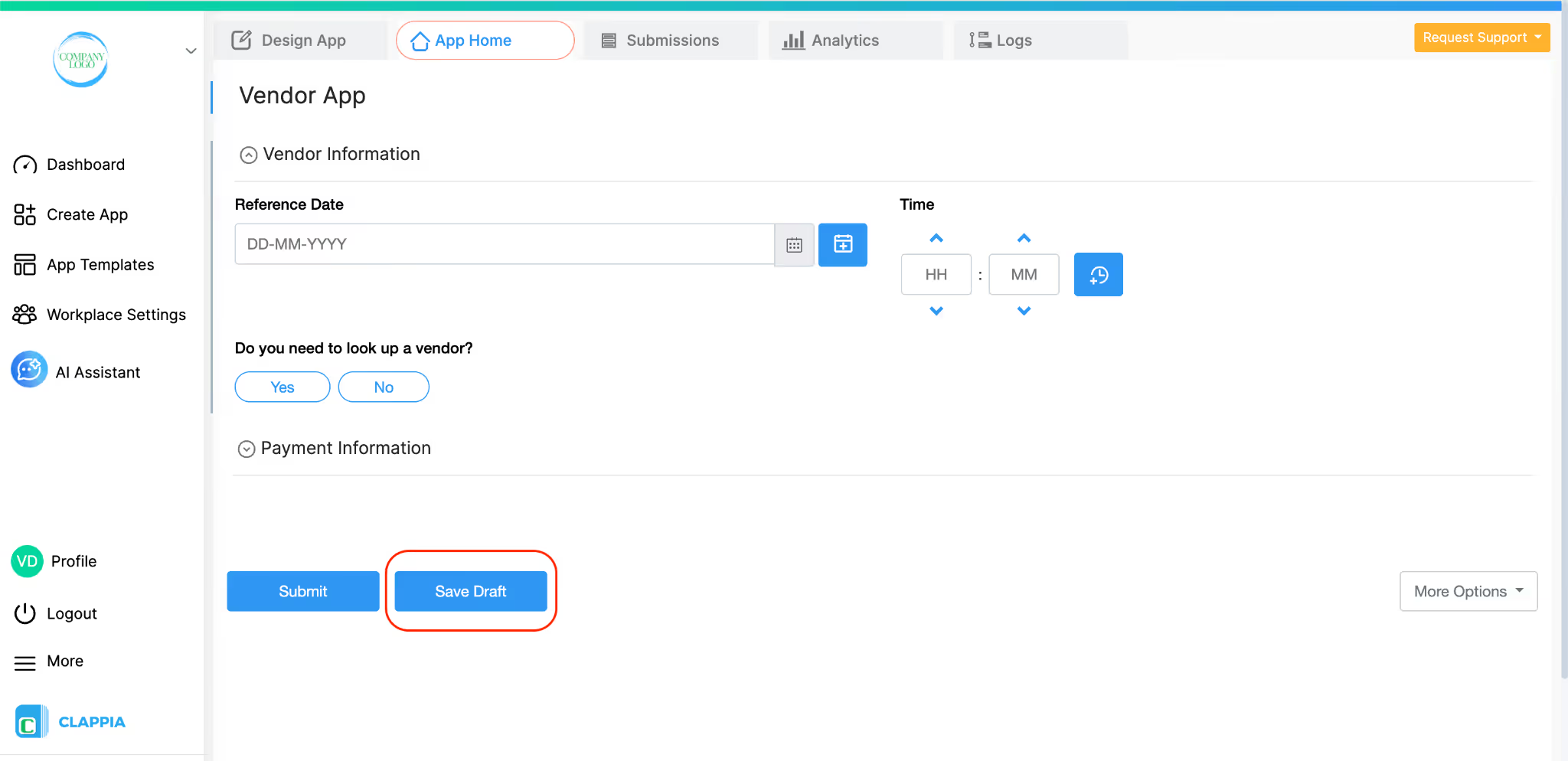
The Submit button finalises your entry and creates a permanent submission.
The Save Draft button, on the other hand, saves your partially (or fully) filled form so you can return to it at any point later and either continue filling it or submit it when ready.
Key things to know about Save Draft:
As an app admin, you can control whether the Save Draft feature is available to users in your app. This is configured through the Design App settings.
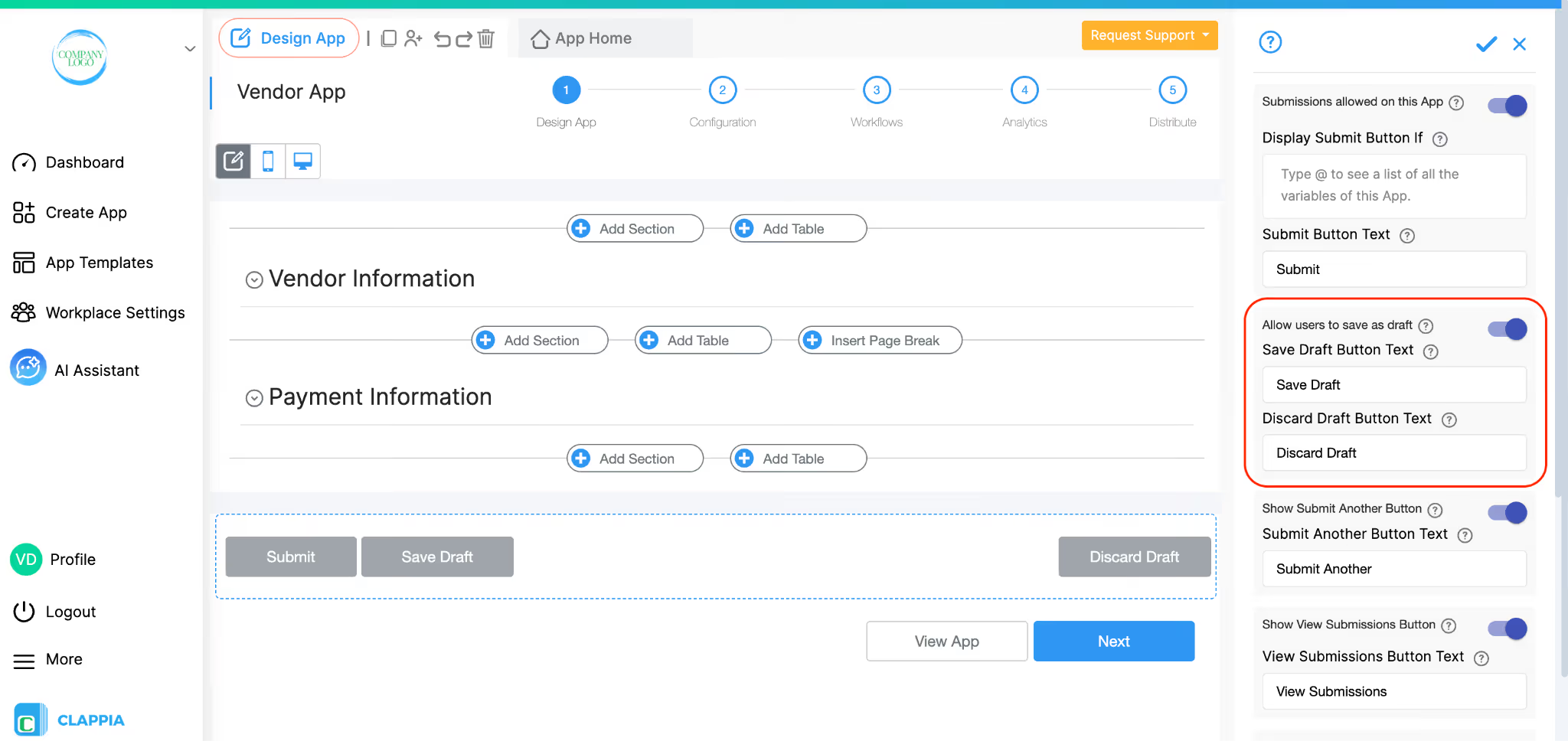
To access the draft settings:
You can save a draft at any point while filling in the form, whether you have filled one field or all of them.
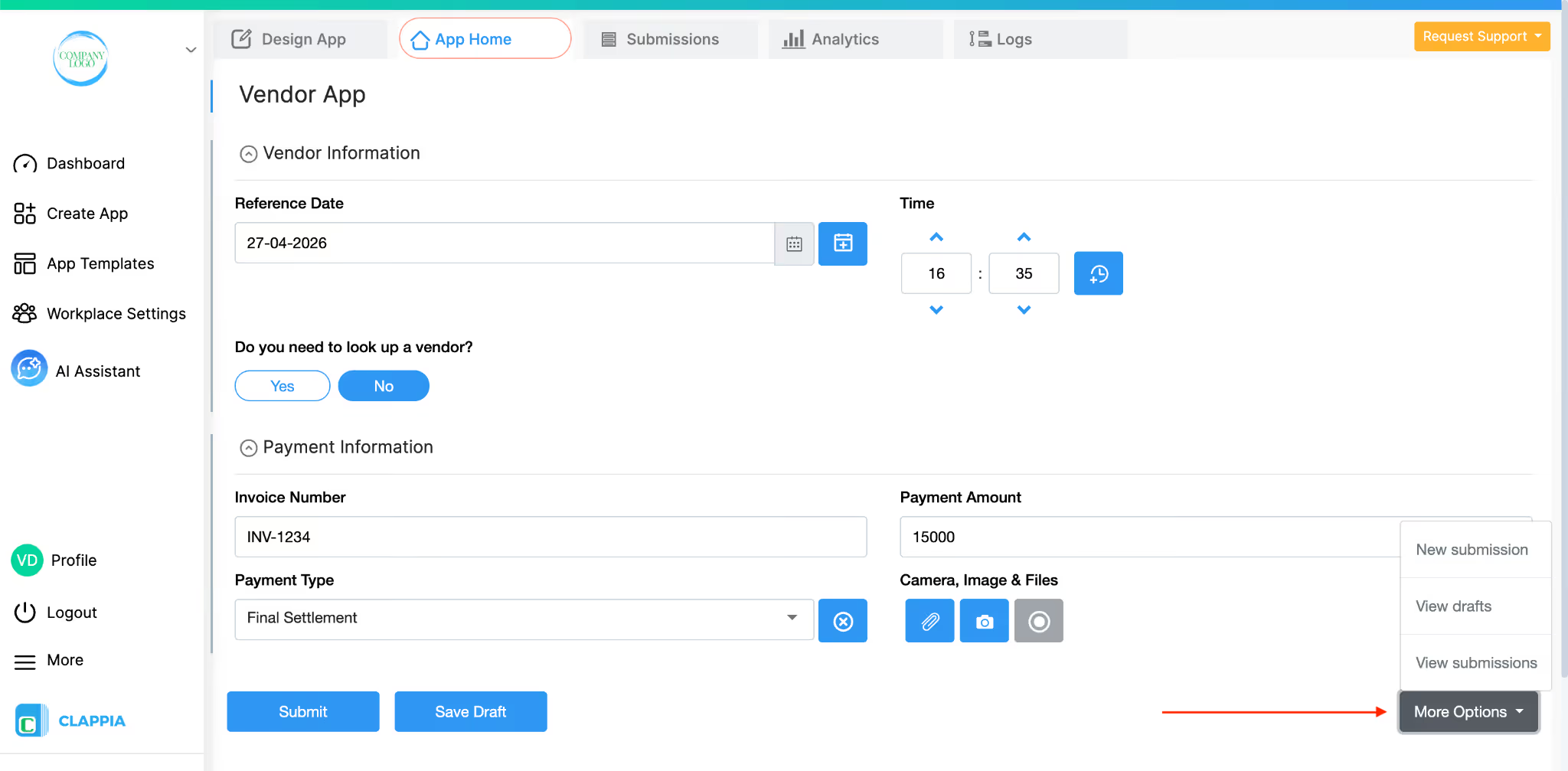
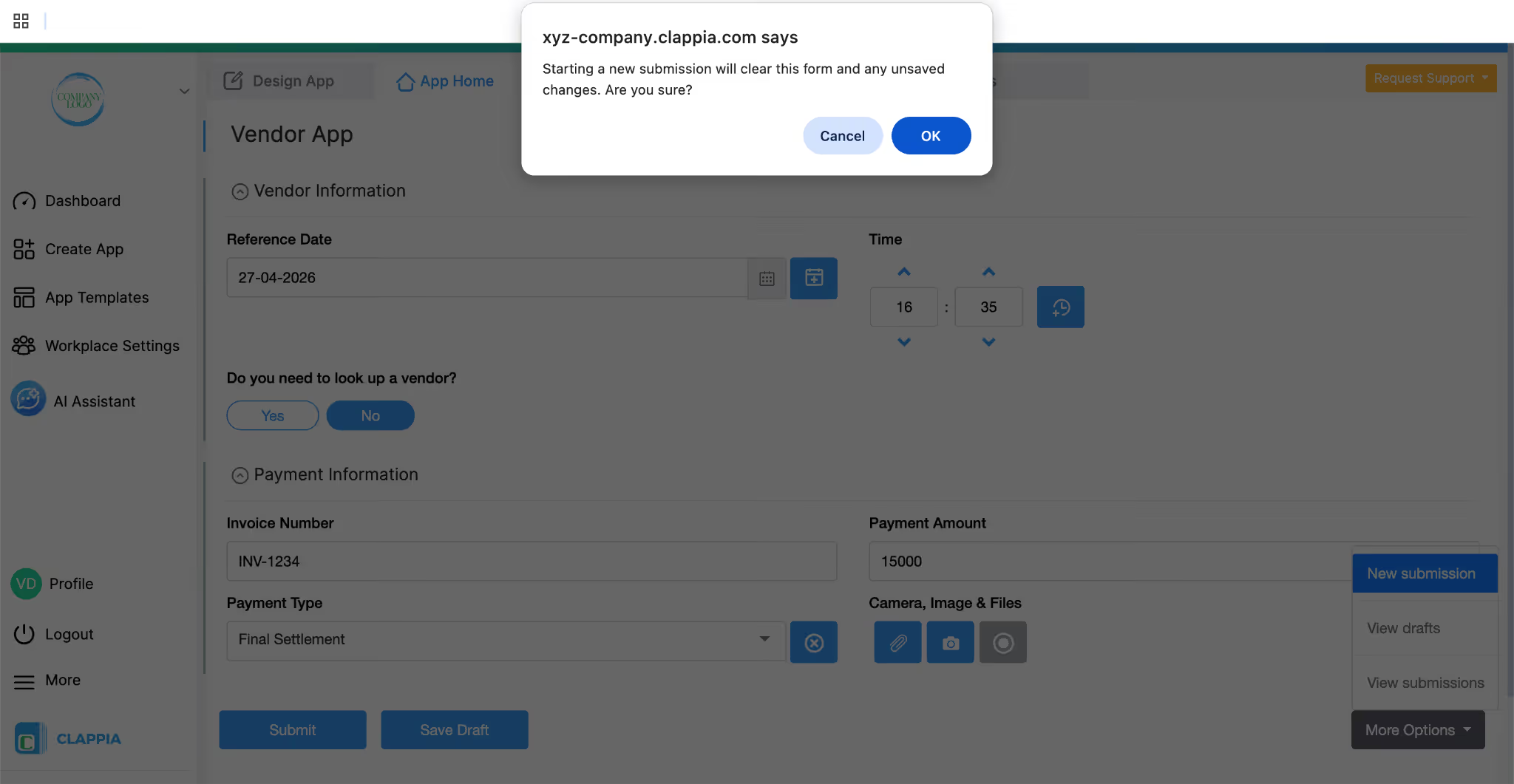
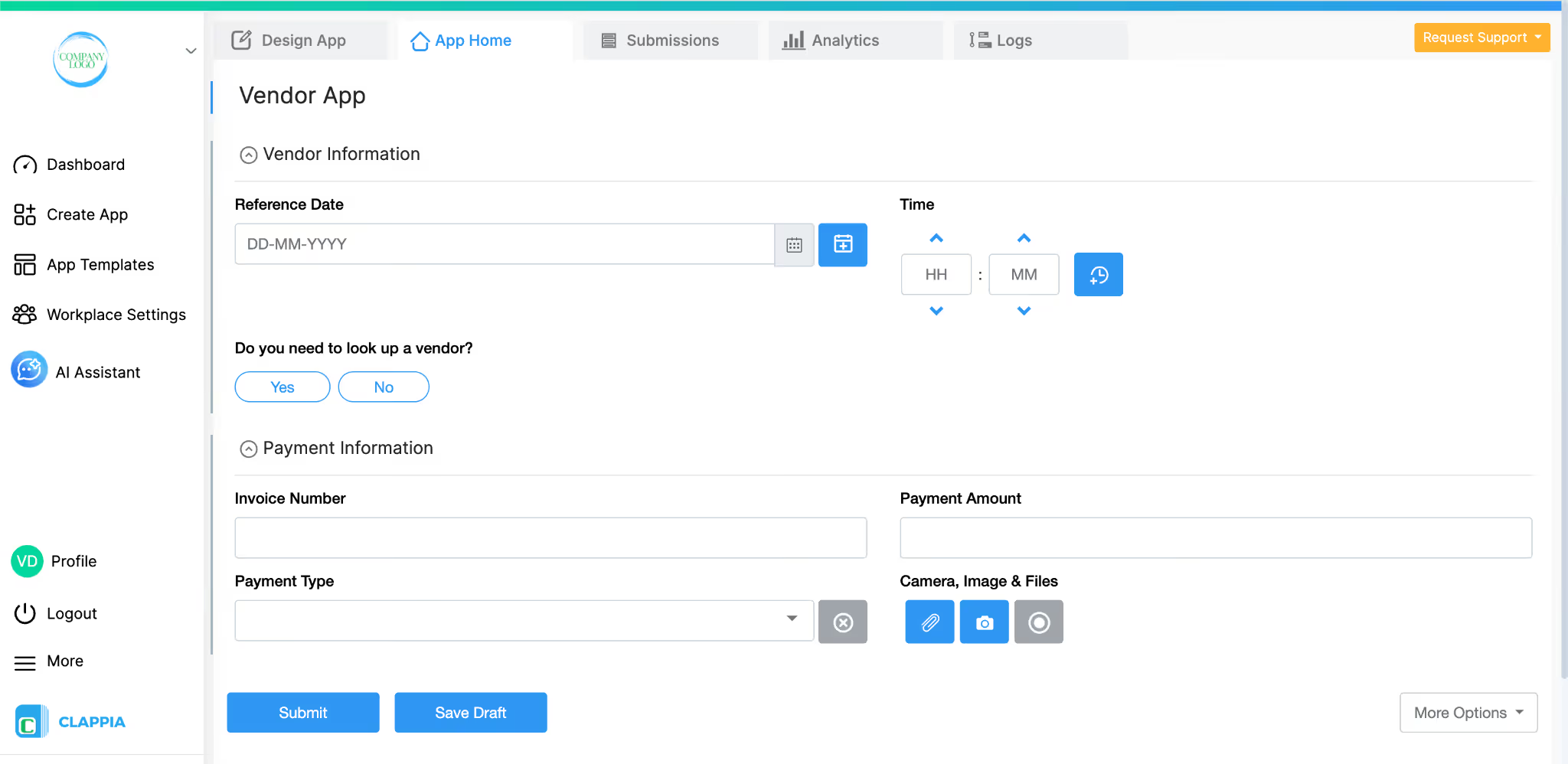
You may get a pop up asking if you are sure to clear the form. Make sure you do click on the Save Draft button first, then check the submissions tab to see if the draft has appeared and then proceed to click on OK in the pop up.
You can repeat this process to create as many drafts as you need. All of them will be available in the Submissions tab for review and eventual submission.
Your drafts are stored in two places within Clappia: the App Home page and the Submissions tab.
When you open the app from App Home, it will automatically load the most recently saved or edited draft for you. This means you can immediately pick up from where you left off without having to search for your draft. However, only the most recent draft is shown in App Home; if you have multiple drafts, the others can be accessed through the Submissions tab.
Important: The draft visible in App Home is only visible to you. Other users logged in on the same platform will not see your draft in their App Home view.
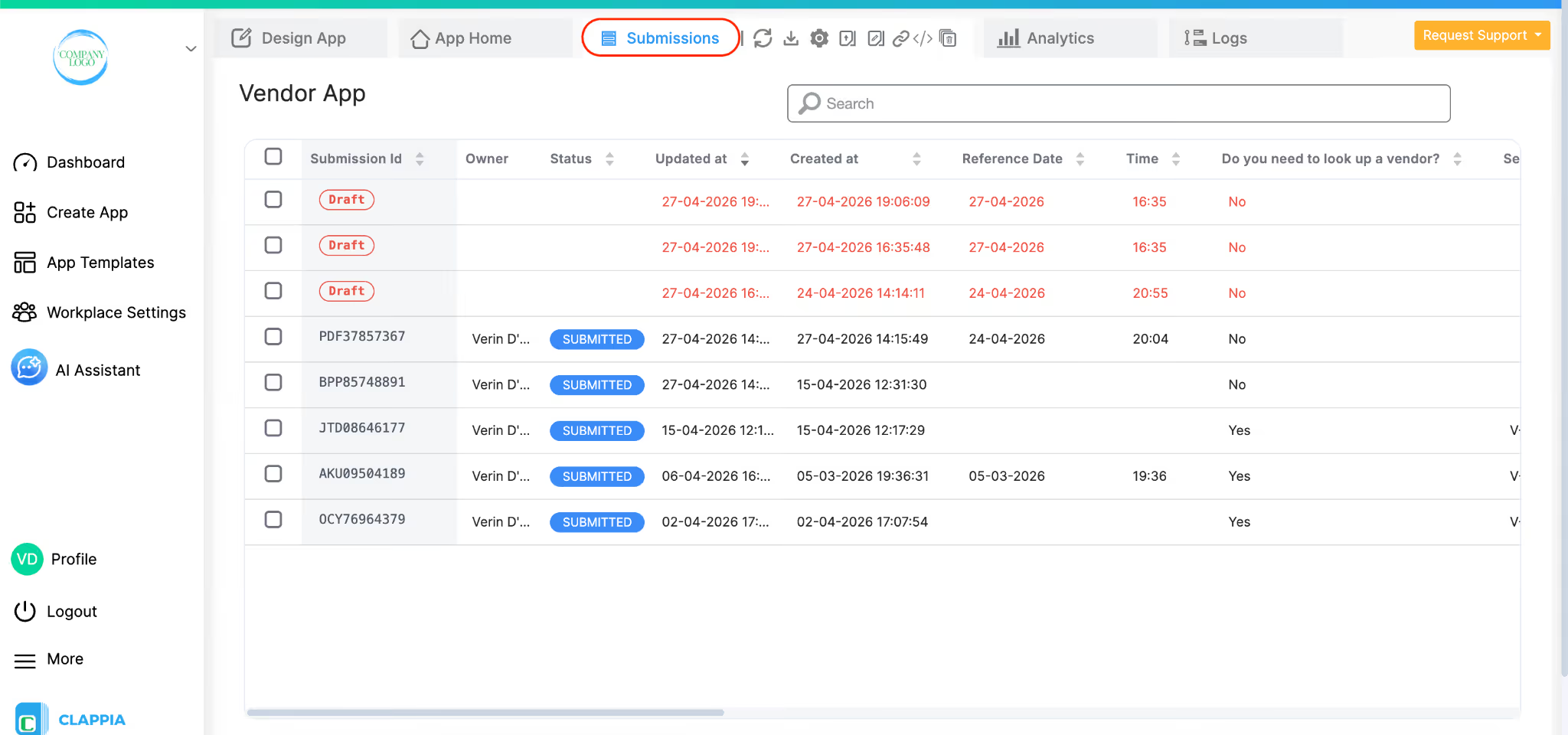
All your saved drafts, whether one or many, are listed in the Submissions tab. Drafts are visually highlighted differently from regular submissions, making them easy to identify at a glance. This is especially helpful when your submissions tab contains a mix of completed submissions and pending drafts.
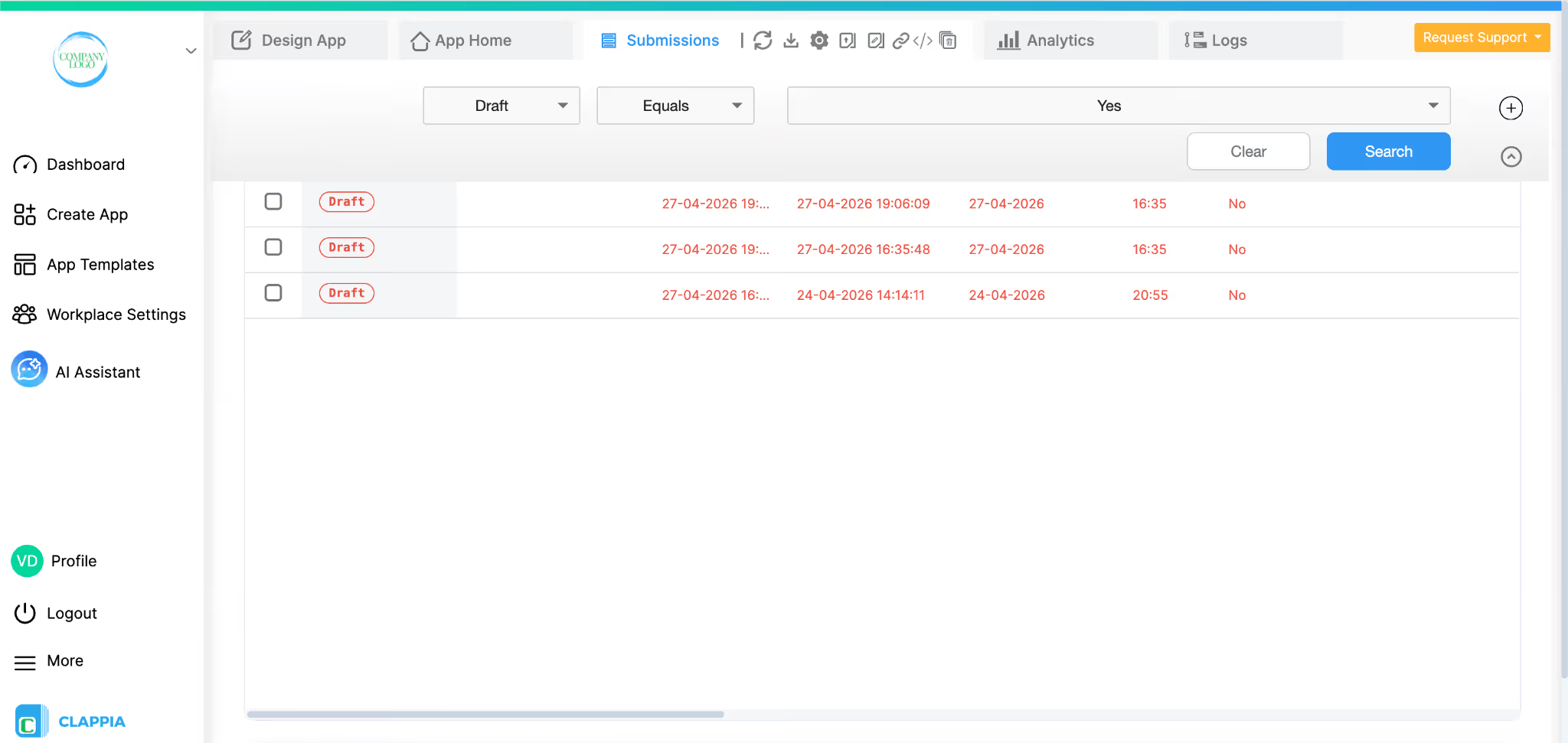
If you have many submissions and finding your drafts feels cumbersome, you can apply search filters in the Submissions tab to display only your draft entries, temporarily hiding all other completed submissions from view.
In the App Home view, you will notice a button labelled “More Options” on the right side of the screen. Clicking this reveals three navigation options that are particularly useful when you are managing drafts:
New Submission
This option is specifically useful when you want to create additional drafts or a new submission.
View Drafts
Clicking this option takes you to the Submissions tab with pre-applied search filters that display only your drafts.
View Submissions
This option takes you to the full Submissions tab where you can view all your entries, both completed submissions and saved drafts without any filters applied.

Once you navigate to the Submissions tab, you will be able to see all your saved drafts listed there. Drafts are displayed with a distinct visual style to set them apart from completed submissions. Clicking on any draft opens it in a right-side panel. From this panel, you have three actions available for a draft:
Save Draft (Updates the Draft)
If you want to add more information or make changes to an existing draft without submitting it yet, fill in or update the fields in the right panel and then click the Save Draft button (or the tick icon at the top of the panel). This will save the updated information into the same draft, keeping it as a draft. It does not create a new submission.
Submit (Converts the Draft to a Final Submission)
When you are satisfied with the information filled in and are ready to make a final submission, click the Submit button in the right panel. This action converts your draft into a real, completed submission. Once submitted, it will no longer appear in the drafts list and will instead appear as a regular submission visible to users with the appropriate permissions.
Important: Once a draft is submitted, it is no longer a draft and cannot be reverted to draft status.
Discard Draft (Permanently Delete the Draft)
If you no longer need a particular draft, you can permanently delete it by clicking the Discard Draft button. This removes the draft entirely from your account.
Warning: Discarding a draft is a permanent action and cannot be undone. Unlike submitted entries (which may be archived and retrieved within a certain time window), discarded drafts are gone immediately and cannot be recovered. You will need to start a new entry from scratch if you change your mind.
The Save Draft feature works the same way on the Clappia mobile app as it does on the web.
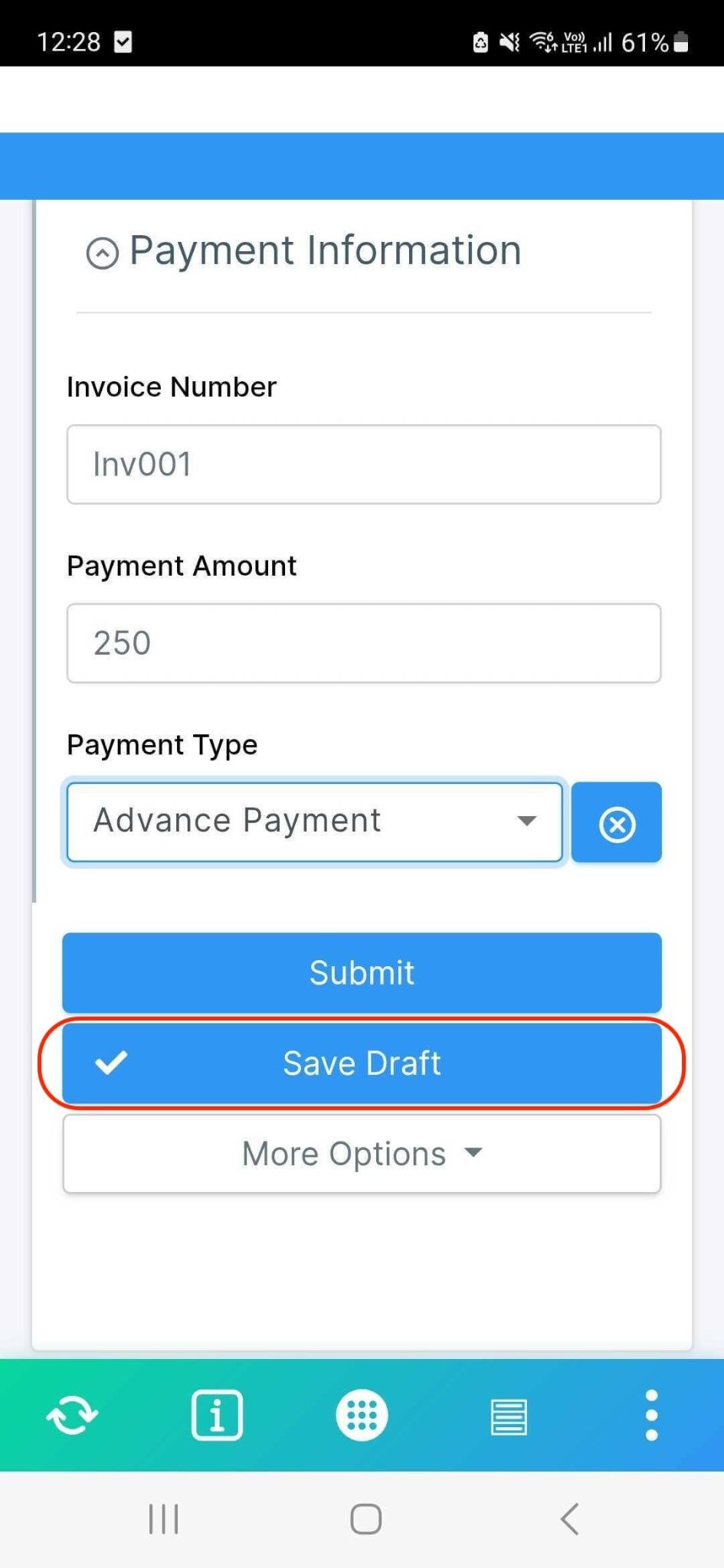
When you fill in a form on the mobile app, you will see the Save Draft button at the bottom of the screen. Tap it to save your progress. Once the draft is saved, the Save Draft button briefly shows a tick icon to confirm the action was successful.
Finding your draft in the Submissions tab
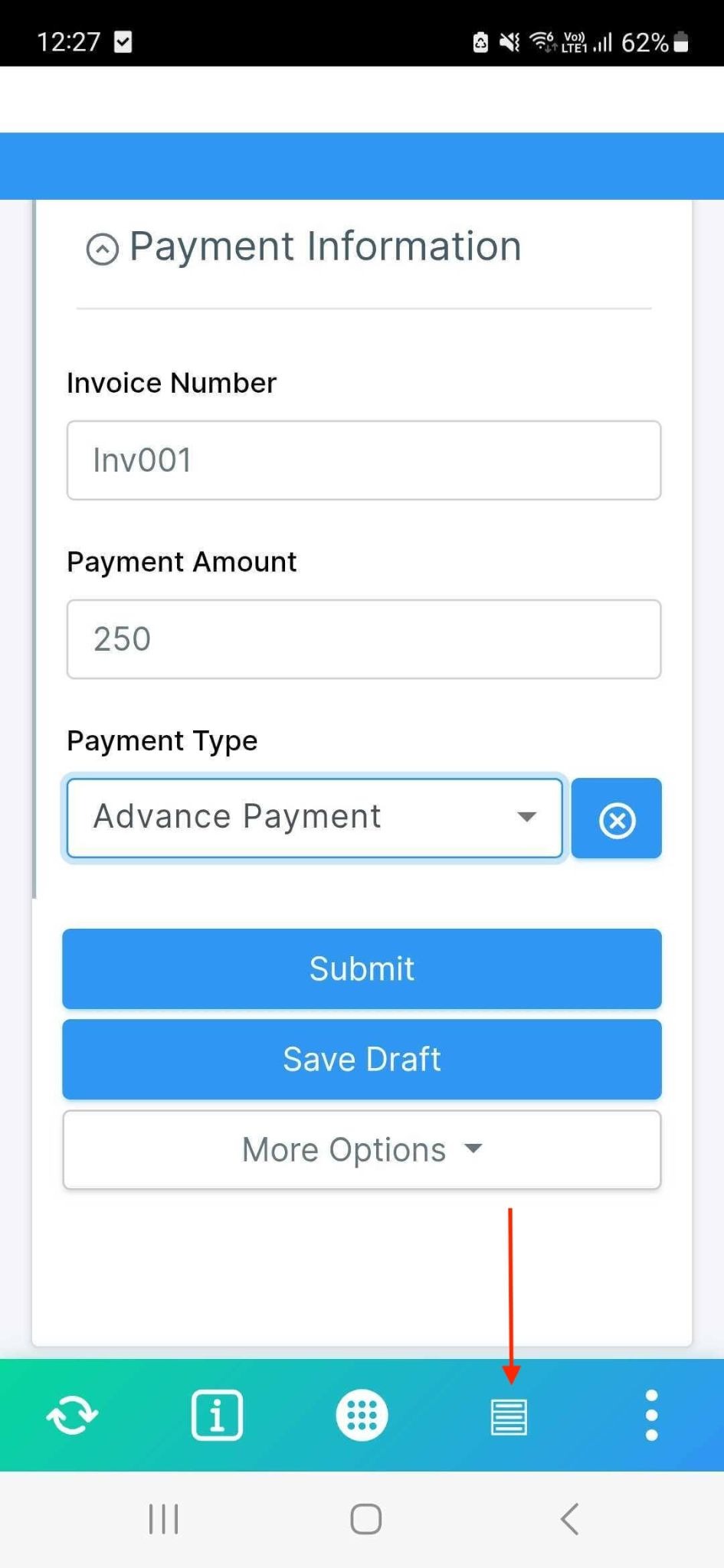
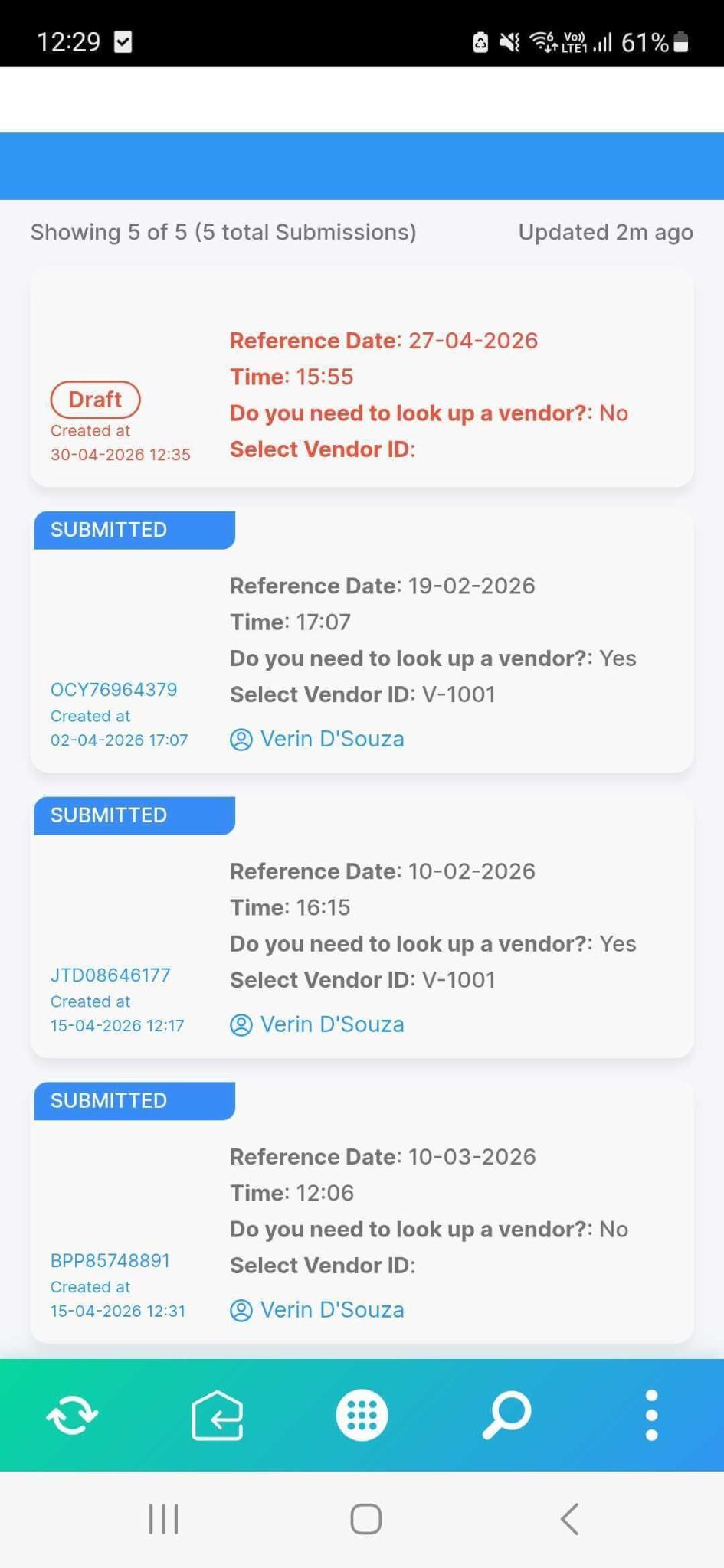
To view your saved drafts, tap the Submissions icon in the bottom navigation bar. Your draft entries appear at the top of the list and are displayed in a distinct colour and shows the draft entry with a red "Draft" status, making them immediately identifiable among your regular submissions. Submitted entries appear in the standard style below them.
Opening and continuing a draft on mobile
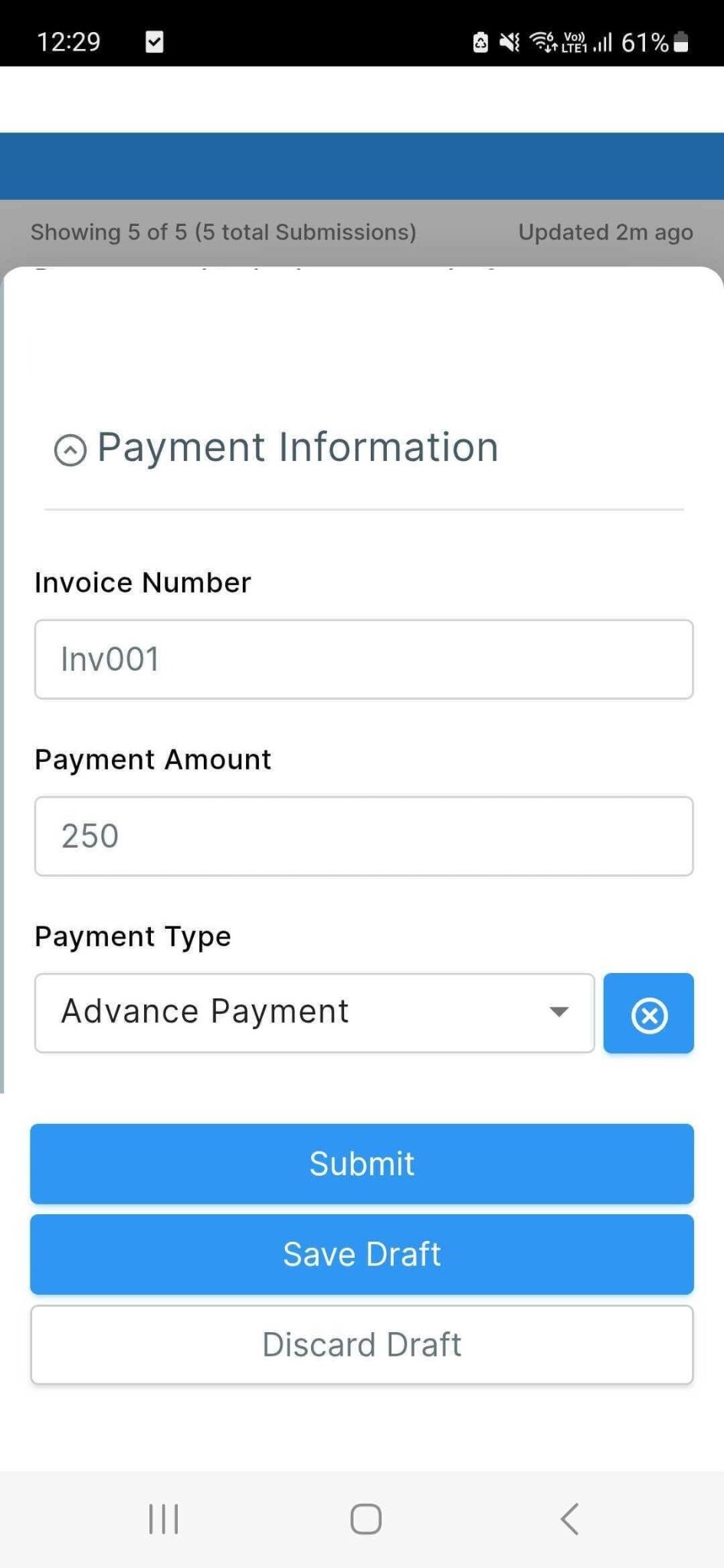
Tap any draft entry in the Submissions list to open it. The form loads with all your previously saved data intact.
From here you can:
Creating multiple drafts on mobile
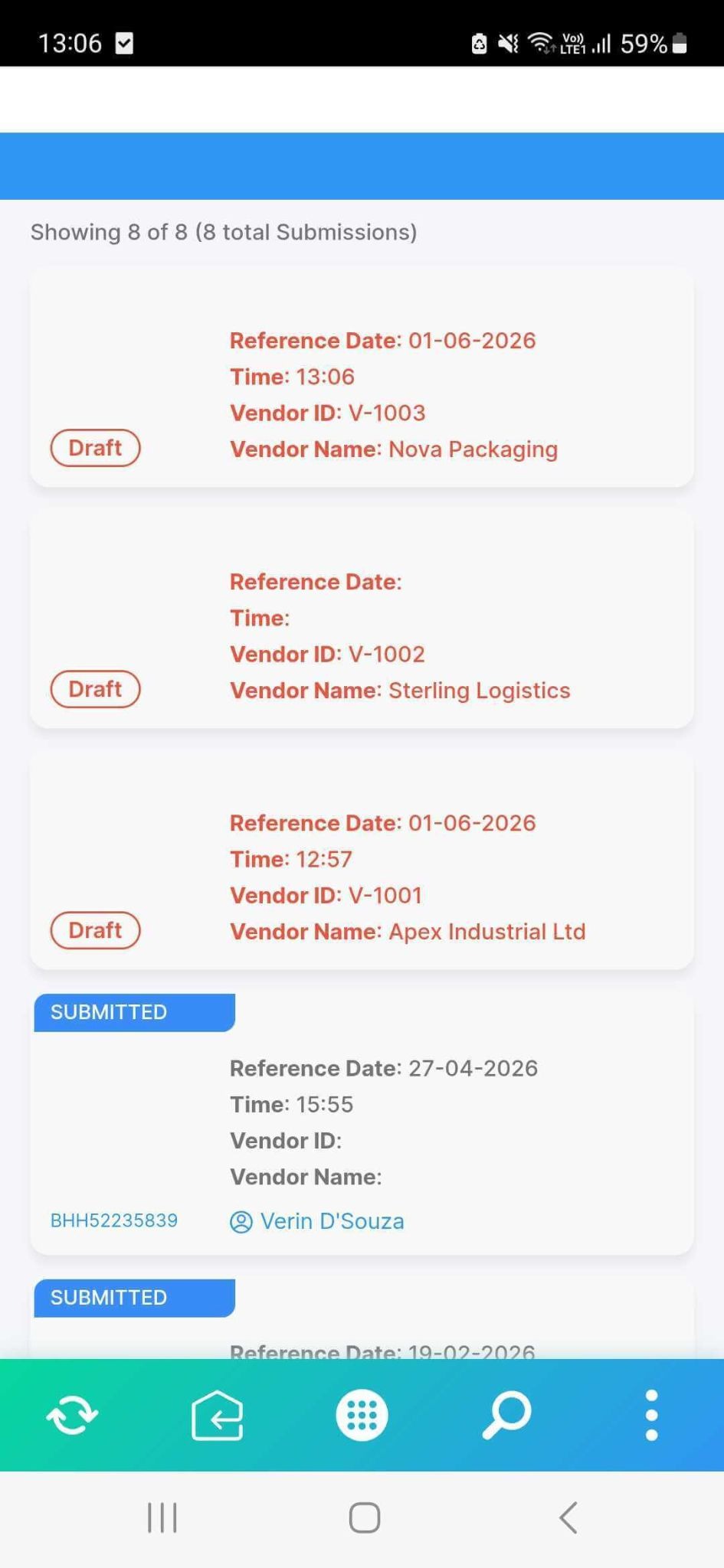
When you open the app, it automatically loads your most recently saved draft. To start a new draft without losing the current one, tap More Options at the bottom of the form and select New Submission.
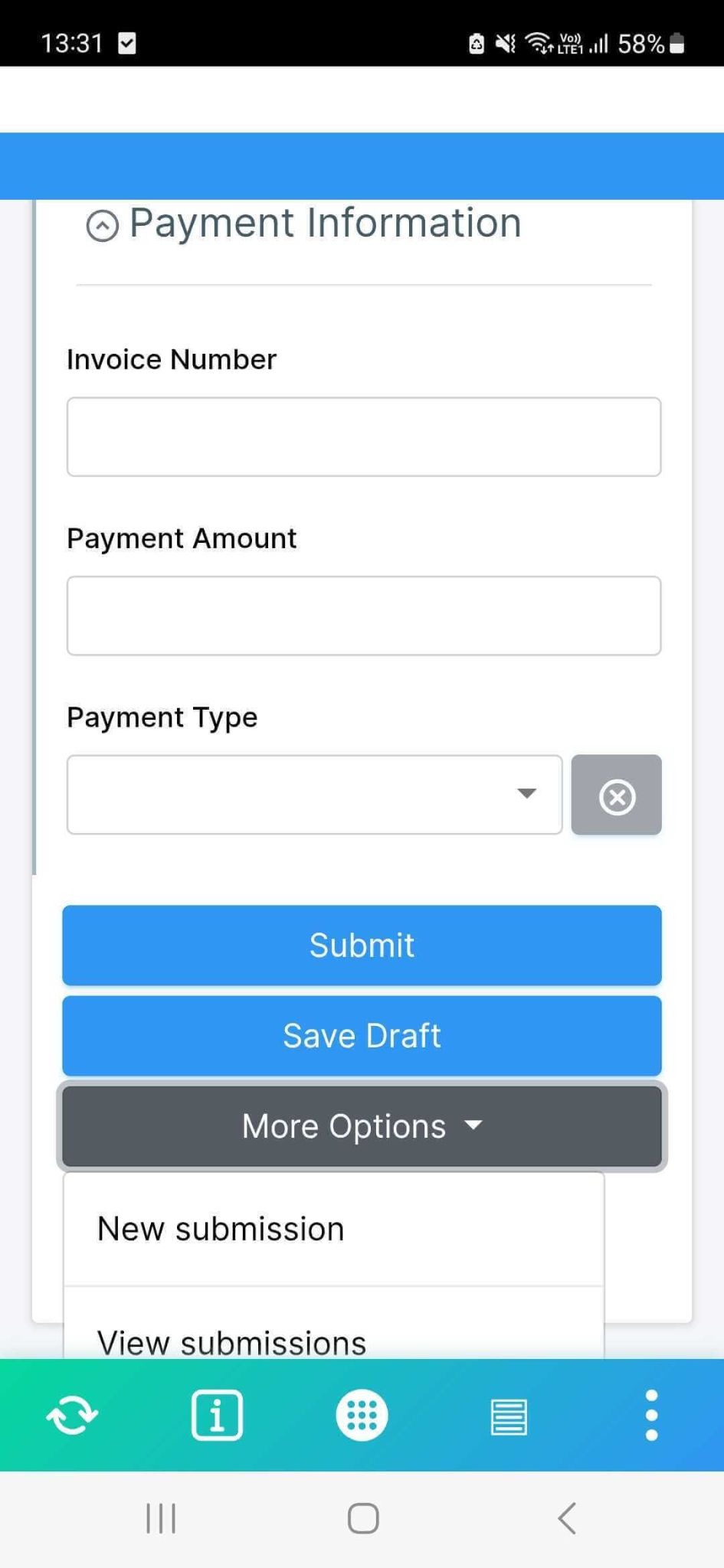
This clears the current form on screen but does not delete the draft from your Submissions tab. You can then fill in the new form and tap Save Draft again to save it as a separate draft. Both drafts remain accessible from the Submissions tab.
Note: Drafts saved on the mobile app are stored locally on your device and will not appear on the web app until they are submitted.
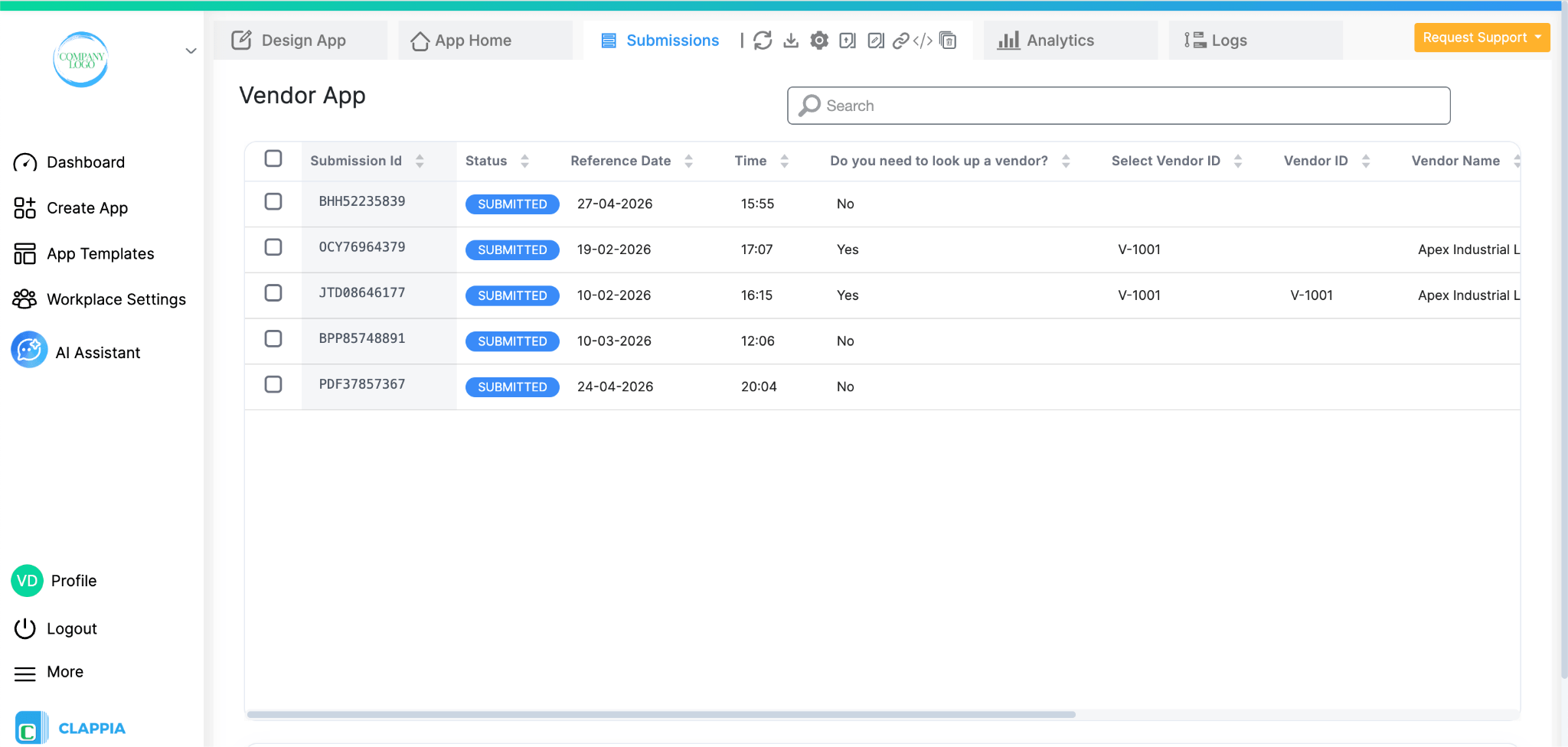
Drafts are private to the user who created them. No other user in your organisation or workspace can see your drafts, regardless of their role or permissions. This remains true even for app administrators. Your drafts are entirely your own until you choose to submit them.
Once a draft is submitted and becomes a real submission, it then follows the normal visibility rules of the app; users with the relevant permissions will be able to see it in the Submissions tab.
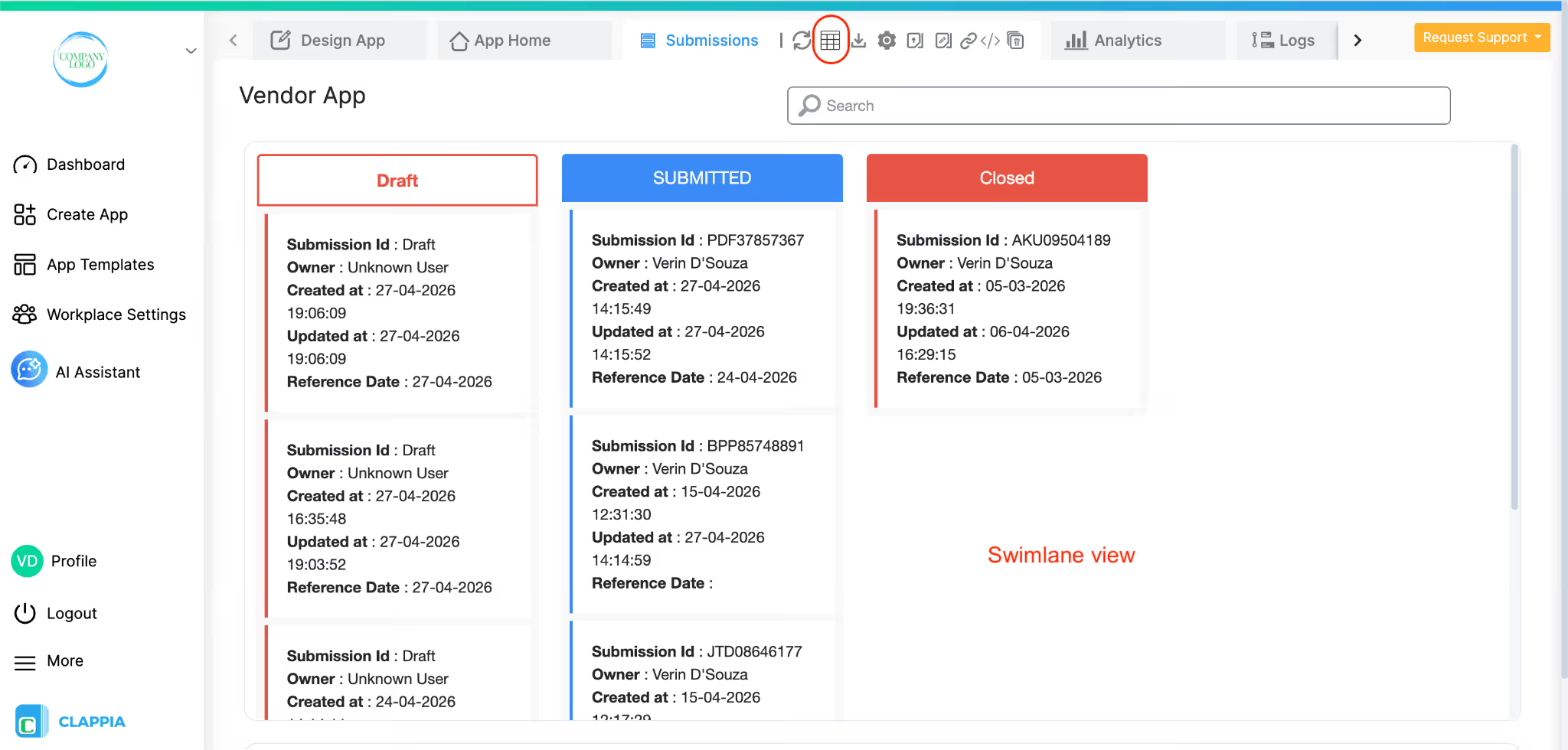
If the Swimlane view is enabled for your Submissions tab, drafts will appear in a dedicated first column. They cannot be moved or dragged to any other status column. If you attempt to drag a draft to another column, a message will be displayed indicating that this action is not permitted for draft entries.
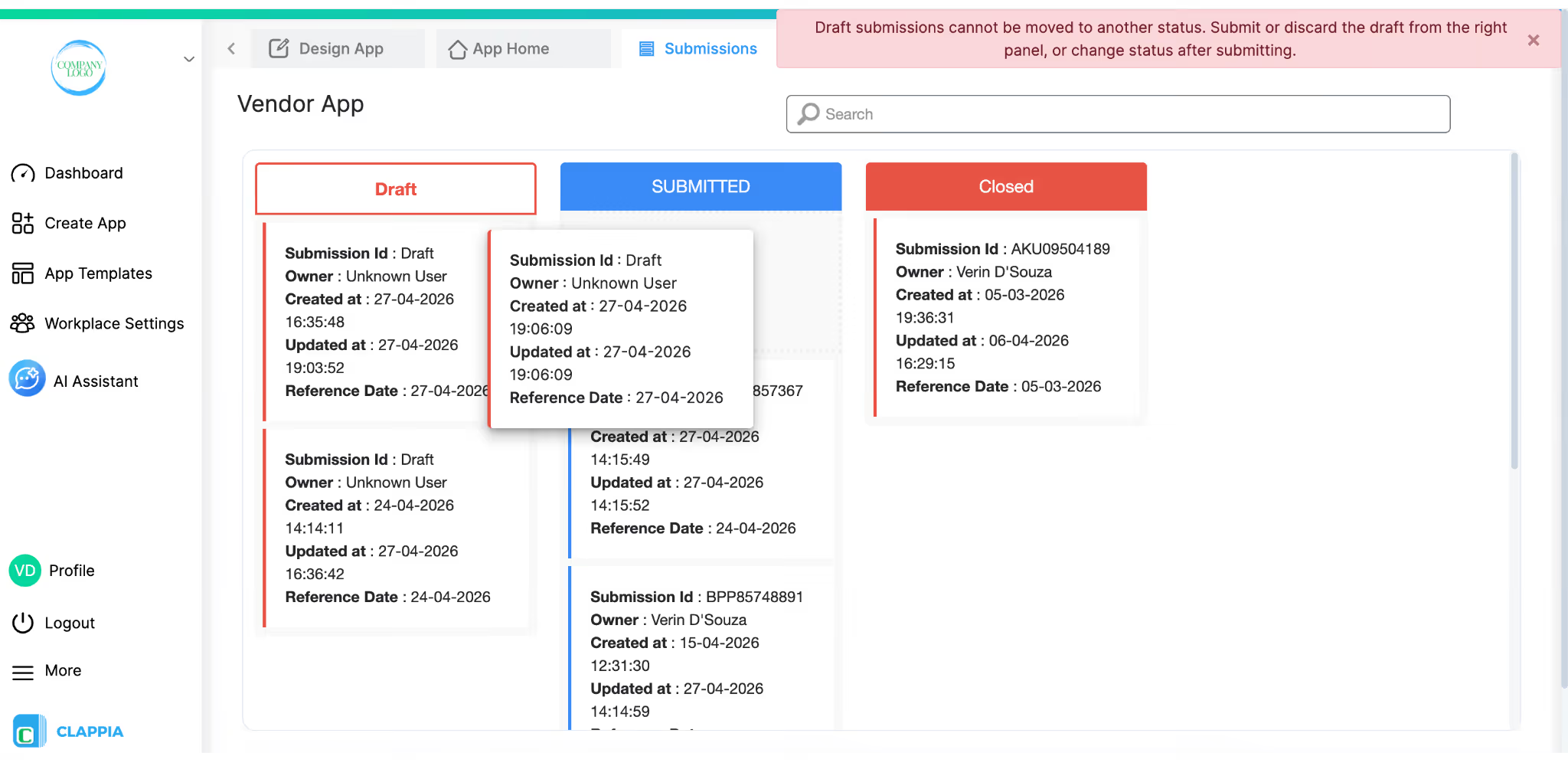
To change the status of a draft entry, you must first submit it, after which it becomes a regular submission that can be managed across swimlane columns.
Draft data is excluded from data exports. If you download submissions via Excel Download, sync data to Google Sheets, or review submission History updates, draft entries will not be included in any of these data outputs. Only finalised submissions appear in exports. This ensures your exported data represents only confirmed, completed entries.
Your most recent draft always appears in App Home automatically. Here is what happens in various scenarios:
L374, 1st Floor, 5th Main Rd, Sector 6, HSR Layout, Bengaluru, Karnataka 560102, India
3500 S DuPont Hwy, Dover,
Kent 19901, Delaware, USA


.svg)




3500 S DuPont Hwy, Dover,
Kent 19901, Delaware, USA
L374, 1st Floor, 5th Main Rd, Sector 6, HSR Layout, Bengaluru, Karnataka 560102, India