

Still need help?

Clappia allows you to configure the languages available in your Workplace and choose a default language for your users. Workplace Managers can decide which supported languages users can select, while individual users can choose their preferred language from the languages allowed for their Workplace.
Language settings help users interact with Clappia in a language they are comfortable with. The selected language is used for Clappia's interface wherever translations are supported. You can also use the current user's language in formulas to configure app behaviour based on the language selected by the user.
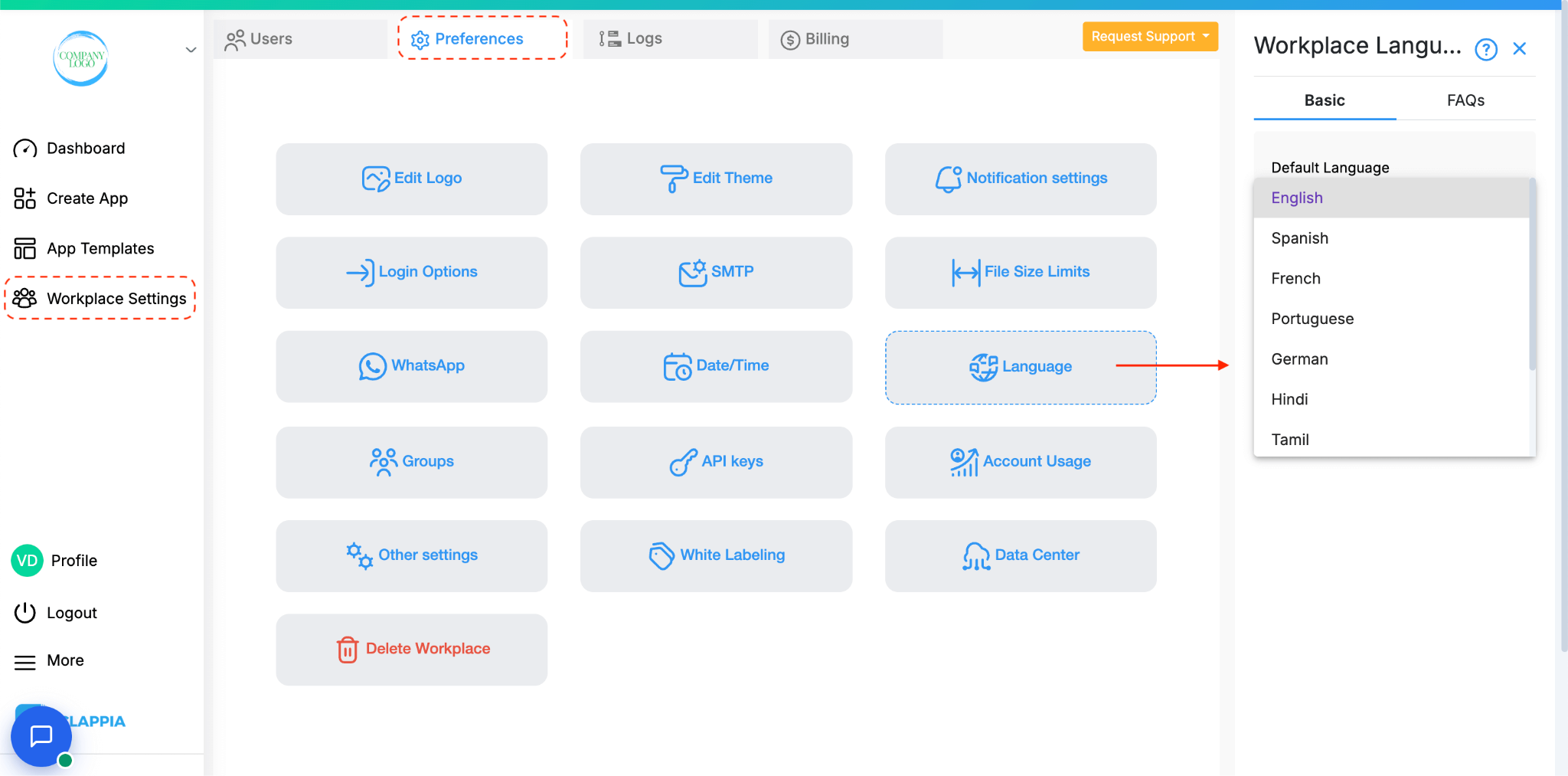
Workplace Managers can configure the languages available to users and set the default language for the Workplace.
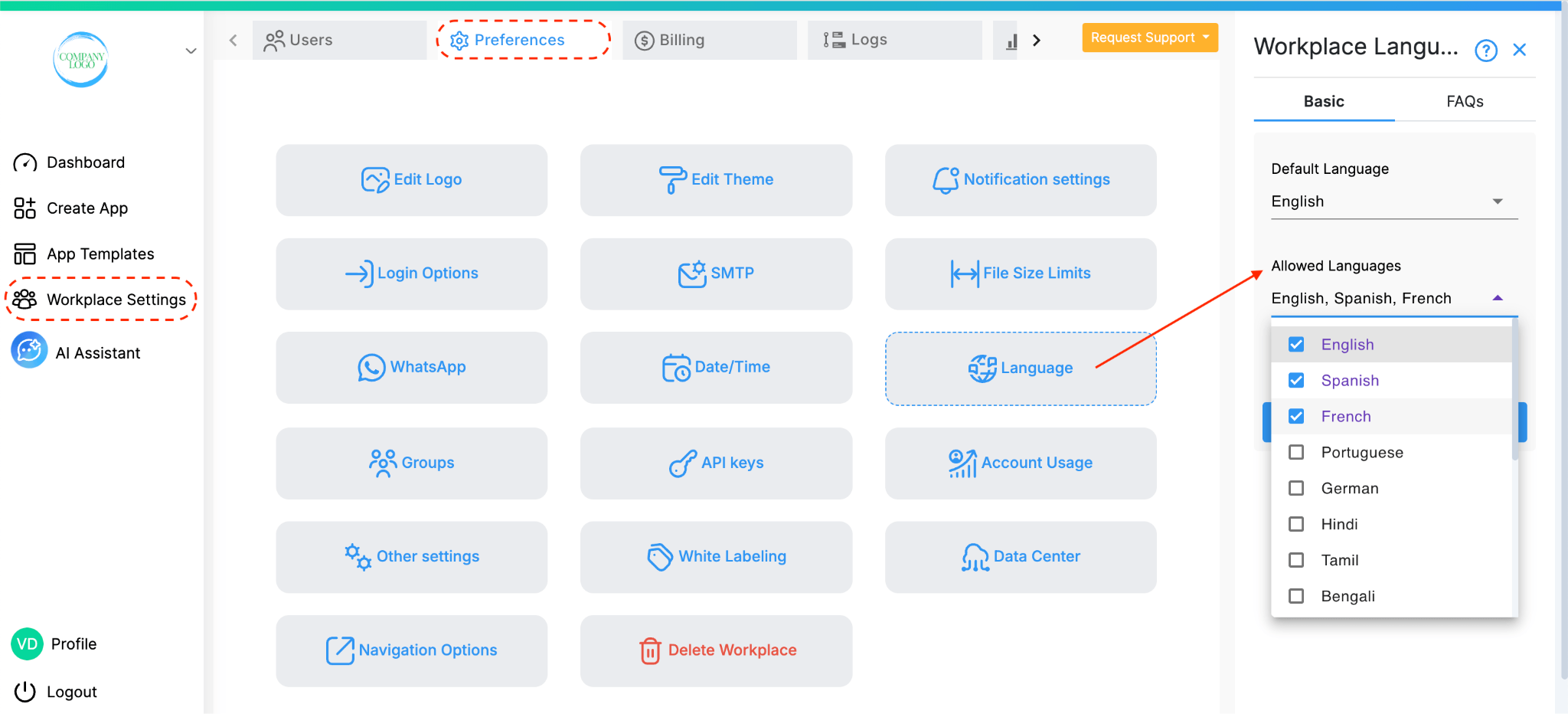
The Allowed languages setting lets Workplace Managers control which supported languages are available to users in their Workplace.
For example, if you allow English, Hindi, and Spanish, users can choose their preferred language from these options. Languages that are not included in the allowed list will not be available for users to select as their preferred language in that Workplace.
You can update the allowed languages whenever your Workplace's language requirements change.
The Default Language setting determines the default language used in the Workplace.
When a user has not selected a preferred language, the Workplace's default language is used. This setting also determines the default language used on sign-up pages.
Setting a default language helps maintain a consistent experience for users who have not selected an individual language preference.
Users can choose their preferred language from the languages allowed for their Workplace. This allows different users in the same Workplace to use Clappia in different languages, without changing the Workplace's default language for everyone else.
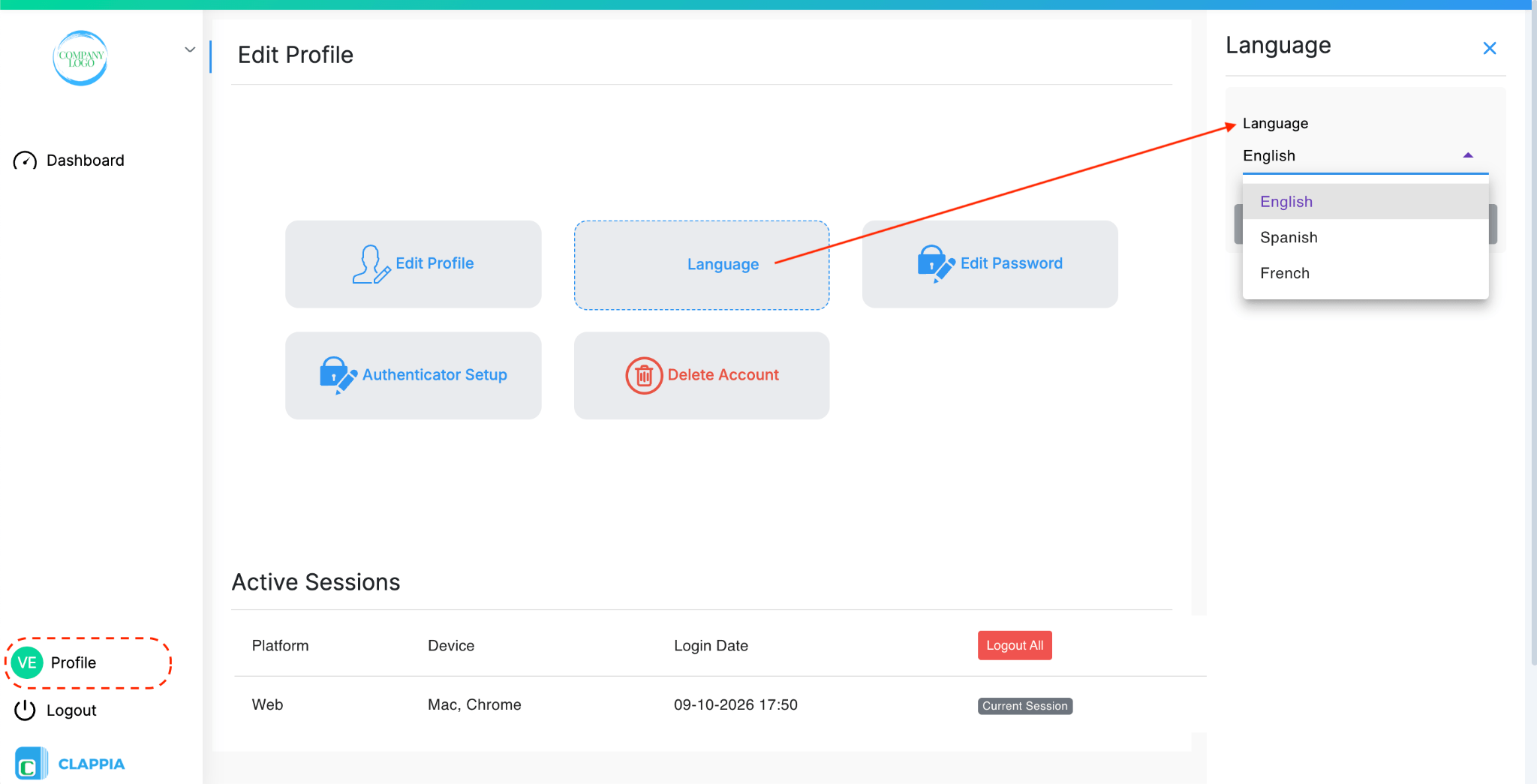
The available options depend on the languages allowed by your Workplace. If a language is not included in the Workplace's allowed languages, it will not be available for you to select.
Changing your preferred language affects your own Clappia experience. It does not change the default language configured for the entire Workplace or change the preferred language selected by other users.
When a user selects a language, Clappia displays its own text in that language in the areas listed below. This includes text provided by Clappia, such as navigation names, labels, and messages. It does not automatically translate text that you have written for your apps.
Changing the language does not translate content you create in your app. For example, if you create a field with the label Employee Name and the description Enter the employee's full name, these remain as you wrote them when a user changes their language.
To display your own field labels and descriptions in another language, you must configure that content separately in Design App. See Configure Labels and Variables guide in Clappia.
Clappia provides the $currentUserLanguage variable, which returns the language associated with the current user. This allows app builders to use the current user's language in formulas.
The language returned by this variable is based on the user's preferred language or the Workplace's default language when the user has not selected a preference.
You can use this variable when configuring formulas in your app. For example, it can help you determine which language should be used on certain conditions or for different users when using the app.
For more information about variables in Clappia, how they work, and how to use them in your app, refer to the Label and Variable guide.
When a Workplace has configured allowed languages, language selection is also available on supported sign-up forms that use email or phone number registration.
This allows users to select a language during sign-up from the languages permitted by the Workplace. The Workplace's default language is used on supported authentication pages when an individual language preference has not been selected.
The languages available during sign-up depend on the allowed languages configured for that Workplace.
L374, 1st Floor, 5th Main Rd, Sector 6, HSR Layout, Bengaluru, Karnataka 560102, India
3500 S DuPont Hwy, Dover,
Kent 19901, Delaware, USA


.svg)




3500 S DuPont Hwy, Dover,
Kent 19901, Delaware, USA
L374, 1st Floor, 5th Main Rd, Sector 6, HSR Layout, Bengaluru, Karnataka 560102, India