

Still need help?

In some workflows, it is important to make sure that everyone gets the same amount of time to complete a task, regardless of when they start. This is especially relevant in scenarios where fairness and consistency matter, and where the system should automatically stop the activity once the allowed time is over.
In Clappia, this can be handled using the Timer option available inside the Action Button block. The timer allows you to define how long the system should wait after a button is clicked, or till a specific date and time is reached, before automatically performing an action.
This guide walks through the same example used in the help documentation and explains how it works in practice.
Let’s say you are running an online examination.
Sign in to Clappia and open your app. Go to ‘Design App’ and add an ‘Action Button’ block to the form.
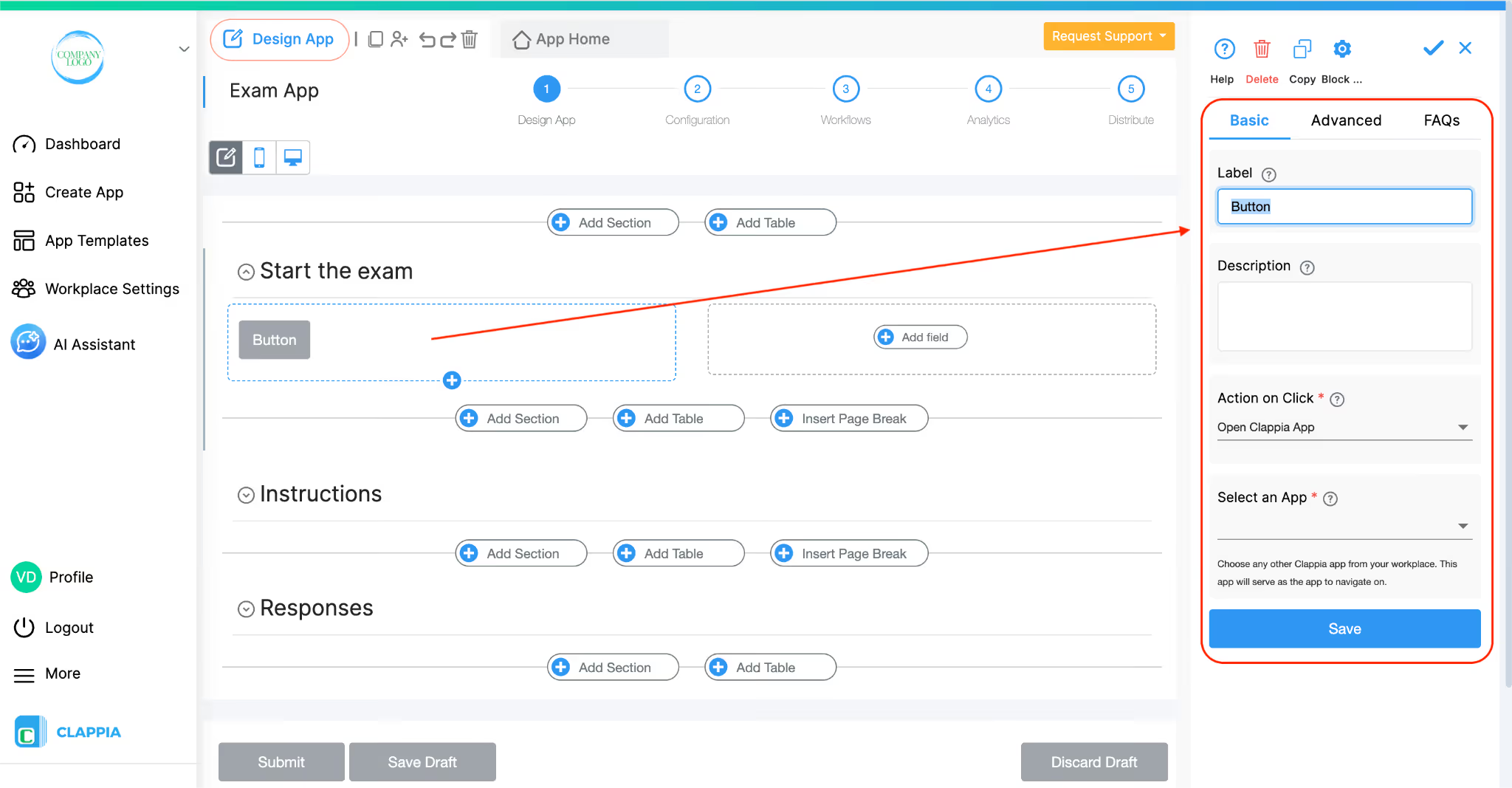
On the right panel, give the button a label, for example: Start Exam.
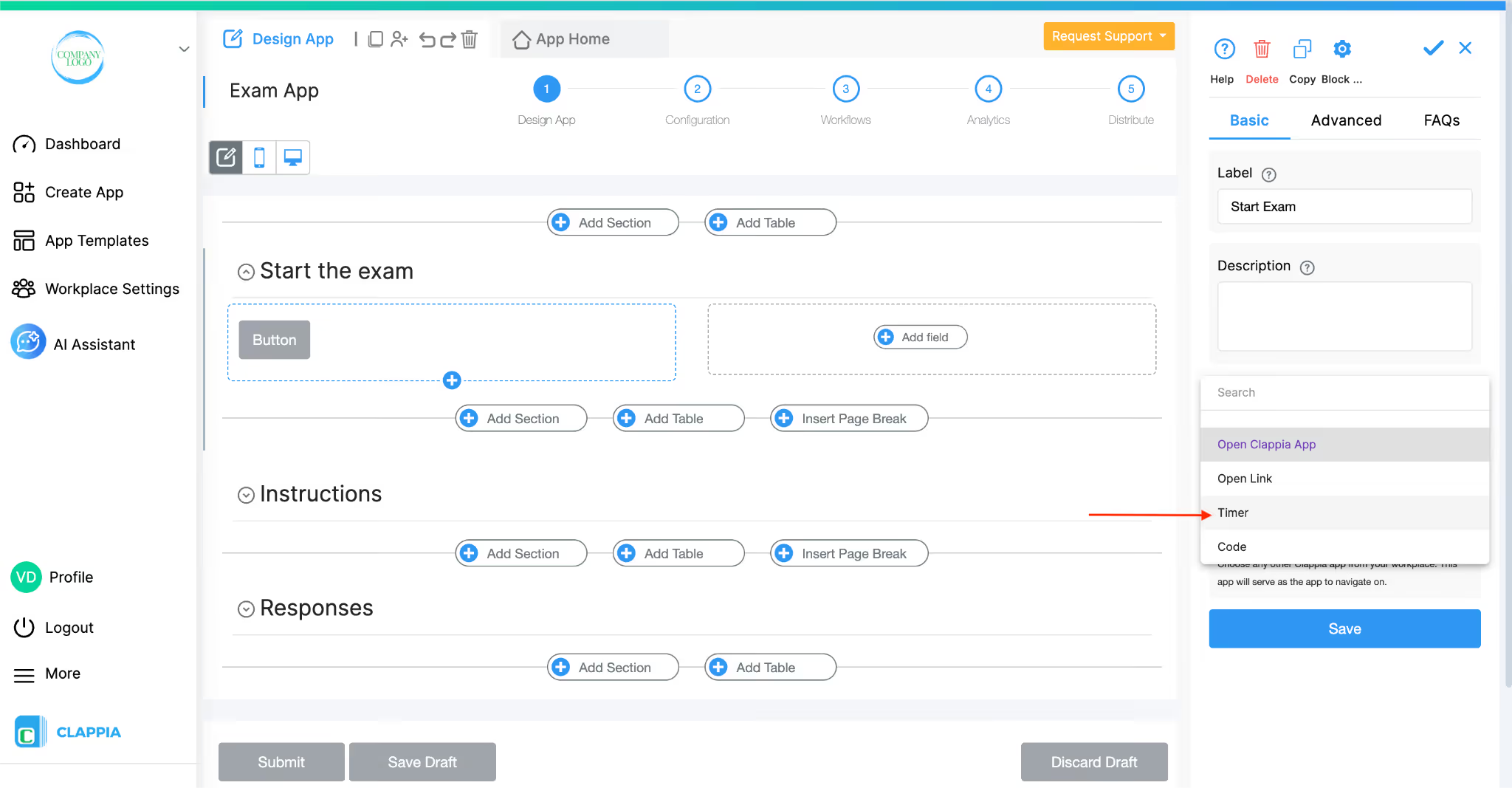
Under ‘Action on Click’, select ‘Timer’. Once Timer is selected, the timer-related fields become available.
Since the exam duration is one hour, first define the duration using seconds.
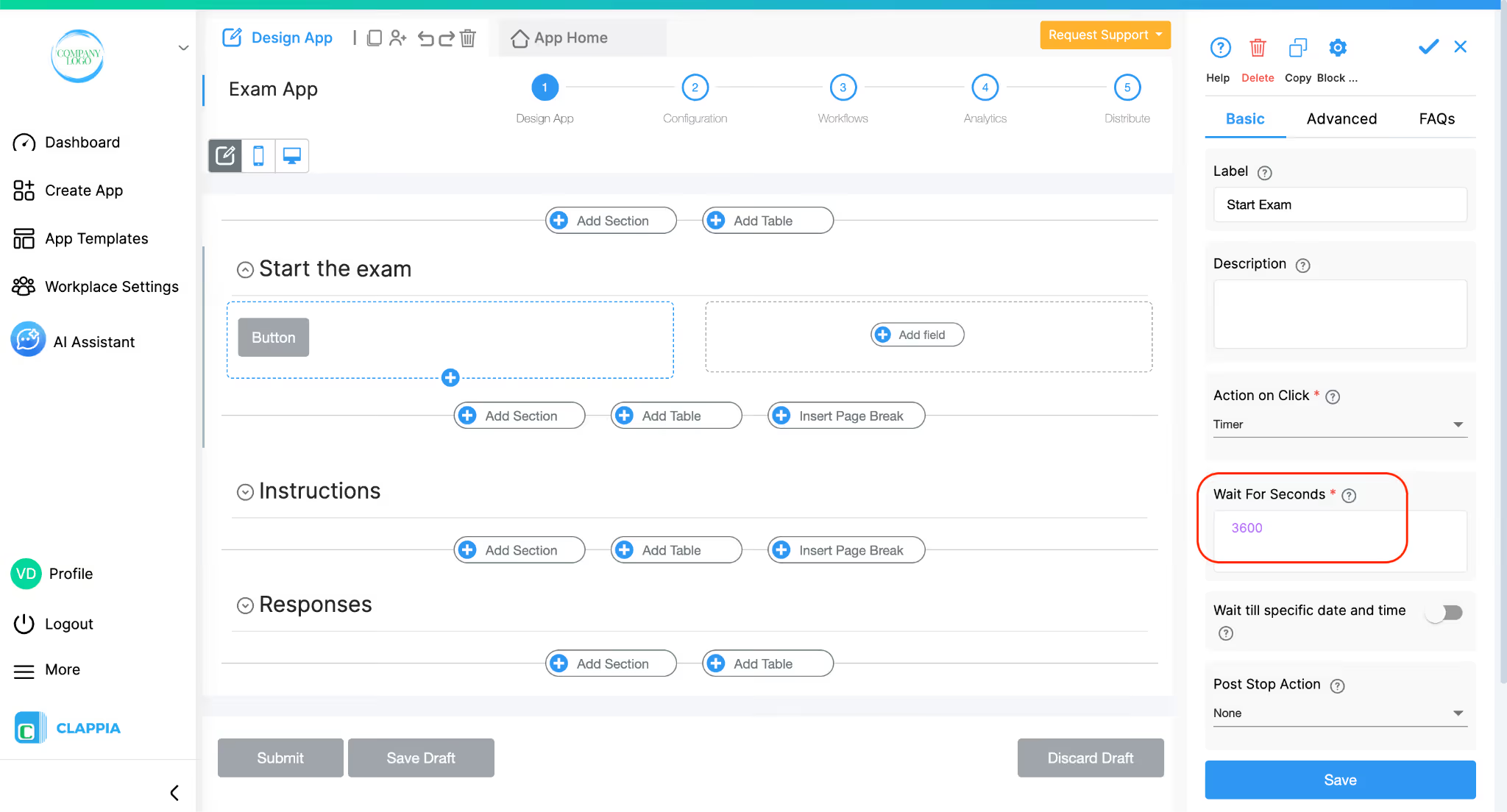
This guarantees that every candidate gets the same total duration, regardless of when they start.
Next, define a fixed end time for the exam. So if a candidate starts the exam late, the exam will still end at the designated time.
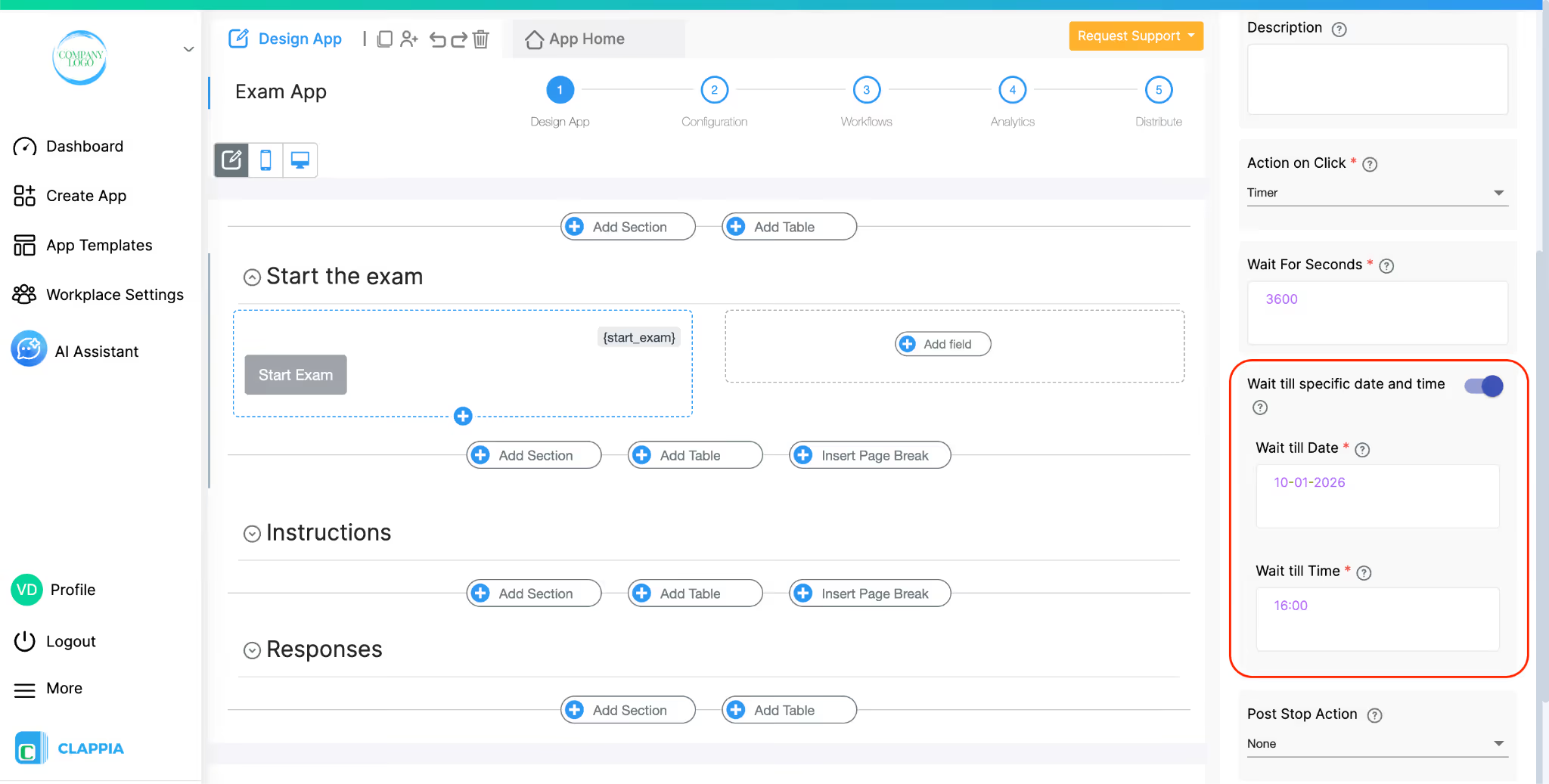
This represents the scheduled end time of the exam.
Now choose what should happen once either of the timer conditions is met.
With this option, the exam form is automatically submitted when the timer stops and the candidates do not need to manually click Submit.
Save the Action Button configuration.
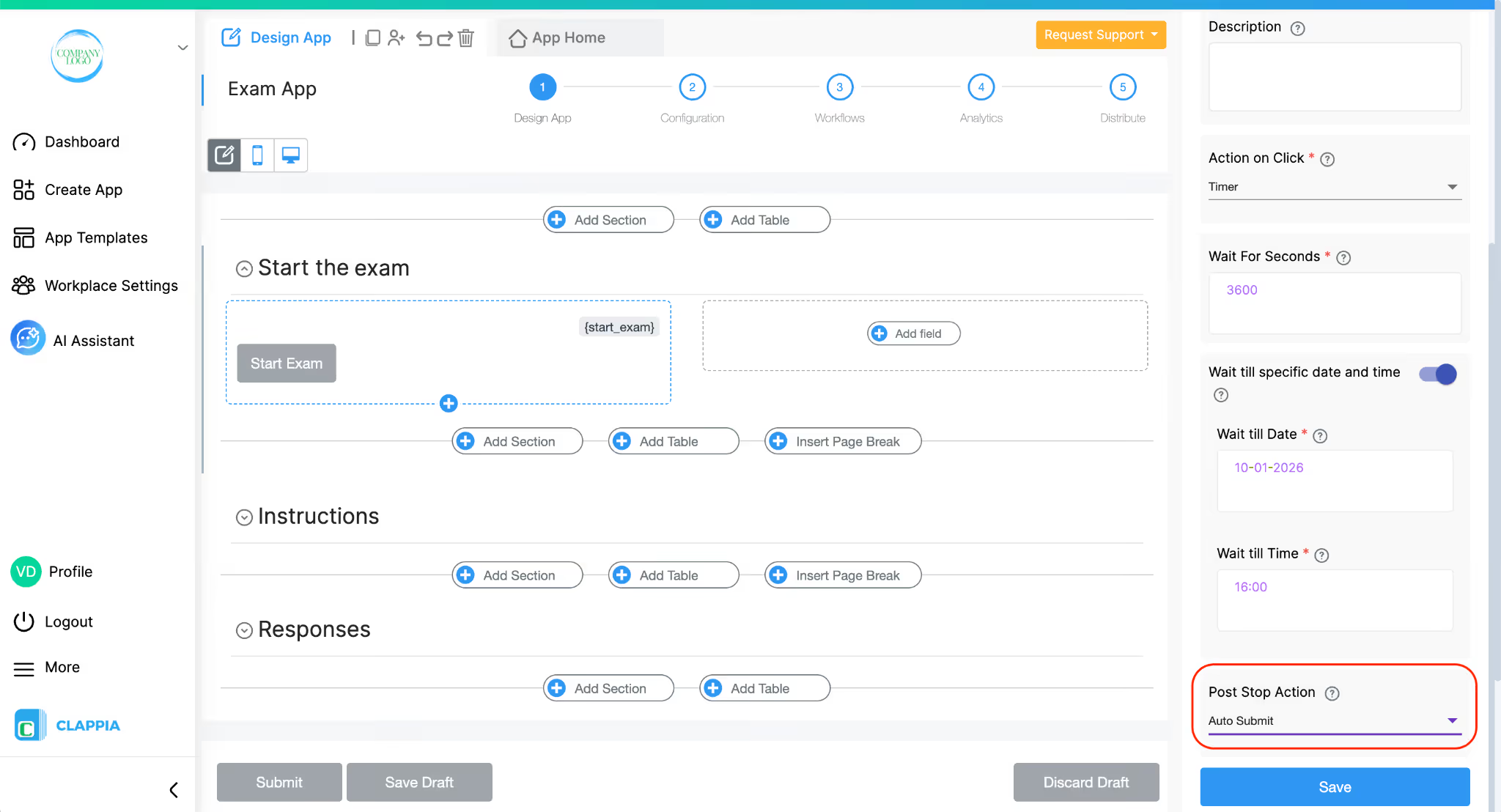
When a candidate clicks the Start Exam button, both timer conditions start being evaluated.
Whichever condition is met first will stop the timer and trigger the Post Stop Action.
For example:
While this example uses an examination scenario, the same setup is useful in business contexts such as:
L374, 1st Floor, 5th Main Rd, Sector 6, HSR Layout, Bengaluru, Karnataka 560102, India
3500 S DuPont Hwy, Dover,
Kent 19901, Delaware, USA


.svg)




3500 S DuPont Hwy, Dover,
Kent 19901, Delaware, USA
L374, 1st Floor, 5th Main Rd, Sector 6, HSR Layout, Bengaluru, Karnataka 560102, India