Your field technician tags equipment at a remote site. They photograph the asset, note the model number, serial, and location on their mobile device. Two days later, someone at the office types that information into a label template and prints asset tags.
By that time, the asset might have moved. The serial number might be transcribed incorrectly. The label doesn't match what was actually recorded in the field.
This disconnect between field data capture and office-based label printing creates three problems: delayed asset visibility, transcription errors, and duplicate work.
Most organizations follow this pattern:
Field teams visit sites with equipment, tools, or devices that need tracking. They capture data using paper forms, spreadsheets, or mobile apps. Asset ID, manufacturer, model, serial number, purchase date, assigned location, condition notes—all recorded in the field.
That data gets sent back to the office. Someone reviews it, opens label software like Bartender or Asset Panda, manually enters the details, formats the template, and prints asset tags. Those physical labels then need to ship back to the field or wait for the next site visit.
The gap between capture and labeling creates risk. Time delay compounds as assets sit untagged for days or weeks. If they move between sites before labels arrive, the printed location data is already wrong. Transcription errors happen when retyping serial numbers or model codes. A single wrong character means the label doesn't match the database record.
The underlying problem is architectural. Data capture happens in field mobile apps. Label creation happens in office-based software. Bridging that gap requires manual coordination.
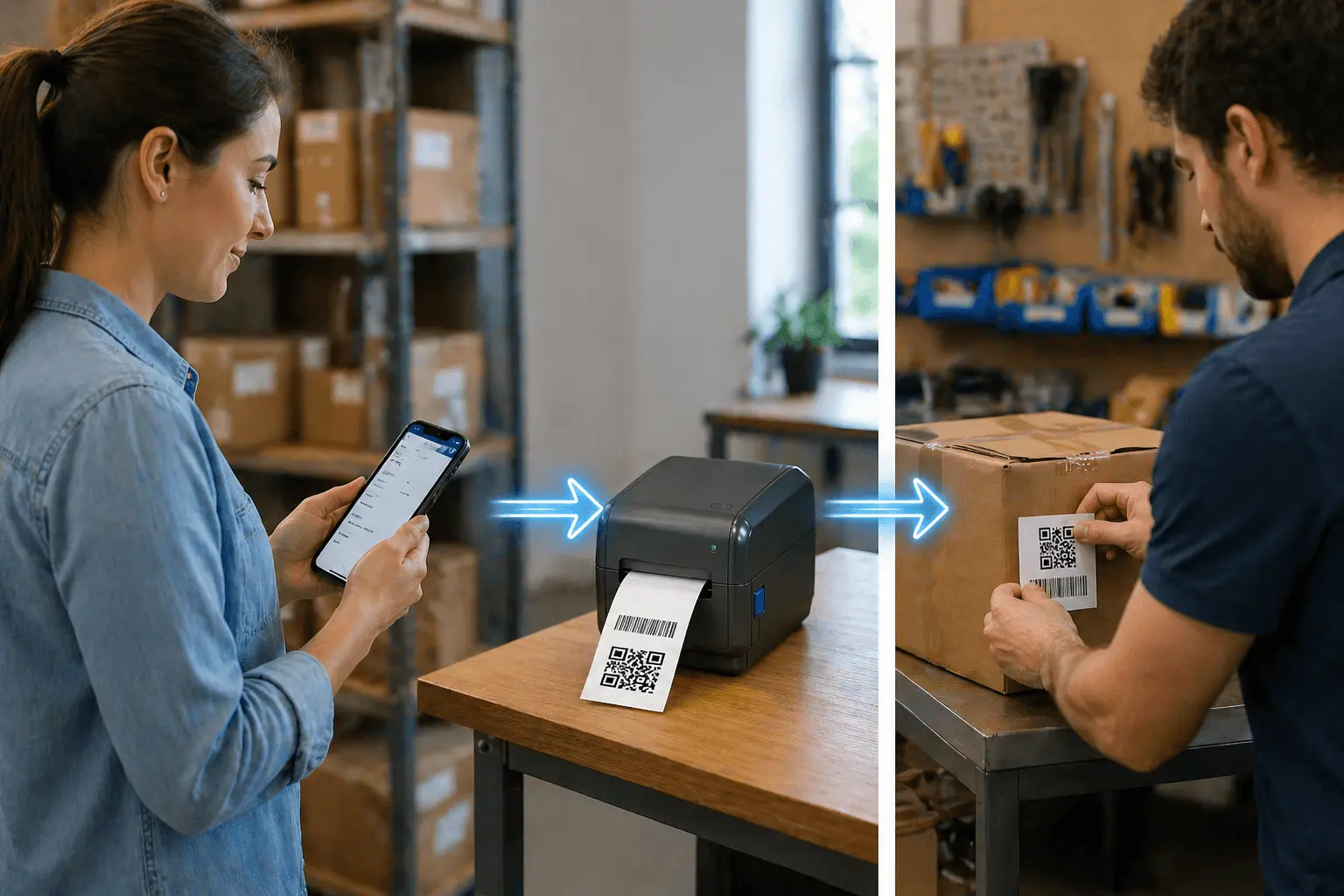
When barcode and QR code printing integrates with field data collection, labels print automatically from the same record captured on-site.
Field technician arrives at a site with equipment that needs tagging. They open the mobile app and fill out the asset registration form. Asset type, manufacturer, model, serial number, purchase date, location, photo of the equipment—all captured on their phone or tablet.
The moment they submit that form, the asset record saves to the database with GPS coordinates showing exactly where it was registered. A barcode or QR code label queues for printing at the office.
When the technician returns to the office, those asset tags print automatically. Each label includes the barcode or QR code, asset ID, location code, and any other fields specified in the template.
Field data collection:
Technician visits Site A with 15 pieces of equipment needing tags. Using the mobile app with GPS location, they photograph each asset. Form captures asset type, manufacturer, model, serial number, and condition. GPS automatically stamps location coordinates for each submission. All 15 asset records save to database instantly.
Office label printing:
Office staff opens the asset tracking dashboard and sees 15 new assets awaiting labels. They review photos and data captured in the field, then click "Print All" for the batch. Labels print with unique barcodes or QR codes, ready for the next field visit.
Field application:
Technician picks up printed labels and returns to Site A. They use the code scanner to match each label to equipment, apply the label, then scan to confirm placement. Assets are now fully tagged and tracked.
Notice what's eliminated: no one retypes field data into label software. The label prints from the exact data captured on-site.
Construction equipment across multiple sites: Project manager needs to tag 40 generators, compressors, and welding machines spread across three active construction sites. Field teams visit each site, photograph equipment, and log details in the mobile app with GPS location tracking. Back at the office, asset labels print in one batch. Next day, teams return with labels pre-matched to the exact equipment and location.
IT asset deployment: IT department receives 100 new laptops for distribution across regional offices. Using the mobile app, they register each device before deployment—serial number, model, assigned user, destination office. Asset tags print immediately. Before laptops leave the central office, each one has a barcode label scannable with Clappia's code reader block.
Fleet vehicle tagging: Transportation manager needs to tag 25 service vehicles with unique asset codes. Field team photographs each vehicle and logs VIN, registration, assigned driver, and current mileage using mobile data collection. Vehicle asset labels print automatically. Windshield decals and door labels generated from the same submission—no duplicate data entry.
Tools and equipment check-out: Warehouse maintains 200+ power tools, testing instruments, and safety equipment. Each item needs an asset tag for check-out tracking. Using the mobile inventory app, staff photographs and registers each tool. Labels print in batches as items get processed.
The format you choose depends on how much data needs to encode on each label and how assets get scanned.
1D Barcodes work best when: Asset ID is the only encoded information, scanning happens with dedicated barcode readers, label space is limited, and you need compatibility with existing legacy systems.
2D QR Codes work better when: Multiple data points encode in one label, field teams scan using smartphone cameras, labels may get damaged (QR codes have error correction), and you want to link directly to maintenance records.
Most field operations use QR codes for physical asset tags because they're smartphone-scannable without dedicated hardware. When a technician encounters an asset in the field, they scan the QR code using the mobile app with code scanner and instantly pull up the complete asset record—maintenance history, current location, assigned user, purchase information.
| Asset Tagging Task | Manual Process | Mobile-to-Print |
|---|---|---|
| Tag 20 equipment items at remote site | 5-7 days (field visit + office entry + label creation + return trip) | 2 days (field capture + office print + next site visit) |
| Register and label new asset shipment | 3-4 hours (unpack, manual entry, format labels, print, apply) | 45 minutes (scan, capture, print batch, apply) |
| Create replacement label for damaged tag | 30-45 minutes (find record, recreate in label software, print) | 2 minutes (search asset, reprint from record) |
| Tag tools at multiple field locations | 2-3 weeks (coordinate schedules, consolidate data, create labels) | 3-5 days (field teams log on-site, labels print centrally) |
The time savings scale with asset volume. Organizations tagging hundreds of assets monthly reclaim dozens of labor hours by eliminating duplicate data entry.
Asset tagging from mobile devices requires specific capabilities beyond basic data entry.
GPS location stamping: Every asset registration automatically captures GPS coordinates. This creates a location history showing where each asset was first tagged and how it moves between sites. GPS location tracking eliminates manual location entry and provides audit trails.
Photo documentation: Field teams photograph assets during registration using the camera block. Photos attach to asset records automatically. When labels print, staff can visually match labels to equipment using the captured images.
Offline data collection: Remote sites often lack reliable internet connectivity. Offline-capable mobile apps let teams register assets without connection. Data syncs automatically when back in coverage, triggering label printing.
Barcode scanning for verification: When field teams apply printed labels to assets, they scan the label to confirm placement. The code scanner matches the barcode to the asset record, marking it as tagged in the system.
Assets live in different environments. Label materials need to match those conditions.
Indoor office equipment like computers and furniture work well with paper labels and direct thermal printing. These last 2-3 years in climate-controlled environments.
Outdoor equipment such as vehicles and machinery need vinyl or polyester labels with UV-resistant laminate. Thermal transfer printing with resin ribbon ensures weatherproof durability for 5+ years.
Industrial tools in construction or manufacturing environments require metal foil labels or anodized aluminum. These withstand chemical exposure, abrasion, and pressure washing for 10+ years.
Small tools and handheld devices benefit from ultra-destructible vinyl that fragments when removal is attempted, providing tamper-evidence and theft deterrence.
When field teams register assets using the mobile app, they can specify asset type. The system automatically selects the appropriate label template and material recommendation for printing.
The workflow doesn't end when labels get applied. Scanning creates the feedback loop that confirms accurate tagging.
Field technician applies barcode or QR code label to equipment, then scans the newly applied label using the code scanner in the mobile app. The system matches the barcode to the asset record and marks it "Label Applied" with timestamp and GPS location.
Tools and portable equipment use asset labels for inventory control. Workers scan labels during check-out and return using the mobile app. The system tracks who has what equipment and for how long.
During facility audits, teams scan asset labels to verify location accuracy. The system flags assets in wrong locations or missing from expected positions. Audit findings feed back into location data automatically.
When equipment moves between locations, field teams scan the asset label at both departure and arrival. The asset tracking system logs the transfer with GPS coordinates confirming the move.
All scanning happens through the same mobile app used for initial registration. Field teams don't need separate scanner hardware—smartphone cameras handle QR codes, and Bluetooth barcode scanners connect to mobile devices for high-volume scanning.
Field teams capture data anywhere. Labels print at the central office. This requires network-connected printing.
For USB-connected printers at a single office, install QZ Tray on the computer connected to the printer. Configure the print bridge to listen for jobs from the web workflow. Field submissions trigger print queue automatically.
For network thermal printers, configure the printer with a static IP address on the office network. The workflow sends print jobs directly to the printer IP without requiring a local computer for print handling.
For multi-location organizations, use Printnode cloud printing service. Install Printnode client at each office location and route print jobs to the correct office based on the field team's region. Centralized dashboard shows print status across all locations.
This separation between capture location and print location makes mobile-to-print asset tagging practical for distributed operations.
Many field operations still use paper forms or Excel spreadsheets for asset registration. Moving to integrated mobile-to-print doesn't require abandoning all existing records.
Step 1: Import existing asset data into the workflow platform. Field teams start registering new assets using the mobile app. Existing assets remain in spreadsheets temporarily.
Step 2: Install print bridge and connect thermal printer. Test label printing from new mobile submissions. Verify label formats match your requirements.
Step 3: One team exclusively uses mobile registration for all assets they encounter. Office staff prints labels from those submissions. Measure time savings compared to the old process.
Step 4: Roll out mobile app to all field staff. Office transitions to printing all labels from workflow submissions. Spreadsheet entry ends for new assets.
Step 5: During regular site visits, field teams scan or re-register legacy assets into the new system. Over several months, complete asset inventory migrates to the integrated system.
This phased approach minimizes disruption while proving value quickly.
Organizations with established asset management software can integrate mobile-to-print workflows through APIs.
The most common pattern: Field teams register assets in mobile workflow. API integration pushes new asset records to existing asset management database. Labels print from mobile workflow while the asset management system remains the source of truth for financial data.
This approach allows mobile workflow to handle field data collection and label printing while existing systems handle depreciation, maintenance scheduling, and financial reporting. Systems stay synchronized without manual data transfer.
Asset tagging delays happen because field data capture and office label printing are disconnected processes.
When mobile data collection triggers automatic label printing, the gap closes. Field teams register assets on-site with full context—photos, GPS location, real-time conditions. Labels print from that exact data. No transcription. No coordination delays.
You don't need to replace existing thermal printers. You don't need expensive handheld asset scanners. Your field teams' smartphones become data collection and label scanning devices.
Start with this:
When field data and labels originate from the same workflow, asset tagging becomes a continuous real-time process instead of a periodic office task.

L374, 1st Floor, 5th Main Rd, Sector 6, HSR Layout, Bengaluru, Karnataka 560102, India

3500 S DuPont Hwy, Dover,
Kent 19901, Delaware, USA


.svg)


3500 S DuPont Hwy, Dover,
Kent 19901, Delaware, USA
L374, 1st Floor, 5th Main Rd, Sector 6, HSR Layout, Bengaluru, Karnataka 560102, India

.jpg)