Creating apps in Clappia using Excel files is one of the fastest ways to turn Excel into an app without writing a single line of code. Whether you want to convert Excel to app, create an app from Excel spreadsheet, or use a spreadsheet to app converter, Clappia makes the entire process simple and automated.
This updated guide shows how to create app from Excel, convert spreadsheet to app, and even use Clappia as your Excel to app converter to build fully functional no-code applications.
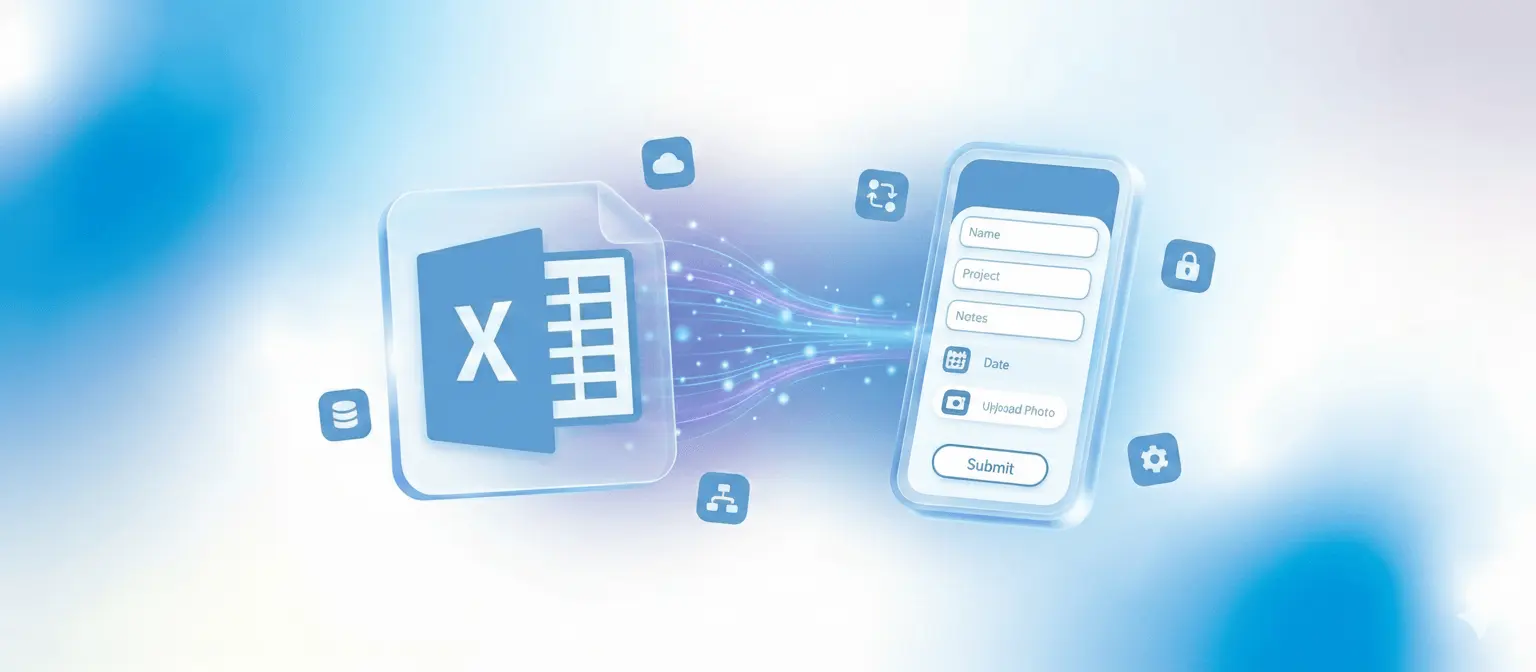
Converting Excel to a web application solves critical business challenges:
Real-Time Collaboration: Multiple users update data simultaneously without version conflicts. Changes reflect instantly, eliminating emailed attachments and outdated copies.
Mobile Access: Field teams update information from smartphones with mobile-optimized interfaces.
Automated Workflows: Unlock automation capabilities like instant notifications and approval processes.
Enhanced Security: Access controls protect sensitive data from unauthorized access.
Two approaches transform Excel files into apps. Method 1 uses AI to build from natural language, while Method 2 directly imports Excel files.
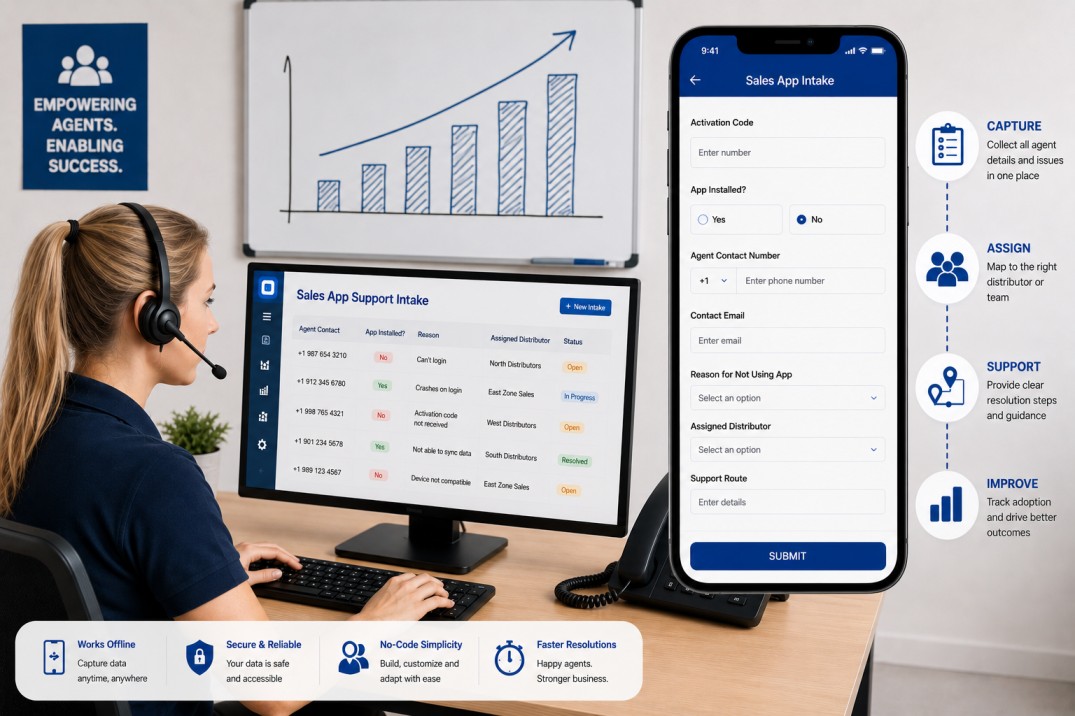
Sales reps update client data from phones. Managers receive push notifications when deals close. Teams view dashboards while executives access automated reports.
This method transforms your Excel data into apps through conversational AI. Simply describe your requirements or upload your spreadsheet structure, and the AI builds a complete application with fields, workflows, and analytics.
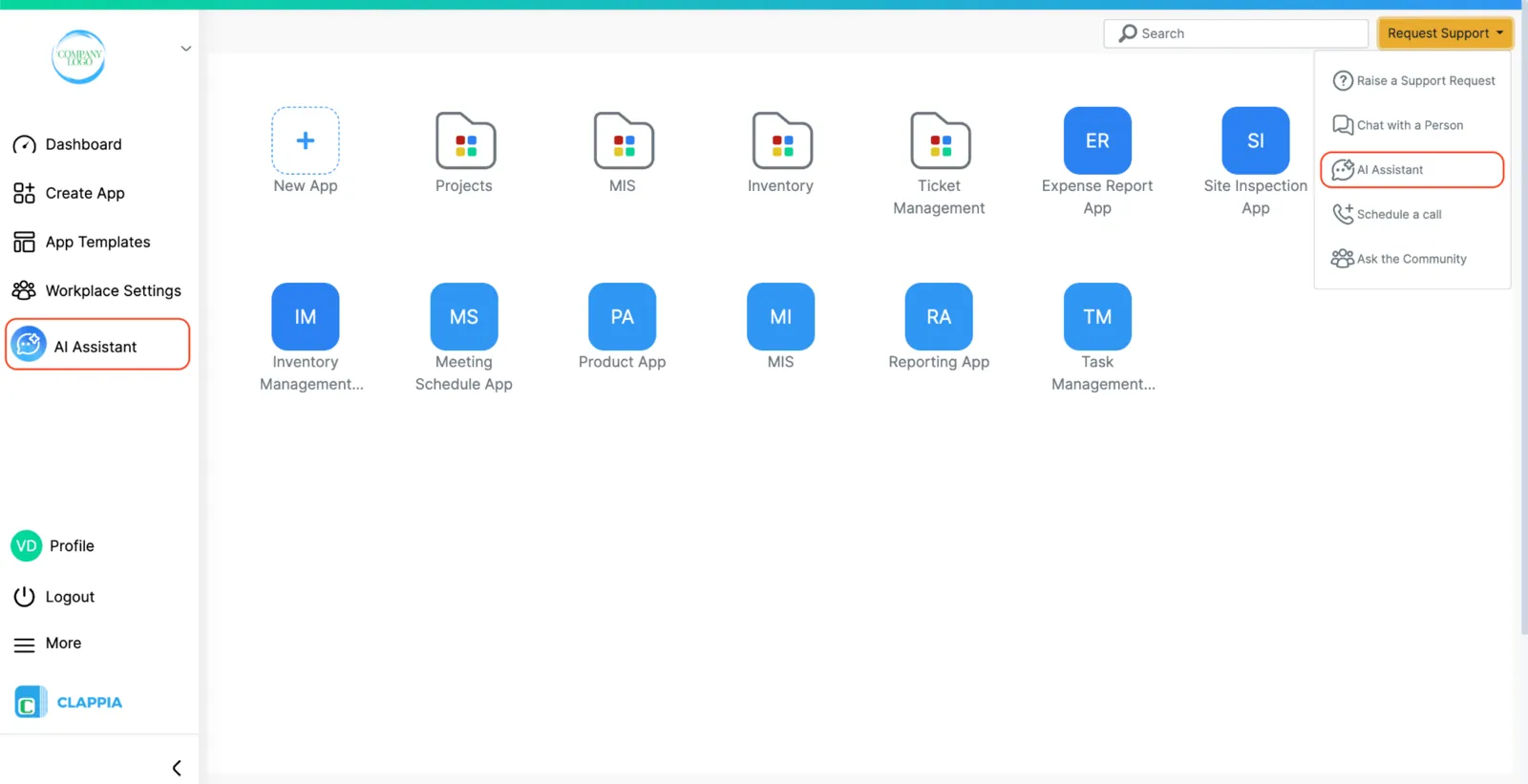
Sign up for a free account and create your workplace. In the left panel, click "AI Assistant" to open the AI chat interface where you'll build your app through simple conversation.
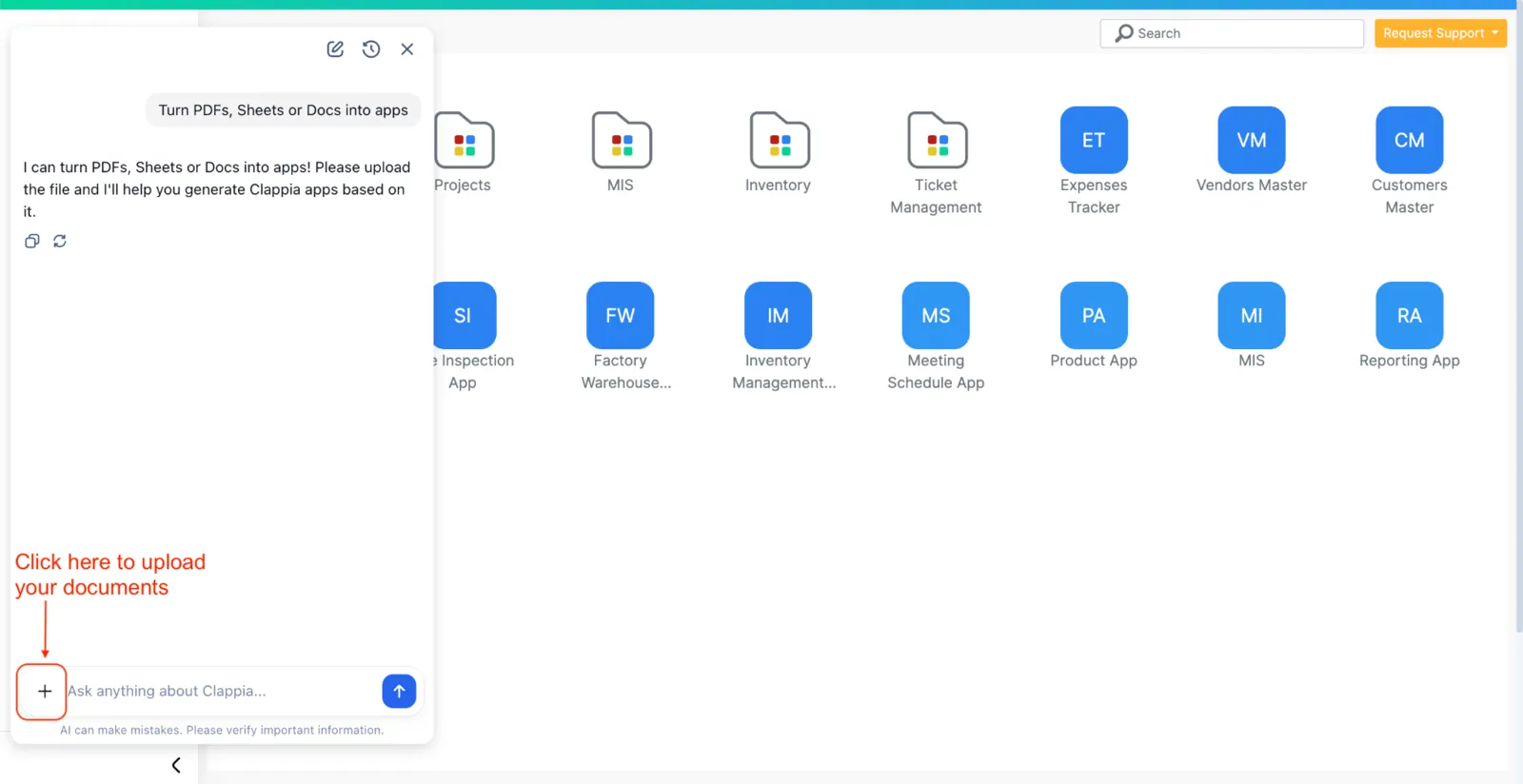
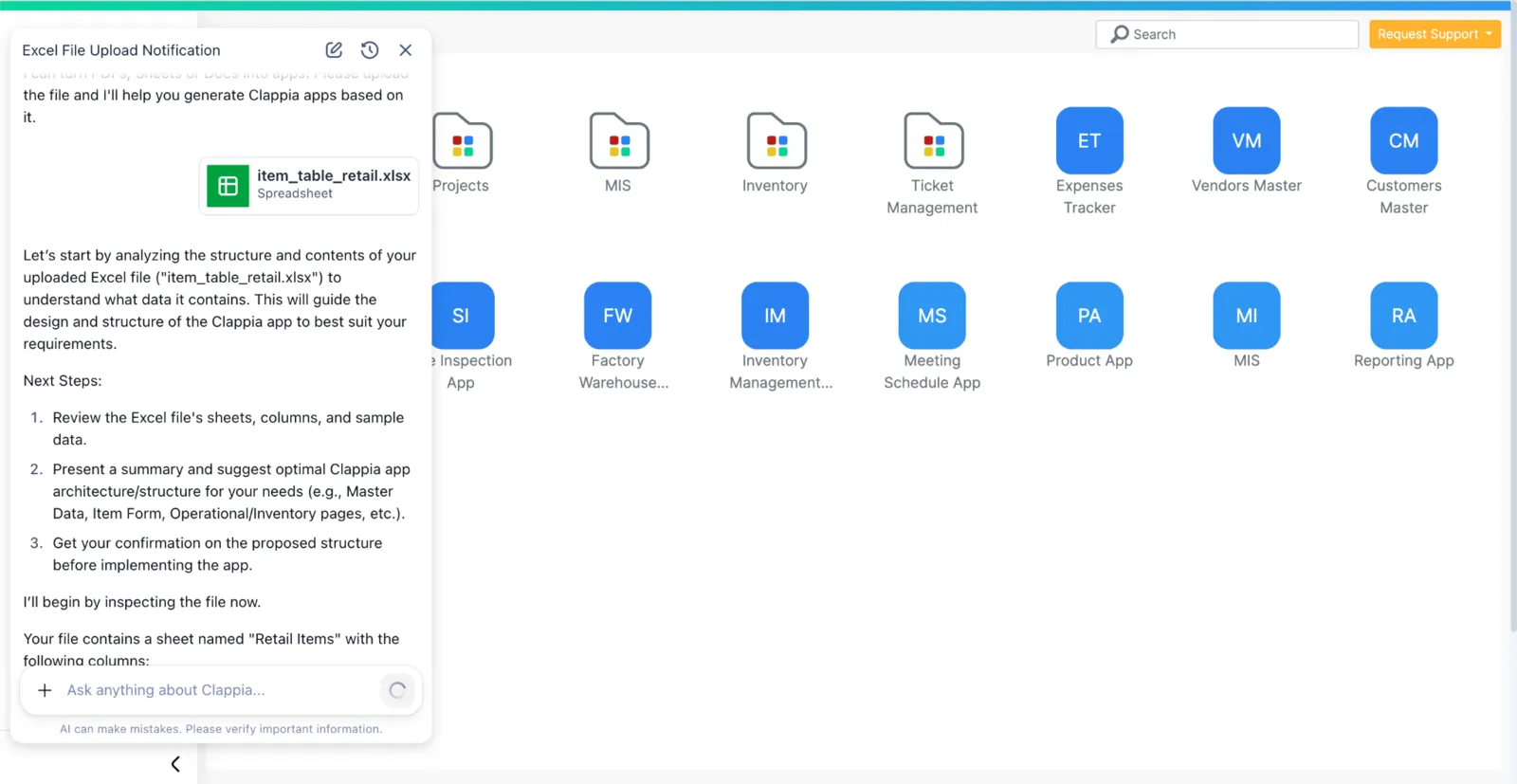
Click the plus icon in the chat input to upload your Excel file, app structure document, or project requirements. Alternatively, type your use case directly: "Create an app for tracking customer orders with delivery status and invoice generation."
The AI analyzes your input and generates a comprehensive app structure showing:
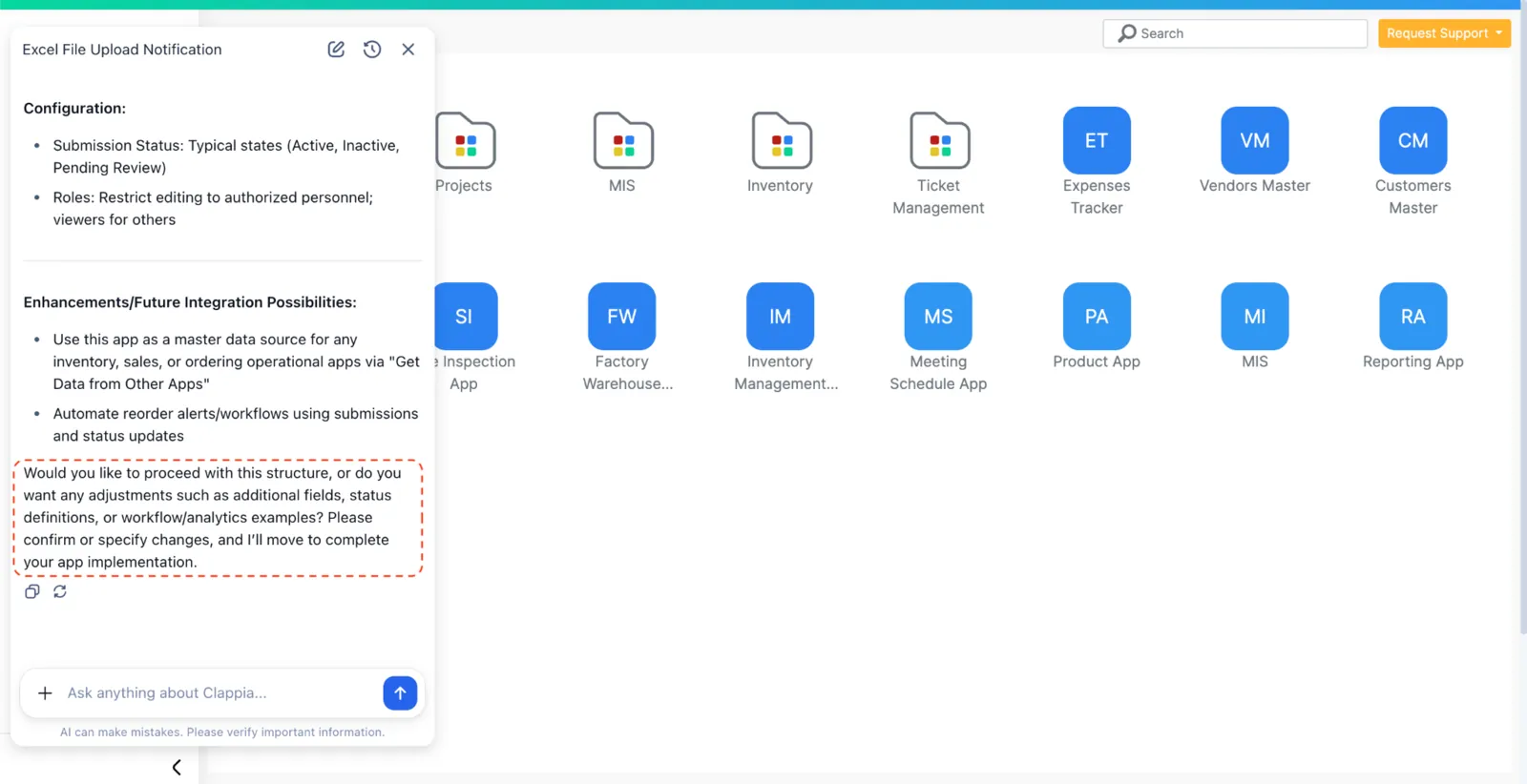
The AI presents the proposed structure and asks for confirmation. Review carefully and provide feedback:
The AI adjusts the structure based on your modifications and presents the updated version for final approval before building begins.
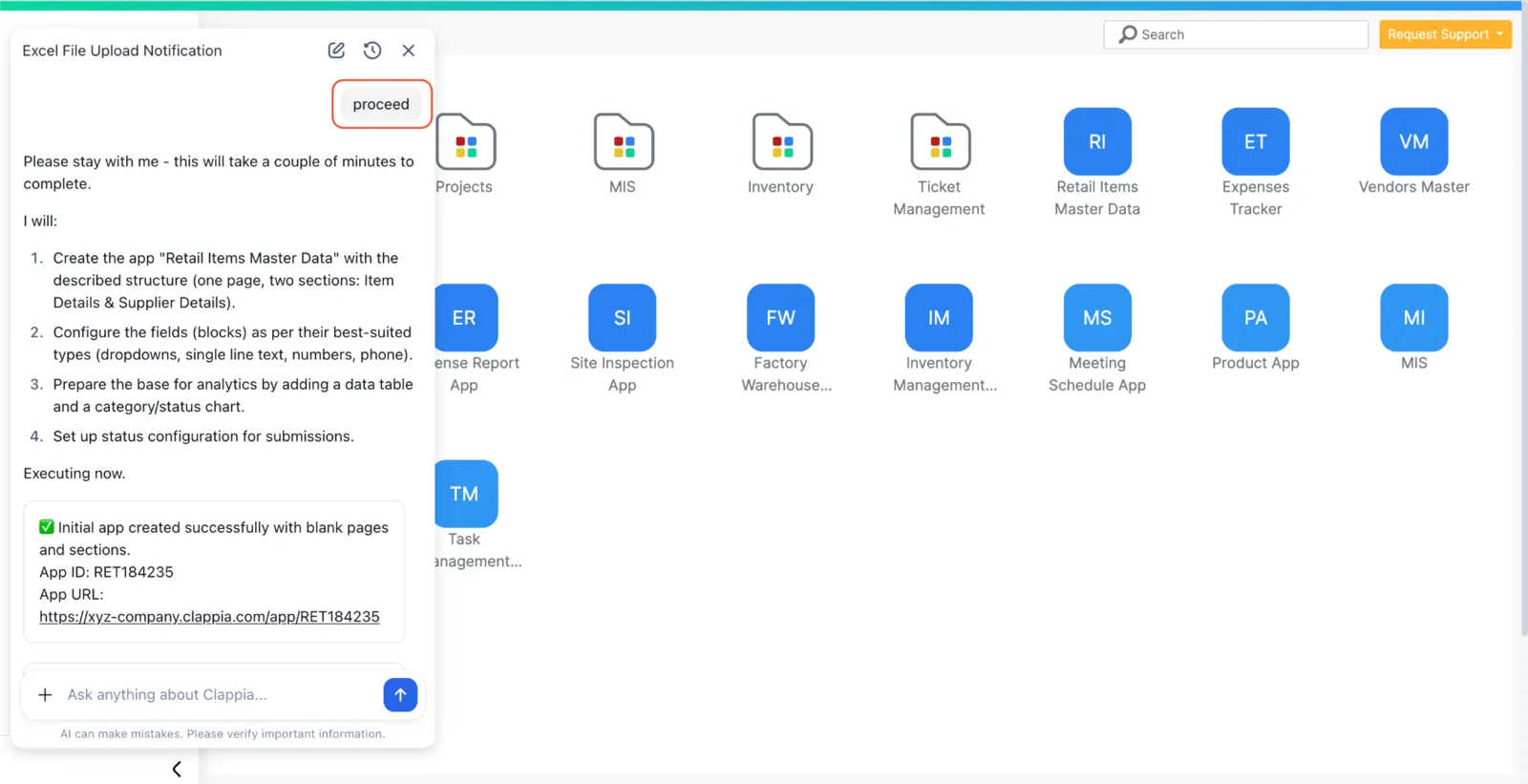
Instruct the AI to proceed once satisfied. It creates apps within minutes, adding specified fields and configurations. You receive the app ID and URL for immediate access.
The AI selects appropriate field types from single-line text, dropdowns, date selectors, number inputs, and signature blocks based on your requirements.
Tell the AI to create automated workflows: "Add workflow to send email notification when order status changes." The AI configures email notifications, WhatsApp alerts, PDF generation, and approval flows.
Request analytics dashboards showing daily trends and performance metrics.
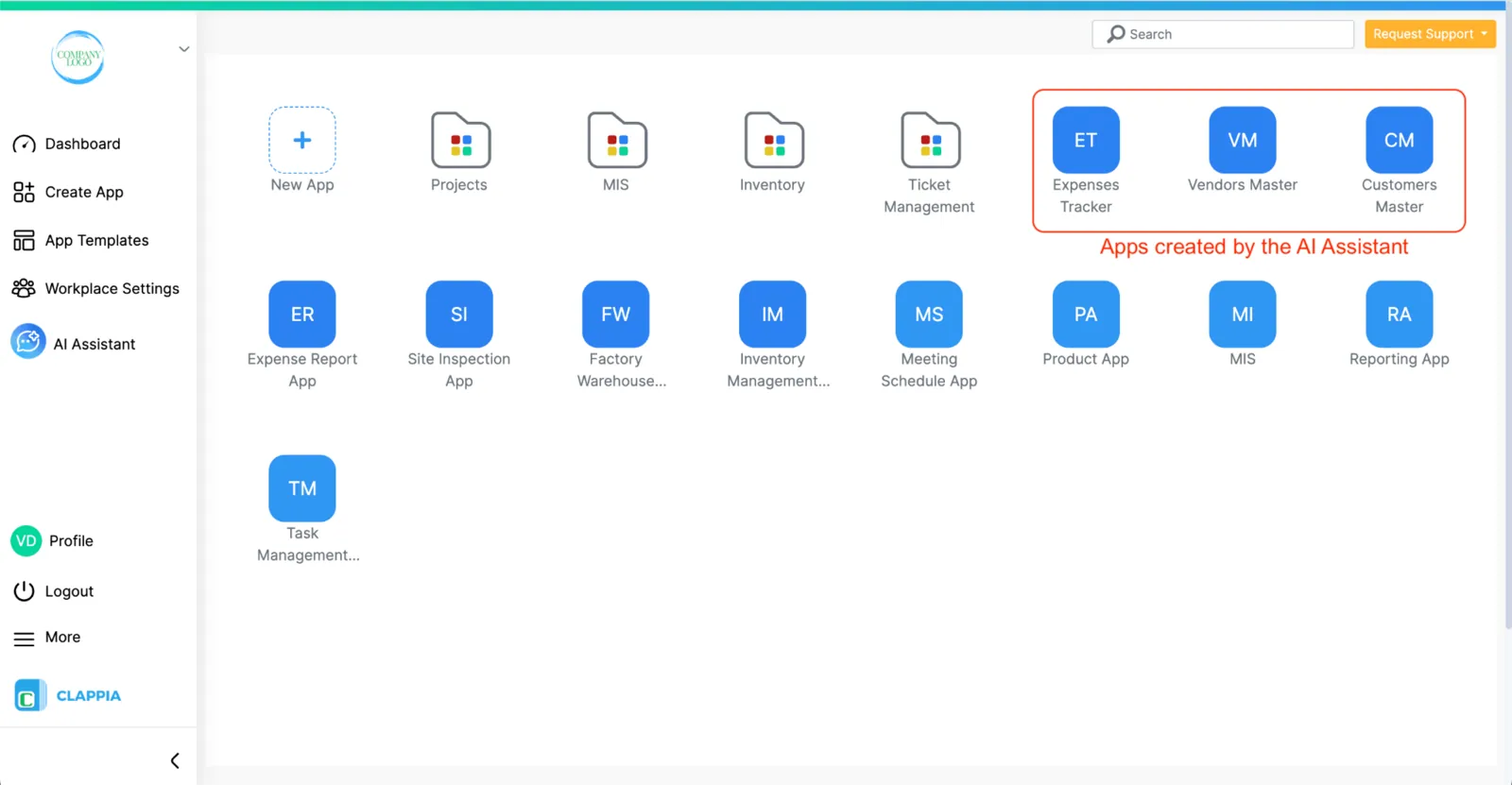
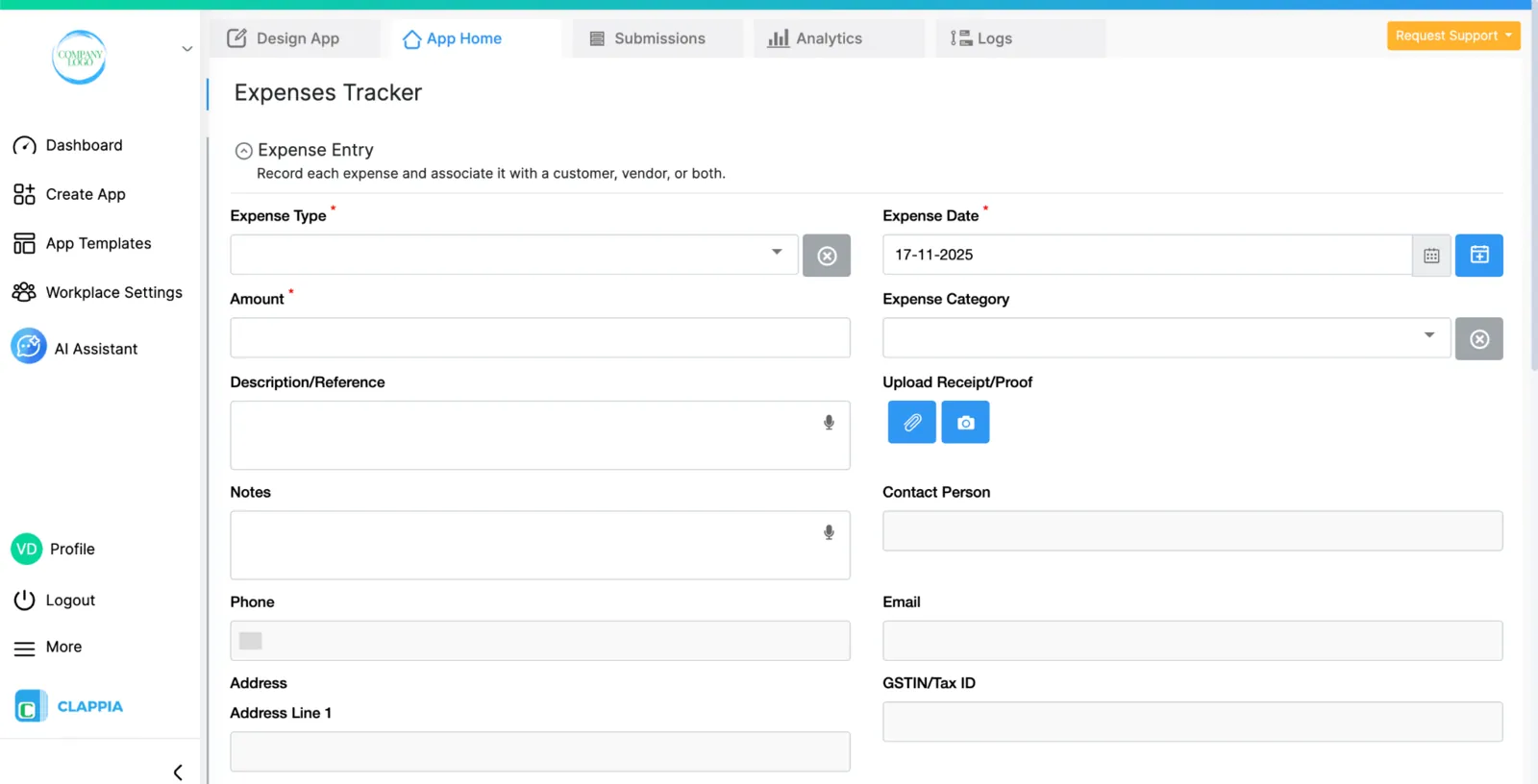
Open the generated app URL and review all fields. If adjustments are needed:
Everything happens visually—no code, no technical complexity. Test the app with dummy submissions to verify workflows execute correctly. Once satisfied, visit the Distribute tab to publish your app via link sharing, website embedding, or direct user invitations.
This straightforward method converts existing Excel files into functional apps automatically. Your spreadsheet's structure determines the app's field configuration without additional setup.
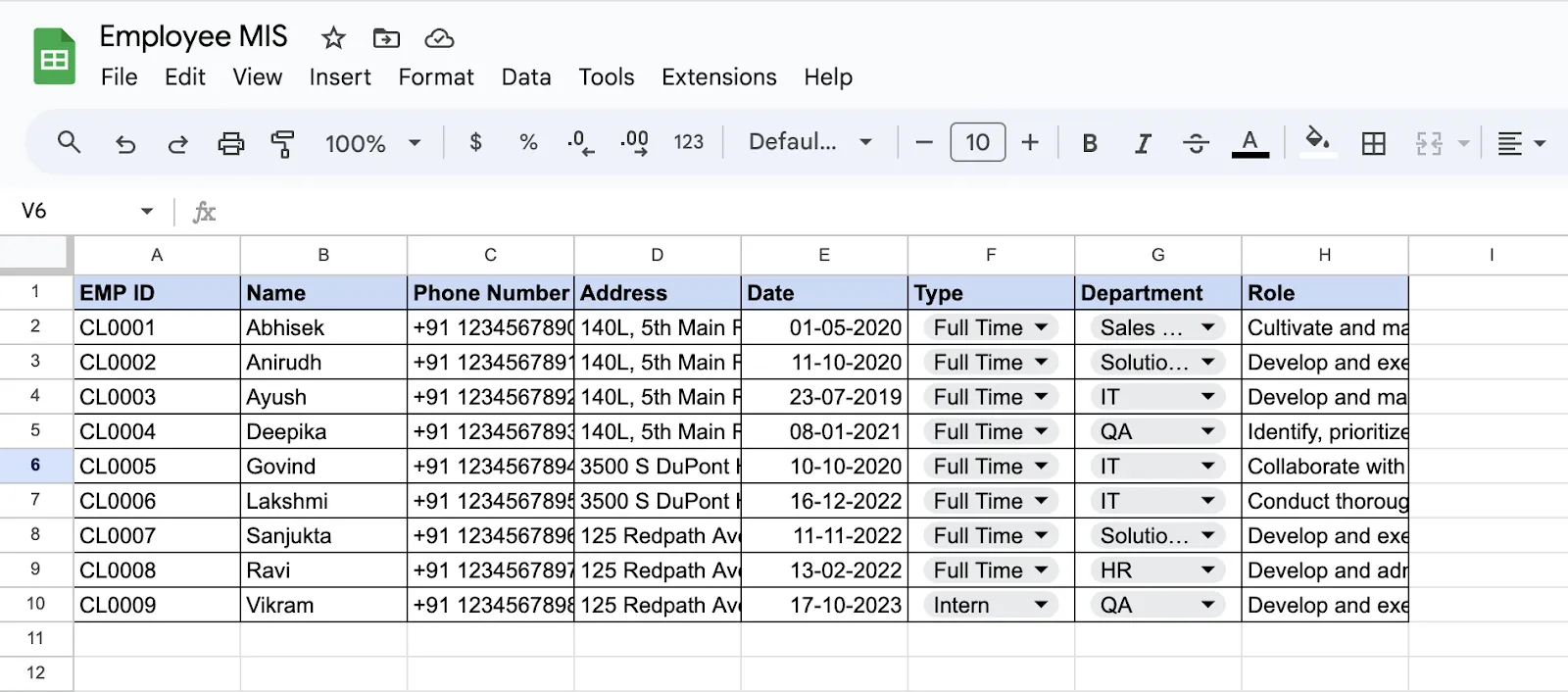
Clean, well-structured data ensures smooth conversion. Prepare your spreadsheet:
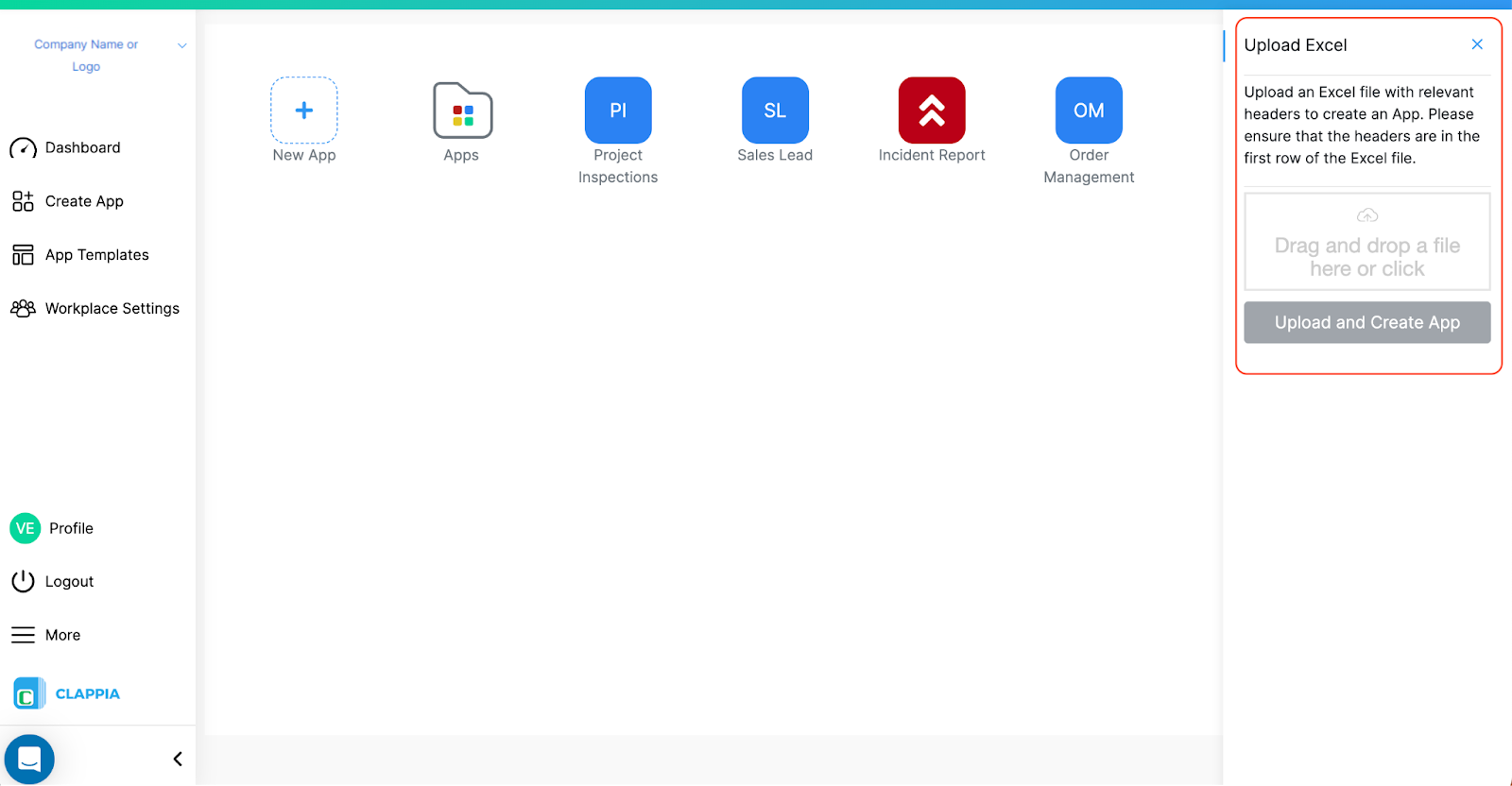
Navigate to your dashboard and locate "More" in the left panel. Select "Create Apps Using Excel" from the dropdown menu.
Click the upload area, select your prepared Excel file, and click "Upload and Create App." The system processes your file instantly, converting headers into app fields and importing your data structure.

The platform analyzes Excel data and assigns field types: single-line text, multi-line text, dropdowns, single selector, date selectors, and number fields.
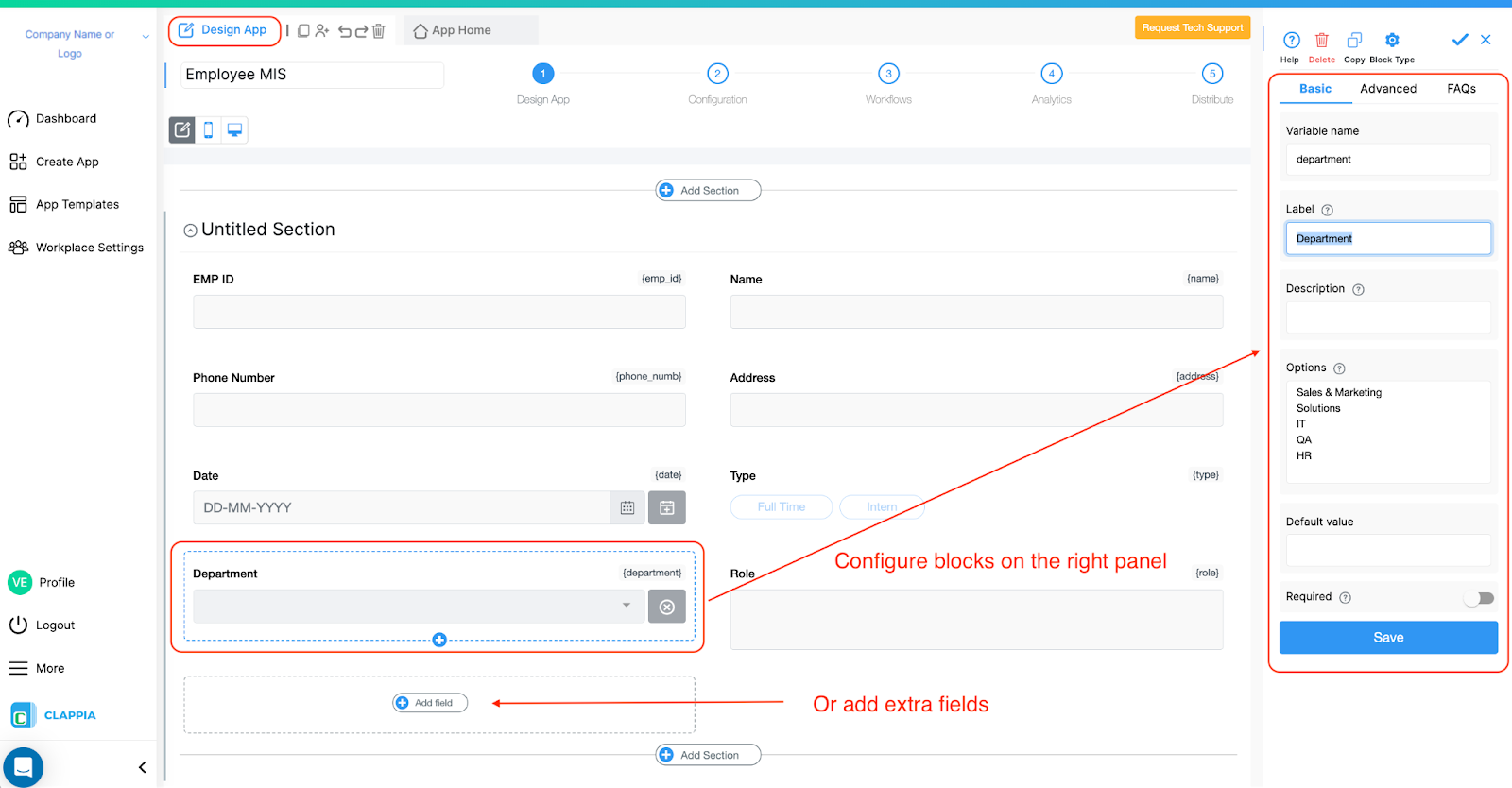
Your app is created instantly. Access the Design App tab to add location capture, image uploads, unique ID generation, validation rules, and conditional logic.
Use Bulk Upload under Submissions to import historical spreadsheet data.
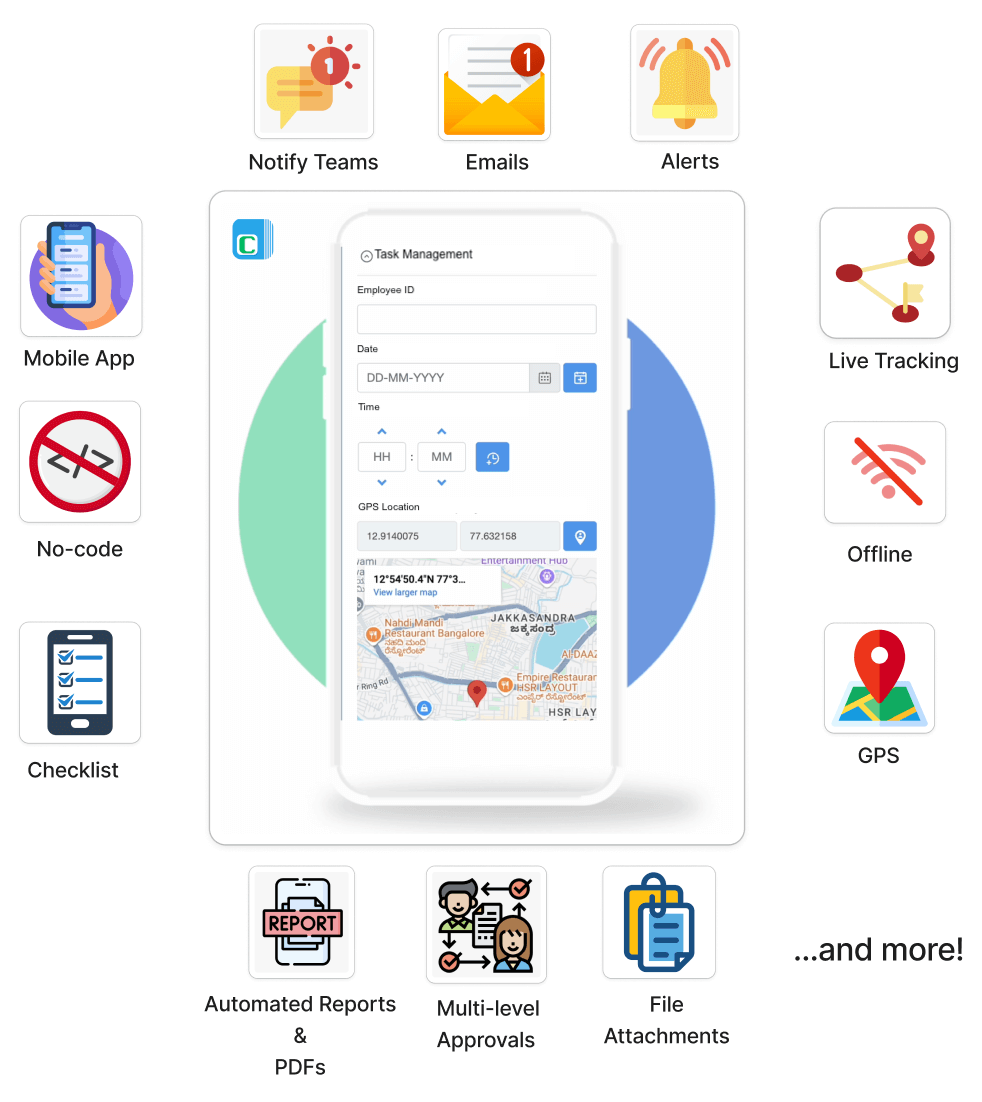
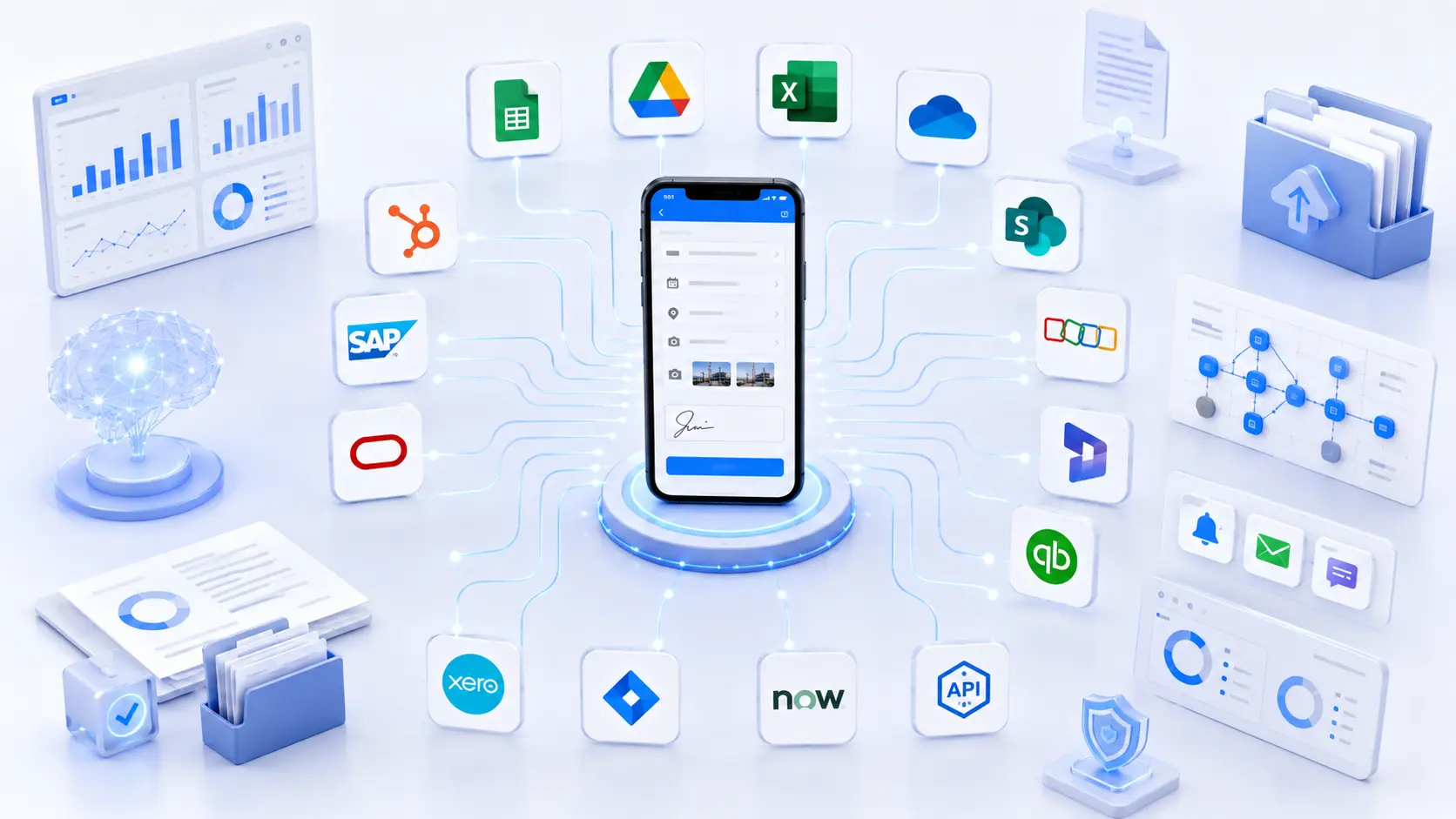
Add automated workflows, dynamic status tracking, offline mode, and integrations with Google Sheets, databases, and REST APIs.
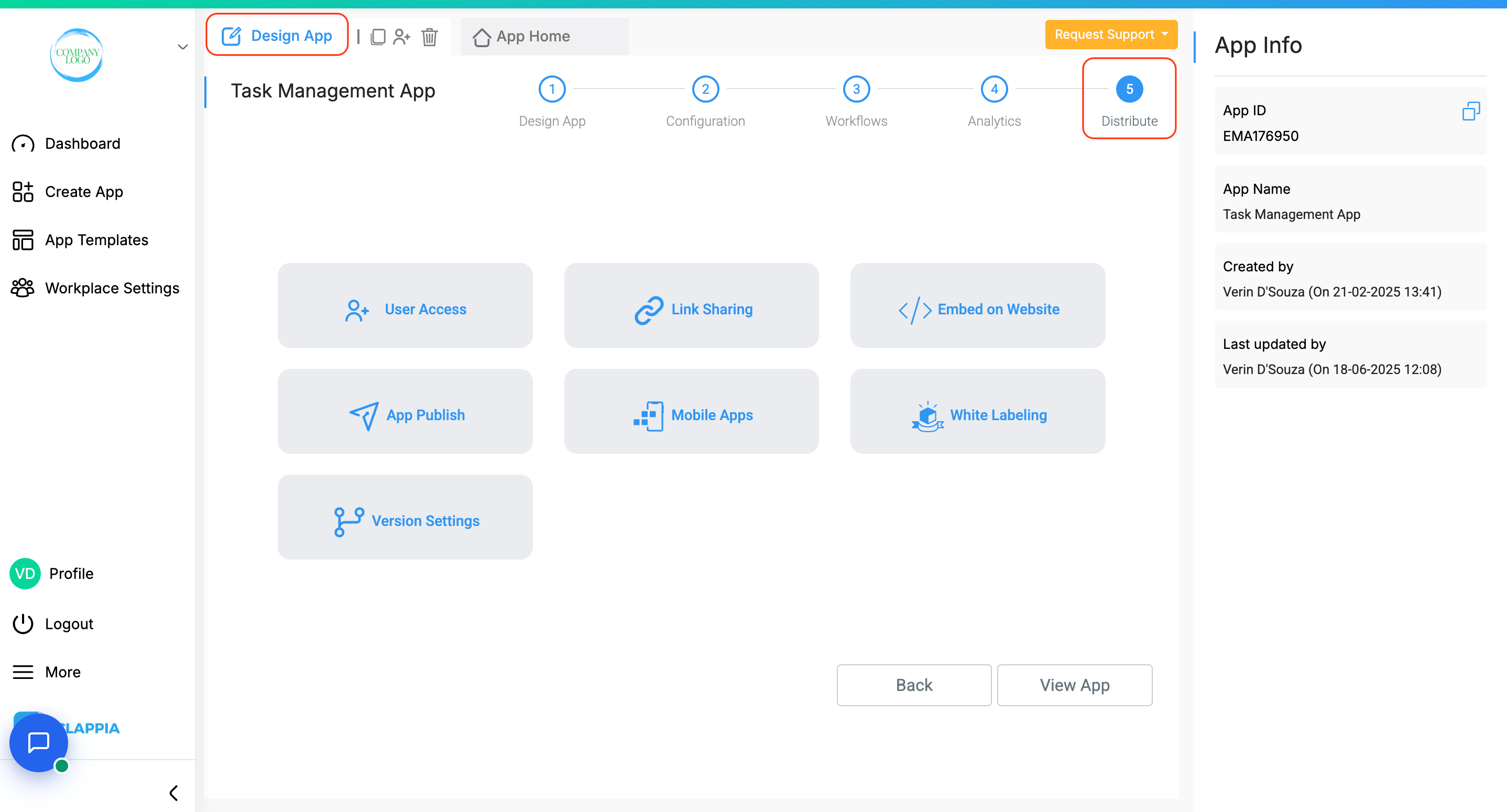
Download the mobile app from Play Store or App Store. Add users, share via links or QR codes, and embed on websites.
For detailed guidance, visit: Create Apps Using Excel
Both methods provide real-time data synchronization, mobile-responsive design, custom calculations, REST API integration, Google Sheets connectivity, and interactive analytics. Explore all features here.
The free plan includes unlimited apps, 100 users, 400 monthly submissions, workflow automation, PDF generation, Google Sheet integration, mobile apps, WhatsApp/SMS messages, REST API access, and AI usage. This permanent plan is perfect for testing complete systems. The Starter Plan begins at $6/month per user, dropping to $2.81/user/month at scale.
Basic formulas convert smoothly. Rebuild complex logic using formula blocks or code workflow nodes. Implement validation rules for data quality. Apps provide native mobile experiences with offline capabilities and GPS integration.
For AI Assistant guidance, visit: AI Assistant in Clappia
You've learned two methods: AI-assisted app building and direct Excel import. Both eliminate coding while delivering professional applications. Field teams capture data anywhere, managers gain real-time visibility, and workflows handle repetitive tasks.
Start building today and modernize your data management without coding expertise or large budgets.
L374, 1st Floor, 5th Main Rd, Sector 6, HSR Layout, Bengaluru, Karnataka 560102, India
3500 S DuPont Hwy, Dover,
Kent 19901, Delaware, USA


.svg)




3500 S DuPont Hwy, Dover,
Kent 19901, Delaware, USA
L374, 1st Floor, 5th Main Rd, Sector 6, HSR Layout, Bengaluru, Karnataka 560102, India