


A preventive maintenance system is only as reliable as the data inside it. Duplicate maintenance reports, wrong readings entered in the wrong fields, spares logged twice against the same work order, and stale stock movement values that never got cleared: these are the problems that erode trust in a maintenance dataset over time. By the time a manager notices that the numbers do not add up, tracing the problem back to its source takes longer than fixing it would have if it had been prevented at entry.
The stakes are real. NIST estimates that US manufacturers spent more than $57 billion on machinery maintenance in 2016 and lost about $119 billion to preventable maintenance issues. A maintenance dataset full of duplicates and wrong readings makes it impossible to see which of those losses are yours, because every report, KPI, and spare-parts forecast is built on top of it.
The good news is that most of these problems can be prevented at the point of data entry rather than discovered after the fact. In Clappia, a no-code platform for building operational field apps, the tools for doing this are built into the form builder: validation rules that block specific submissions, display conditions that show only the fields relevant to the current context, duplicate prevention inside copyable sections, and automated workflows that reset values on edit. This guide covers each of these patterns in the context of a preventive maintenance system and explains how to configure them.
If you are new to Clappia: in Clappia, you build forms by adding blocks, which are individual field types. Each completed entry is a submission. Validation rules are conditions you set that block or warn when a submission does not meet a defined criterion. Display conditions control whether a field is visible based on the value of another field. Workflows are automated actions that run when specific events occur, such as when a record is saved or edited.
The data hygiene patterns in this guide apply across a bundle of connected apps. Understanding how they relate to each other is useful before the individual patterns make sense. The apps are connected with the Get Data from Other Apps block, so the report pulls machines, checklists, and spares directly from the masters instead of asking technicians to type them. If you are starting from scratch, the same structure powers an equipment maintenance scheduler or a maintenance request app.
| App | Role in the System |
|---|---|
| Maintenance Checklist Master | Defines checklists per machine with checkpoint parameters, thresholds, and frequency. The source of truth for what gets checked and how. |
| Maintenance Planning | Creates planned maintenance events linking a machine and checklist to a schedule frequency. |
| Maintenance Report and Spares Log | Records actual maintenance execution against a plan. Captures readings, computes pass/fail results, and logs spares used. |
| Store Master (Items and Spares) | The primary item catalog. Spares are a category within it. Referenced when logging spares used. |
| Store Master Extended | An alternate store catalog with grouping and stock movement fields. Includes a cleanup workflow. |
| Machine Master | The machine catalog. Source of machine identifiers referenced across all apps. |
Every guardrail in this guide sits at a hand-off point between these apps. The Machine Master and Checklist Master feed the plan, the plan feeds the report, the report pulls spares from the Store Master, and edits in the store trigger the cleanup workflow. Seeing the flow end to end makes it obvious where a duplicate or a wrong value would enter, and therefore where each validation belongs.
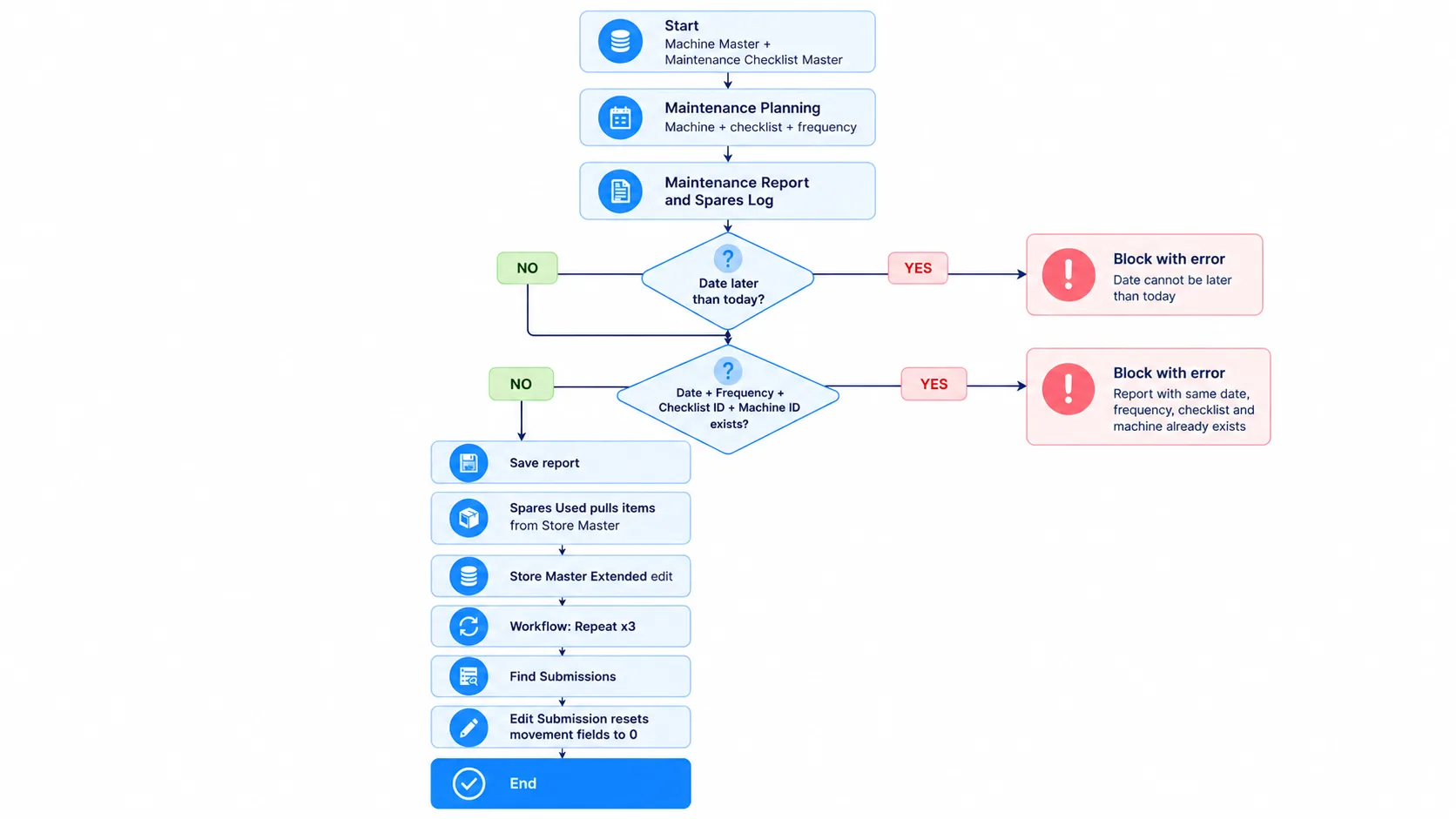
The most damaging duplicate in a maintenance system is a duplicate execution report: the same maintenance recorded twice for the same machine, the same checklist, on the same date. Without a safeguard, this happens when a technician saves a report and then opens a new form and begins filling it in again, or when a system error causes a double submission.
In the Maintenance Report and Spares Log app, a Validation block prevents this. In Clappia, a validation block checks the submitted data and either blocks the submission (Error level, red box) or warns the user and lets them proceed (Warning level, yellow box). The duplicate prevention validation checks whether a submitted record already exists with the same combination of:
If all four values match an existing submission, the form blocks the submission and shows an error message. The technician cannot submit a second record for the same maintenance event. To configure this in Clappia, add a Validation block to the report, set Type of Validation to Duplicate, select the four fields listed above, choose the Error level, and write a clear message such as "A report for this machine, checklist, and date already exists." The same rule also applies when an admin bulk uploads or bulk edits records from the Submissions tab: any spreadsheet row that duplicates an existing record is rejected while the clean rows still go through, which keeps historical imports as clean as day-to-day entries.
Here is the full sequence a report goes through before it is saved, with every guardrail in this guide in its place.
A duplicate maintenance report is worse than a missing one. A missing report is visible as a gap. A duplicate looks like valid data and can inflate compliance metrics, distort spare parts consumption figures, and mislead anyone reviewing the maintenance history.
A second validation on the Date field prevents technicians from entering a future date as the maintenance date. This is a simple but important guard. A maintenance report dated tomorrow or next week is not a real record of work done; it is either an error or an attempt to pre-fill a record before the work has actually been completed.
In Clappia, add a second Validation block with Type of Validation set to Custom and a condition that is true when the maintenance date is later than today. Set the level to Error so the form shows a red message and blocks the submission until the technician corrects the date. Because the check runs at entry, the maintenance history only ever contains work that has actually happened.
The Checklist Details section of the maintenance report contains repeating rows, one for each checkpoint defined in the checklist. Each checkpoint has a Parameter type that determines what kind of reading is appropriate: some require numeric ranges, some require a single value, and some require a categorical response like Yes/No or Pass/Fail.
Without display conditions, the form would show all three input types (range fields, value field, and categorical options) for every checkpoint, and the technician would have to know which ones to fill in for each row. This creates unnecessary complexity and a significant risk of entering data in the wrong field.
Display conditions in Clappia solve this by showing only the relevant input for each checkpoint. In Clappia, a display condition (the "Display this field if" setting) controls whether a field is visible, based on the value of another field in the same row. The three conditions configured in the checklist details rows are:
The practical effect is that each checkpoint row shows only the input the technician needs to fill in. A checkpoint set up as an observed range shows two number fields and nothing else. A checkpoint set up as categorical shows a dropdown or radio button and nothing else. The technician cannot accidentally enter a numeric reading in a categorical row or leave a range field blank when it is required.
To configure these display conditions in Clappia, open each relevant field in the checklist details row, go to Display Conditions, and set the condition to show based on the value of the Parameter field in the same row. Because this is a copyable section, the condition evaluates independently for each copy using that copy's own Parameter value. The same approach works for any checklist-driven app, from a quality inspection checklist to a building maintenance checklist.
Build a maintenance report that only accepts clean data, with duplicate checks, conditional inputs, and date rules set up in minutes on the free plan.
Get started freeThe Spares Used section of the maintenance report is a copyable section where technicians log each spare part consumed during the maintenance. Without a uniqueness constraint, a technician could add the same item twice in separate rows, either by mistake or when logging spares at different points during the job. Two rows for the same item produce a double-count in the consumption record that is difficult to detect and correct after the fact.
In Clappia, the copyable section setting "Fields to prevent duplicates" solves this. It is available for Single Selector, Code Scanner, and Get Data from Other Apps fields inside the section. When enabled for the item field, a technician filling in a new copy of the Spares Used section cannot select an item that has already been selected in another copy. The only way to log more of that spare is to increase the quantity on the existing row.
To configure this, open the Spares Used section settings, make sure it is copyable, and enable Fields to prevent duplicates for the item field. If your technicians scan spare-part barcodes, using a Code Scanner for the item gives you the same protection with faster entry.
The Maintenance Report and Spares Log has a field called Maintenance Type, which the technician selects to indicate the interval of the maintenance being performed: daily, weekly, monthly, and so on. The Checklist selection is filtered based on two things: the selected machine and the selected Maintenance Type. Only checklists that match both the machine and the interval appear in the checklist dropdown.
This filtering is an important data quality mechanism. It means a technician running a weekly maintenance cannot accidentally select a monthly checklist. The checklist they see is the one designed for the frequency they have selected.
The alignment breaks down when the Maintenance Type in the report does not match the Frequency set on the checklist in the Maintenance Checklist Master. If a planner creates a weekly checklist but sets its Frequency field to monthly, the checklist will appear in the monthly filter rather than the weekly one. Technicians running weekly maintenance will never see it, and the weekly maintenance will either be done against the wrong checklist or not recorded at all.
The practical guidance for planners is: before creating a checklist, confirm what frequency the maintenance should run at, and set that exact frequency in the checklist. Before selecting a checklist in the report, confirm that the Maintenance Type selected in the report matches the Frequency on the checklist. If the checklist dropdown is empty after selecting a machine and a Maintenance Type, the most common cause is a frequency mismatch between the report and the checklist master.
Use this table to troubleshoot the three most common frequency problems.
| Symptom | Likely Cause | How to Fix It |
|---|---|---|
| Checklist dropdown is empty after selecting machine and maintenance type | The checklist's Frequency does not match the selected Maintenance Type in the report | Open the Checklist Master, find the checklist, and set the Frequency to the interval you report against |
| The same checklist appears for multiple maintenance types | The checklist's Frequency matches more than one report interval | Set a single, specific Frequency that matches its intended interval |
| Maintenance plan and report are linked to different checklists | The checklist chosen during planning differs from the one chosen during reporting | Make sure plan and report reference the same checklist identifier for the same event |
The extended store master app includes two fields that track stock movements: one for quantities issued to a department and one for quantities consumed from a department. These fields are updated as stock movements are processed. The problem arises when a record is edited after a movement has been recorded: the movement values from the previous state can remain in the record, creating a discrepancy between the actual stock position and the values shown in the catalog.
To address this, the extended store master app has an automated workflow that triggers on edit. In Clappia, a workflow is a set of automated actions that runs when a specified event occurs. This particular workflow uses a Repeat node that loops three times whenever a record in the app is edited. In each pass, a Find Submissions node locates records where the two movement fields still hold the transient value used during processing, and an Edit Submission node resets both fields to zero.
The effect is that after any edit, the movement fields in affected records are cleared back to zero, preventing stale values from carrying forward into subsequent calculations. This is a housekeeping action that runs automatically without any manual intervention from the user who made the edit.
For system administrators, the important point is that this workflow must remain active. If it is disabled or deleted, edits to store records will leave old movement values in place, and the stock catalog will gradually accumulate inaccuracies that are difficult to trace back to their source.
The Spares Used section in the maintenance report pulls its item list from the store master catalog, filtered to the Spares category. If the catalog has duplicate items, miscategorised items, or items with inconsistent names, the technician may log spare parts against the wrong item record or create confusion in the consumption history.
The primary store master app has a Duplicate validation at the Error level that prevents duplicate items based on the combination of Item Name and Unit of Measure. If a user tries to create a new item with the same name and unit as an existing one, the submission is blocked. This prevents the most common source of duplication: two people adding the same item with slightly different names but the same unit.
The extended store master app takes a softer approach: its Duplicate validation is set to the Warning level, so it shows a yellow message when a duplicate Item Name and Group combination is detected, but does not block the submission. This allows flexibility for cases where the same item might genuinely need to appear under multiple groups, while still flagging potential duplicates for review.
For ongoing catalog hygiene, the following practices reduce data quality problems downstream:
Here is every pattern in this guide in one place, with where the problem shows up and the Clappia setting that stops it.
| Problem | Where It Occurs | How Clappia Prevents It |
|---|---|---|
| Duplicate report for the same machine and checklist on the same date | Maintenance Report and Spares Log | Duplicate validation on Date + Frequency + Checklist ID + Machine ID (Error level) |
| Future-dated maintenance entry | Maintenance Report and Spares Log | Custom validation blocks any date later than today |
| Wrong input type for a checkpoint | Checklist Details section | Display conditions show only the range, value, or categorical input for each row |
| Same spare part logged in two rows | Spares Used section | Fields to prevent duplicates on the copyable section's item field |
| Checklist not found after selecting machine and type | Report checklist dropdown | Align Maintenance Type with the checklist Frequency in the Checklist Master |
| Stale stock movement values after an edit | Store Master Extended | On-edit workflow (Repeat + Find + Edit Submission) resets movement fields to zero |
| Duplicate item in the catalog | Store Master Items and Spares | Duplicate validation on Item Name + Unit of Measure (Error); Item Name + Group (Warning) in the extended store |
Most bad data comes from the right people editing the wrong records, so permissions are the last line of defence. In Clappia, user permissions are configured per app. For a maintenance system, the recommended structure separates the people entering data from the people managing master records:
The Clappia mobile app, available on Android and iOS, supports offline mode, which matters in plant rooms and basements with no signal. Technicians open the app once while online so it is preloaded, then fill in readings and submit without a network connection; pending submissions sync to the server when connectivity returns. Two limits are worth planning around: Get Data from Other Apps lookups do not refresh offline, and any check that compares against other people's submissions can only see records that have already reached the server. If several technicians may report on the same machine in a dead zone, have a supervisor review the day's reports after sync. Our guide to using Clappia apps in offline mode covers the setup in detail.
A packaging plant runs daily and weekly preventive maintenance on 40 filling and sealing machines. Before the guardrails, two shift technicians would sometimes log the same daily check, and monthly readings occasionally landed in weekly reports. With the report built in Clappia, the technician picks the machine, picks the Maintenance Type, and sees only the matching checklist. Each checkpoint shows just the input it needs, the result formula marks OK or Not OK instantly, and spares are scanned once per item.
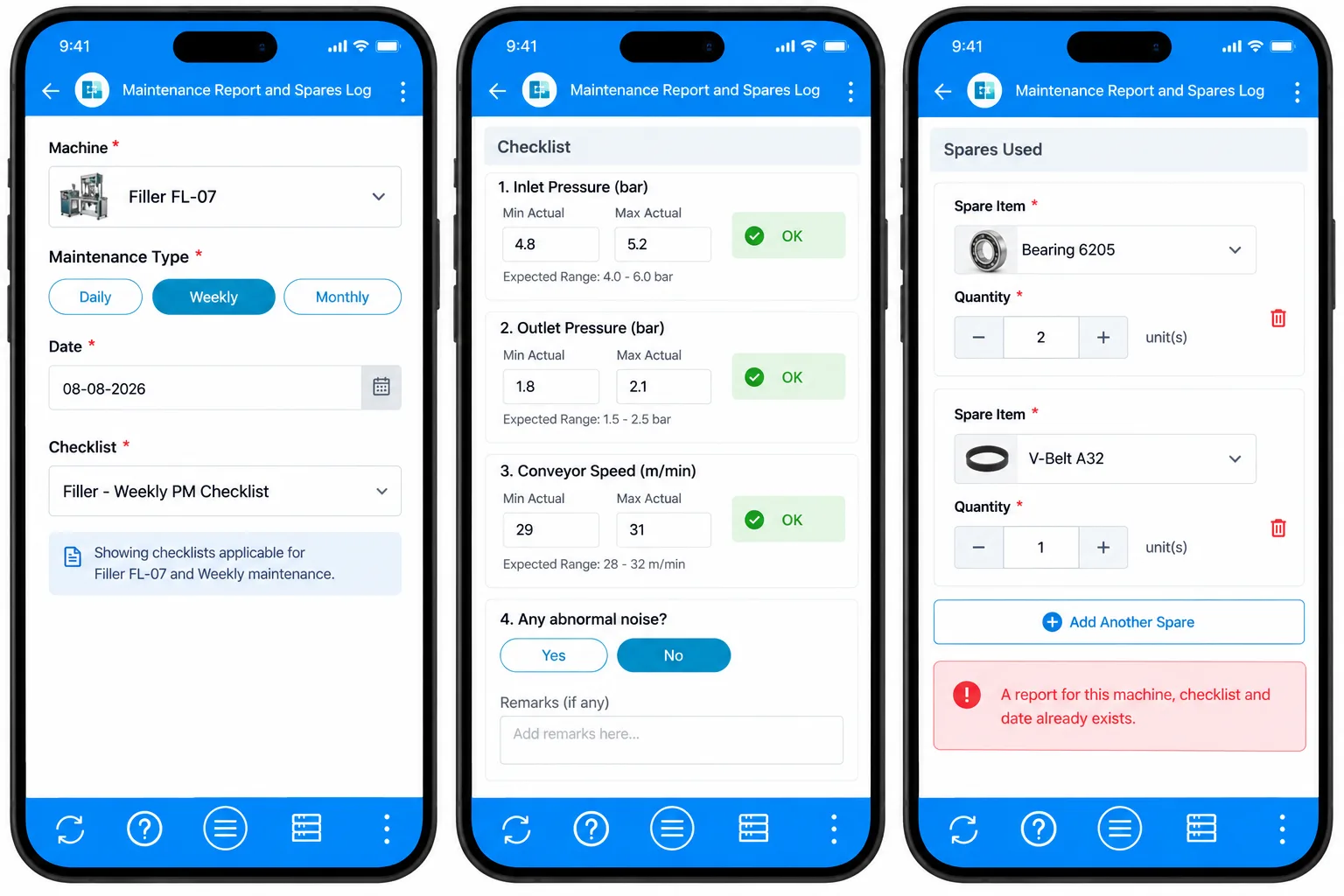
If a second technician tries to submit the same machine, checklist, and date, the Duplicate validation stops them with a red message before anything is saved. The plant's compliance rate now reflects real work, and spare consumption matches what actually left the store. For plants that want to go further, the same app can feed an AI equipment maintenance tracker.
A facilities maintenance manager responsible for several sites reviews submissions from the Clappia web app every morning. Because duplicate reports, future dates, and duplicate spares are blocked at entry, the review is about exceptions rather than clean-up: Not OK results, warning-level catalog duplicates flagged by the extended store master, and empty checklist dropdowns that point to a frequency mismatch in the Checklist Master.
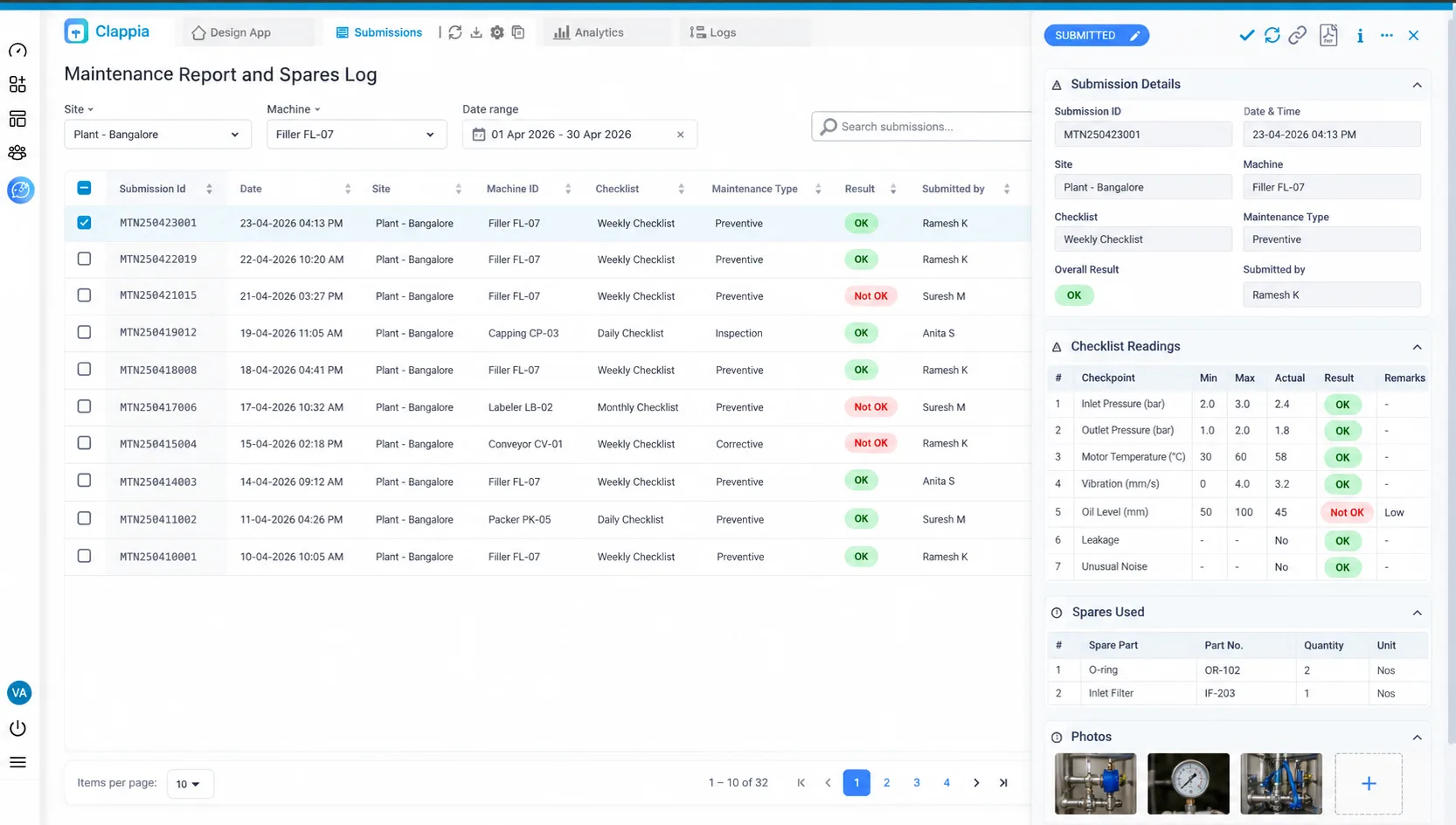
The manager filters the Submissions tab by site, machine, and result, fixes any misaligned checklist frequency at the source, and exports a clean history for audits. The time once spent reconciling duplicate rows in spreadsheets now goes into acting on the Not OK readings that actually predict breakdowns.
Preventing bad data in a maintenance system is not primarily about reviewing and correcting entries after the fact. It is about configuring the form so that the most common errors are impossible or flagged at the moment they occur. In Clappia, the tools for this are validation rules that block specific conditions, display conditions that restrict input fields to the relevant type for each context, duplicate prevention in copyable sections, and automated workflows that reset values on edit.
The patterns described in this guide cover the main data quality risks in a preventive maintenance system: duplicate reports, future-dated entries, wrong checkpoint inputs, duplicate spare parts, frequency mismatches, stale stock values, and duplicate catalog items. Each one is addressed by a specific configuration that requires no ongoing manual intervention once it is in place.
For the configurations that require planner attention rather than automatic enforcement, particularly the frequency alignment between maintenance types and checklists, the most effective approach is a checklist review before each maintenance period to confirm that the Maintenance Type in the report matches the Frequency in the relevant checklist. This takes a few minutes and prevents the most common source of missing or misaligned maintenance records. For broader guidance on running a disciplined maintenance program, the US Department of Energy's operations and maintenance resources for federal facilities are a useful reference.
Ready to trust every number in your maintenance history? Start building for free and set up these validations in an afternoon, without writing code. Your technicians get a faster form, and your managers get maintenance data they can finally act on.
Add a Validation block to the report app, set Type of Validation to Duplicate, and select the fields that define one maintenance event, typically Date, Frequency, Checklist ID, and Machine ID. Set the level to Error so a matching submission is blocked with a message.
Yes. Add a Custom validation whose condition is true when the maintenance date is later than today, and set it to the Error level. The technician cannot submit until the date is corrected.
Make the Spares Used section copyable and enable Fields to prevent duplicates for the item field (Single Selector, Code Scanner, or Get Data from Other Apps). An item already chosen in one copy cannot be selected in another.
The checklist list is filtered by machine and Maintenance Type. An empty list almost always means the checklist's Frequency in the Checklist Master does not match the Maintenance Type selected in the report.
Yes. When a Duplicate validation is configured, bulk uploads and bulk edits from the Submissions tab reject any row that duplicates an existing record, while the rest of the rows are processed normally.
Error blocks the submission and shows a red message. Warning shows a yellow message but lets the user submit, which suits cases like catalog items that may legitimately appear in more than one group.
Prevent duplicate maintenance entries and bad data by stopping errors at the point of entry. In Clappia, a Duplicate validation across Date, Frequency, Checklist ID, and Machine ID blocks repeat reports; a Custom validation blocks future dates; display conditions show only the right input per checkpoint; Fields to prevent duplicates stops the same spare being logged twice; and an on-edit workflow resets stale stock values.
L374, 1st Floor, 5th Main Rd, Sector 6, HSR Layout, Bengaluru, Karnataka 560102, India
3500 S DuPont Hwy, Dover,
Kent 19901, Delaware, USA


.svg)




3500 S DuPont Hwy, Dover,
Kent 19901, Delaware, USA
L374, 1st Floor, 5th Main Rd, Sector 6, HSR Layout, Bengaluru, Karnataka 560102, India





.avif)
