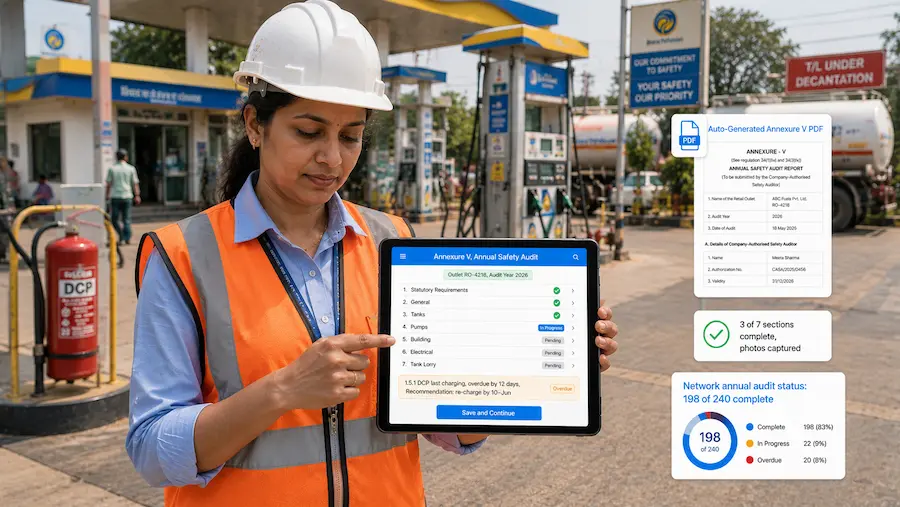

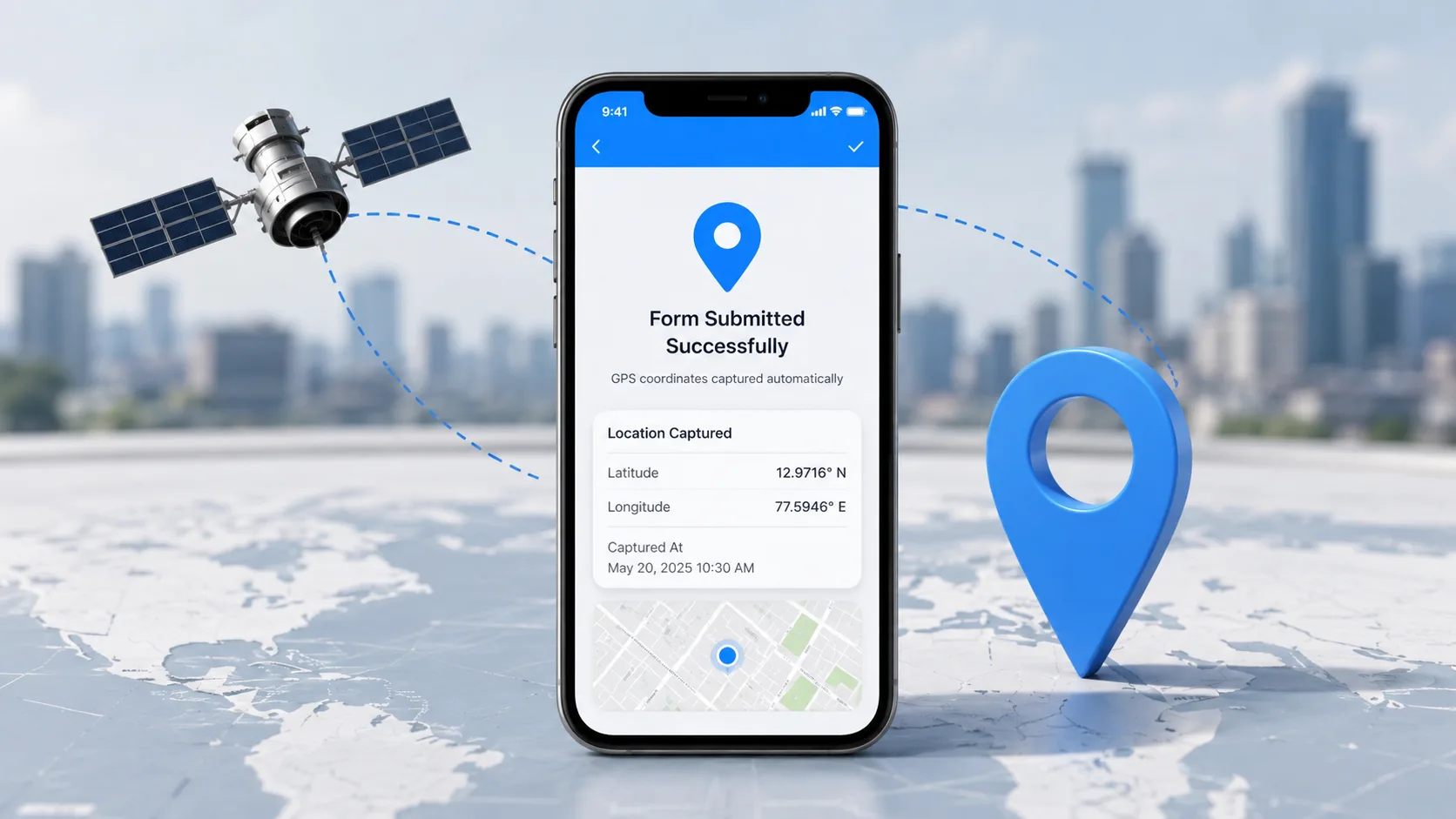
Can you capture GPS coordinates automatically when someone submits a form on mobile?

Yes - you can capture GPS coordinates automatically when a form is submitted on mobile, and the simplest way needs no code at all.
Add a GPS location field to a no-code form (like Clappia) and every submission records latitude, longitude, address and a timestamp the moment someone taps Submit. If you use a regular form builder like Google Forms, there is no built-in GPS field, so you add a short script (or an add-on) instead. This guide covers both, and how to pick.
There are really only two paths, and the right one depends on the form you use:
Most people asking this question do not want to maintain HTML and JavaScript - they want a mobile form that just records where each entry came from. A no-code location field does exactly that. You drag the field onto your form once; from then on, every submission carries its GPS data automatically. In Clappia the location block also supports geofencing, so you can require that an entry is only submitted inside a defined area (a site, a store, a customer address).
Because these forms are built for mobile data collection, the location field pairs naturally with the rest of a real workflow: a photo, a signature, a checklist, an approval step, and role-based access so each person sees only their own submissions. It also works offline - the coordinates are captured on the device and sync when the connection returns, which matters at remote sites and dead zones.
Here is what a location field records on each submission:
Neither Google Forms nor Microsoft Forms has a native GPS field - there is no geolocation question block. There are two main approaches: using custom code or using a no-code workaround (the easiest option)
Google Forms does not have a native GPS field, but you can use a small Apps Script web app alongside your Google Form to collect the respondent's location and save it to Google Sheets.
Code.gs, and paste the server-side code below.Index, and add the GPS-enabled client page. (Note: Make sure your HTML form includes an input with name="username" so the script can accurately identify who submitted the location).Important: This does not add a GPS field directly inside Google Forms. The form is submitted first, then the separate Apps Script page collects the GPS coordinates and saves them to the linked Sheet.
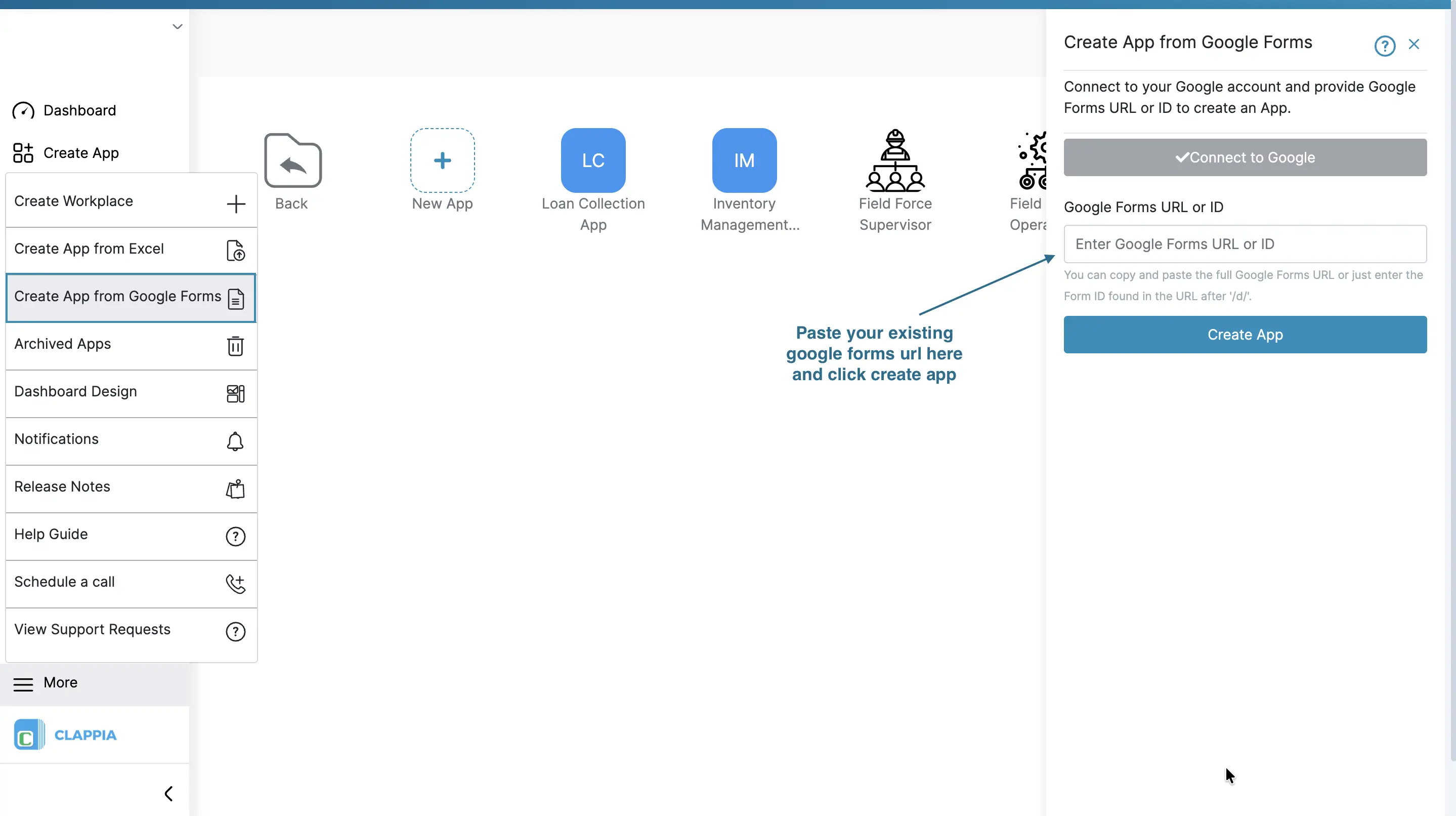
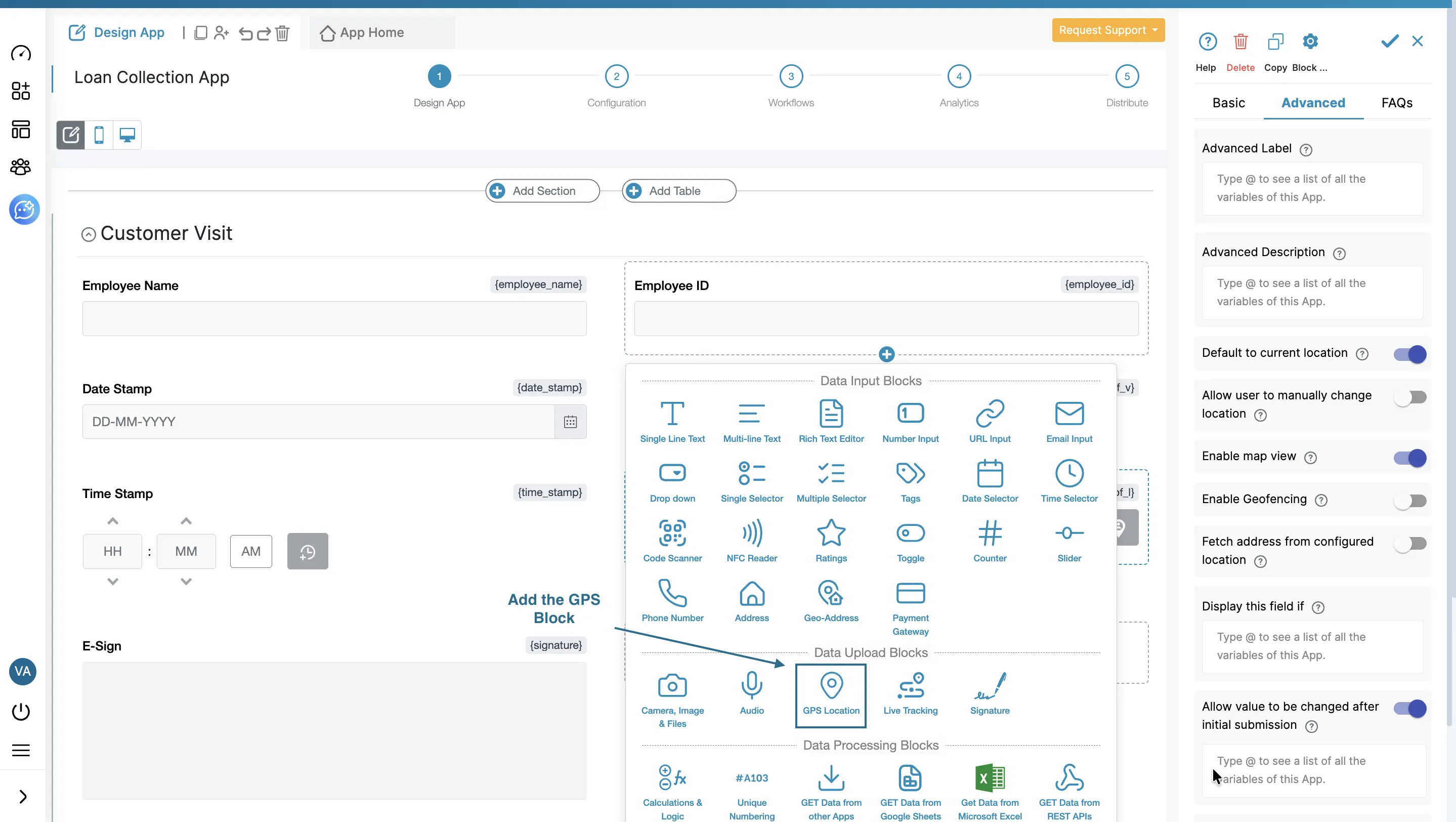
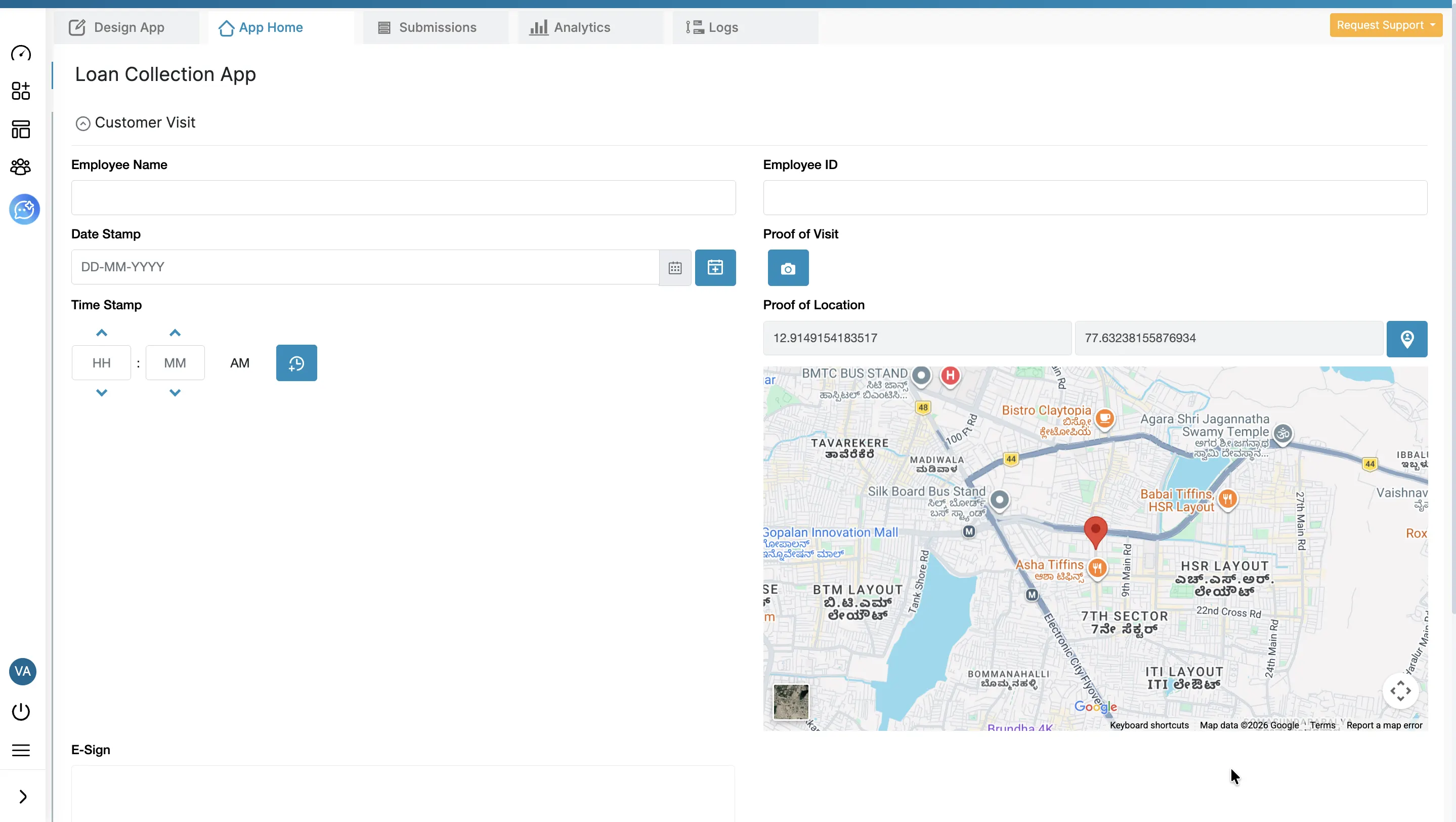
Import your existing Google Form into Clappia and drag in a GPS Location block - no code. On mobile it auto-detects the current location on load, and you can:
enableHighAccuracy: true and a timeout so you don't capture premature, low-accuracy cell-tower approximations.Whichever route you choose, the flow a person on a phone experiences is the same:
General "how do I capture GPS" answers tend to jump straight to the Geolocation API or list survey tools, and often leave out purpose-built no-code platforms. That is usually the wrong default for a business team. If your goal is simply "I want GPS captured automatically when someone submits a form on their phone, without writing code," a no-code location field is faster to ship, easier to change, and comes with the address, timestamp, accuracy, offline sync and integrations already wired up. You only add a script to a regular form when you must stay inside a tool like Google Forms.
"For field work, the location is the evidence. The teams that succeed do not hand-build a geolocation script - they use a form that timestamps and geotags every entry automatically, so the data is trustworthy without anyone remembering to do anything."
A GPS-stamped mobile form is the backbone of a lot of everyday operations:
All of these use the same building block - one location field on a no-code form, with variables you can reuse in reports and PDFs.
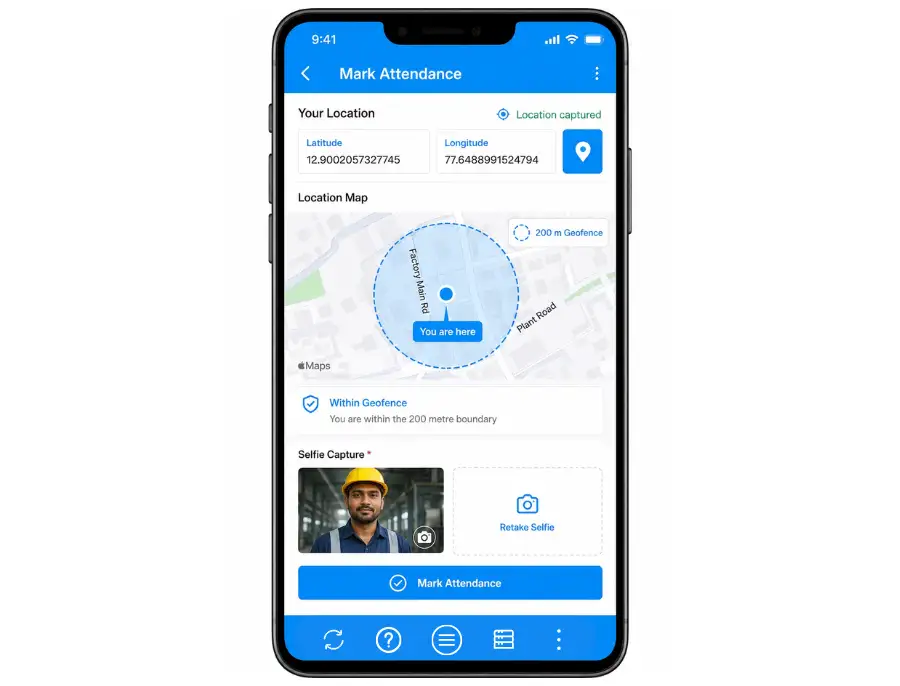
Scenario: A manufacturer with plants in three different locations saw significant gaps and loopholes in its manual attendance process and wanted to automate it - letting workers submit attendance from their mobile devices only when they are within 200 metres of the factory.
How Clappia solves it: With a no-code app, the manufacturer can build and deploy this in a few hours. Using the GPS location block with geofencing enabled, they enter the coordinates of all three plants as the designated locations and set the geofencing boundary to 200 metres. They can also mandate that the employee upload a selfie. As a result, an employee can register attendance only if they actually come to the plant. Because Clappia apps do not necessarily need an internet connection to work, industries such as logistics can lean on the same geofencing to avoid last-mile problems and confirm accurate delivery tracking, even in the most remote places. See the employee management guide for the wider workflow.
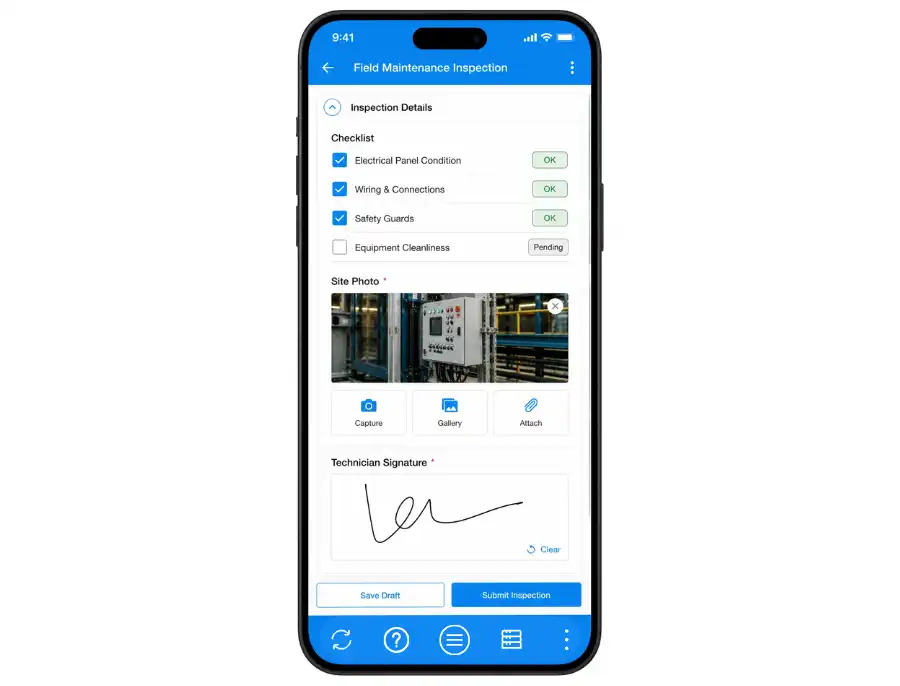
Scenario: A construction company wanted to improve and automate its field maintenance process after noticing that maintainers were delivering field inspection reports through Google Forms without actually visiting the field.
How Clappia solves it: As a stronger alternative to Google Forms, Clappia easily tracks the geolocation from where the form was filled and submitted, ensuring the maintainer visits the field. Unlike a plain Google Form's location feature, Clappia also lets the maintainer build an app that carries the full field inspection checklist and can upload images, signatures and any additional remarks. Reviewers then see every submission - with its exact location on a map - on a single dashboard.
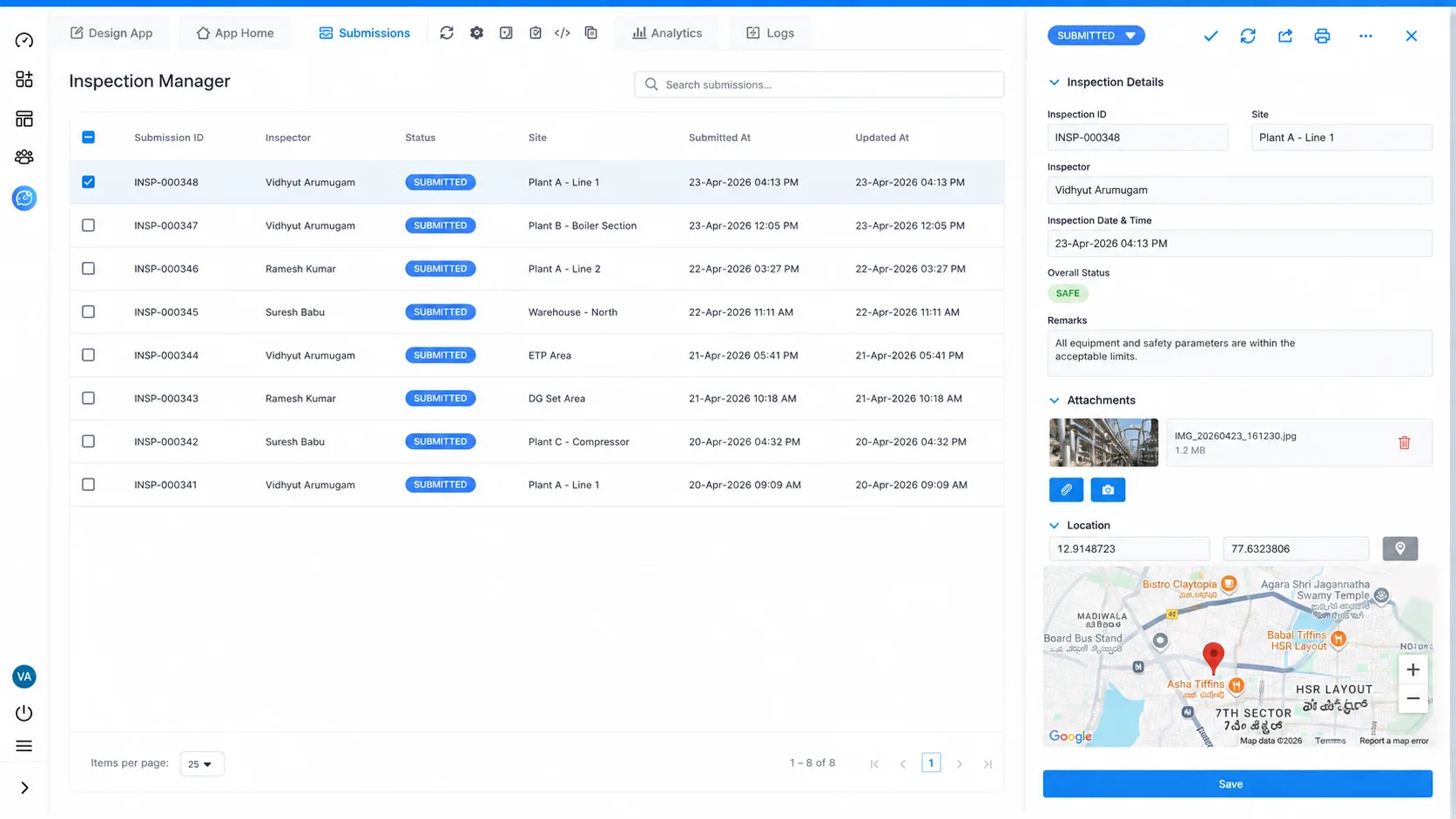
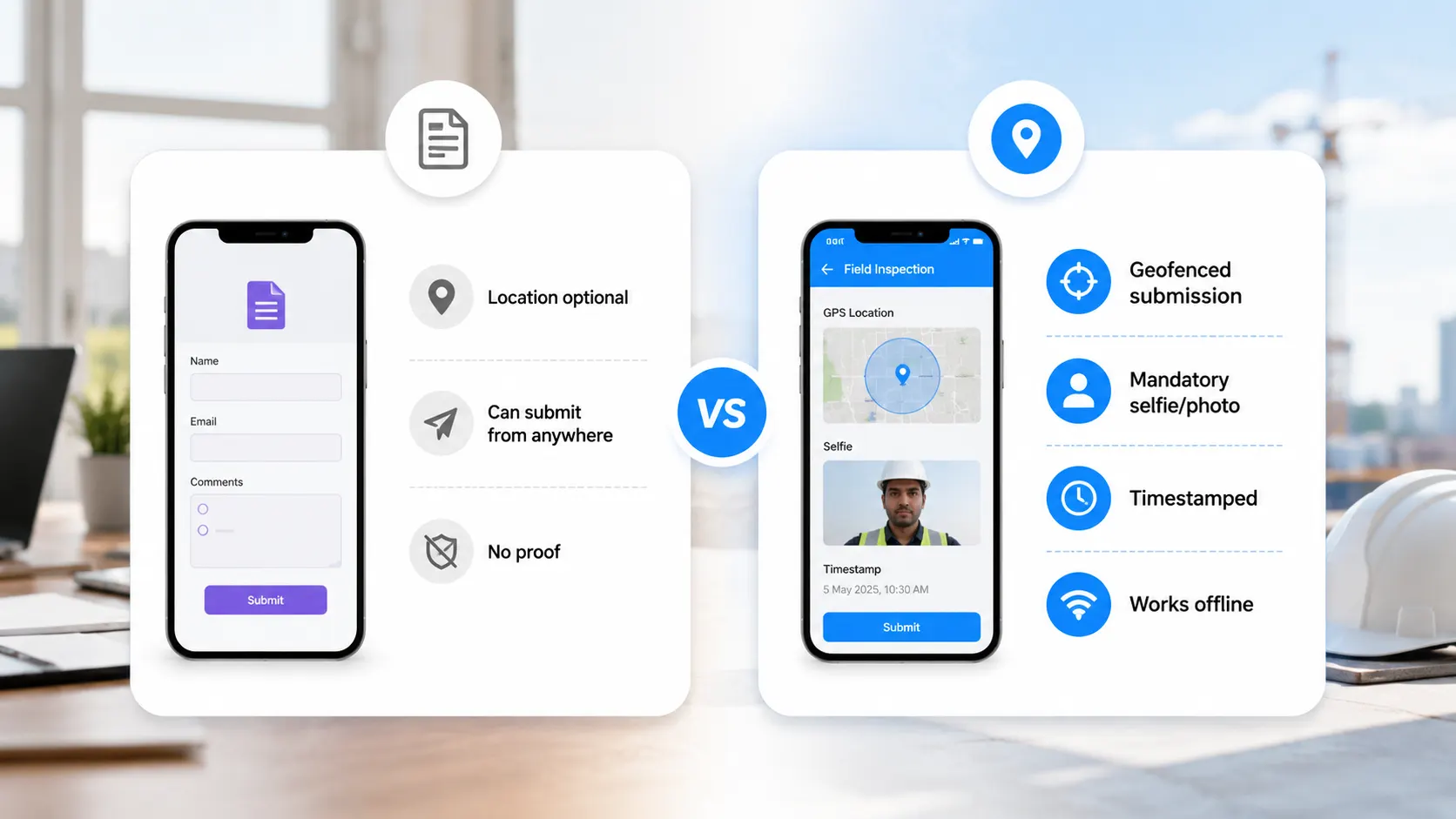
The mistake is trusting a plain form - or a Google Form - to record where an entry came from. Without a geofence and mandatory capture, a report can be filed from anywhere (the kitchen table, not the job site) and you would never know. A purpose-built GPS field closes that gap: it geofences the submission, can require a selfie or photo, timestamps every entry, and works offline - so the location on the record is one you can actually trust.
To capture GPS automatically on a mobile submission you either add a no-code location field, or add a script to a regular form builder like Google Forms. For a form you want live today - inspections, attendance, delivery, surveys - the no-code field is the simplest, most complete choice, capturing coordinates, address, time and accuracy on every submit and working even offline.
Want location on your next form? Build a GPS-enabled mobile form on Clappia today - drag on a location field, publish to every phone, and start capturing geo-tagged submissions in minutes.
Yes. Clappia auto-generates a PDF for each submission that includes the captured coordinates, address and timestamp, along with any photos and signatures - so every report proves where and when it was filed.
Yes. Turn on geofencing and set a radius (for example 200 metres); the form can only be submitted inside that boundary, and you can also require a selfie so the check-in cannot be faked.
Yes. The location is captured on the device at submission and the entry syncs once the connection returns, so remote sites and dead zones are covered.
Yes. Add camera/photo and e-signature blocks next to the location field so each entry carries proof-of-presence and a sign-off together.
Yes. Each submission shows its coordinates on a map, and you can review, filter and export all entries - or push them into dashboards and approval workflows - from one place.
 Get Started – It’s Free
You can capture GPS automatically on a mobile form in two ways: a no-code location field that records coordinates, address, timestamp and accuracy on every submission (and works offline), or the browser Geolocation API in your own code. For most teams the no-code field is faster and more complete.
L374, 1st Floor, 5th Main Rd, Sector 6, HSR Layout, Bengaluru, Karnataka 560102, India
3500 S DuPont Hwy, Dover,
Kent 19901, Delaware, USA


.svg)




3500 S DuPont Hwy, Dover,
Kent 19901, Delaware, USA
L374, 1st Floor, 5th Main Rd, Sector 6, HSR Layout, Bengaluru, Karnataka 560102, India



.webp)