

You send a field team out to inspect a site. The reports come back - but you have no proof anyone actually stood on that site. Google Forms captured the answers. It captured nothing about where. No pin. No coordinates. No timestamp tied to a place.
This is the gap most teams hit when they try to add location to a form. Google Forms is excellent at questions and answers, but it was never built to work with maps. This guide explains exactly what Google Forms can and can't do with Google Maps, walks through every workaround, and shows a simpler path: building a no-code app that captures verified location the moment someone submits.
No. Google Forms does not offer a native Google Maps integration. There is no toggle, add-on, or built-in field that connects the two.
In practice, that means four things are missing:
You can still reference location in a Google Form using short-answer fields or links. But every method relies on the respondent to type, paste, or share the right data manually - which is where accuracy breaks down.
If you're set on Google Forms, these are the realistic options. Each solves part of the problem.
The common thread: none of these actually capture where the user is. They ask the user to describe it. For a newsletter signup, that's fine. For field data collection, inspections, or attendance, it isn't enough.
If location matters to your process, you need the form to record it automatically - not ask for it. That's the core difference between a survey tool and an operations app.
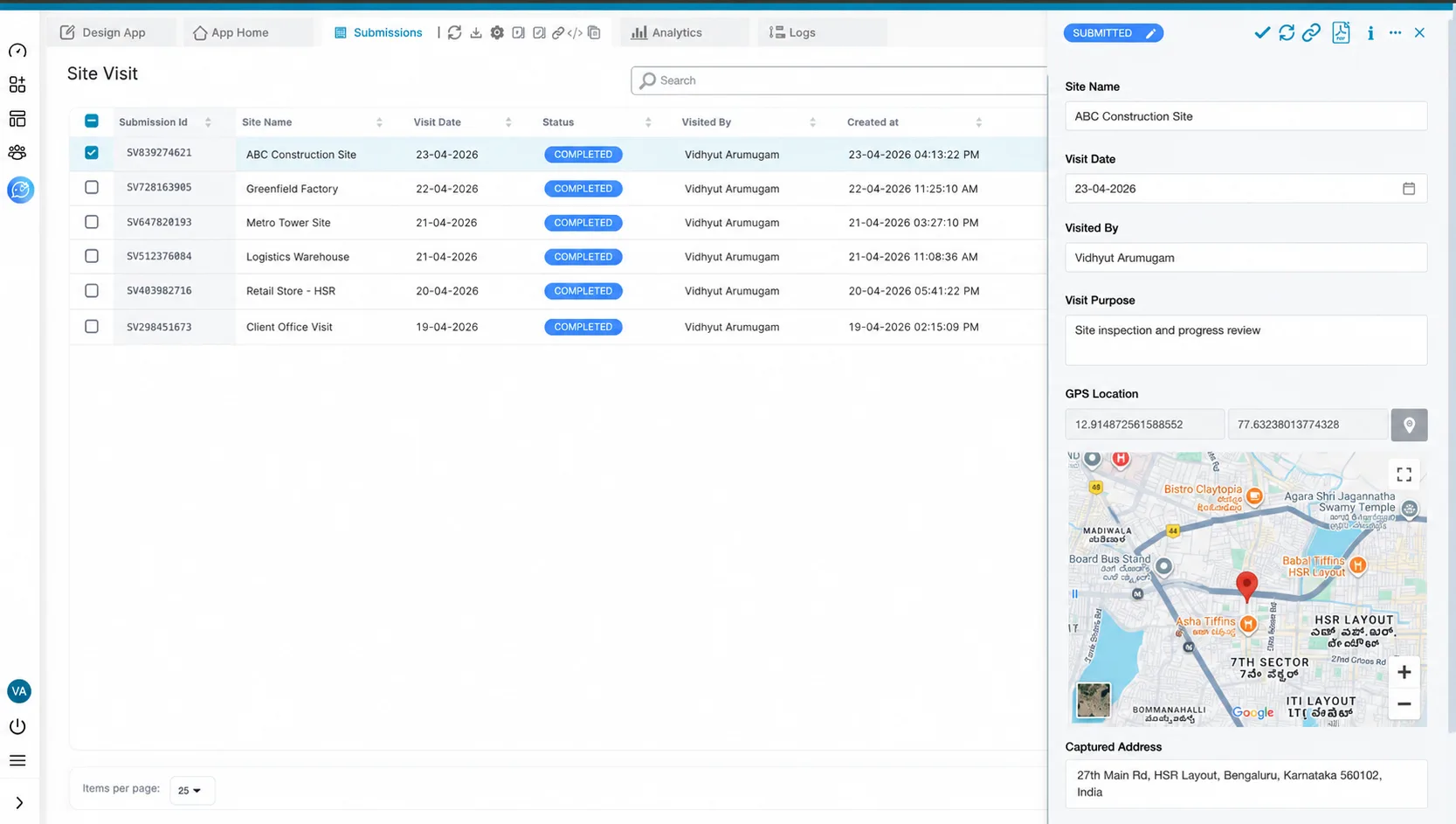
Here's what a location-ready form should do, and how Clappia handles each without code:
Capture GPS, maps, and geofencing in one app.
Get Started For FreeYou don't configure a map picker in Google Forms - you build a form that already knows how to read location. Here's the sequence.
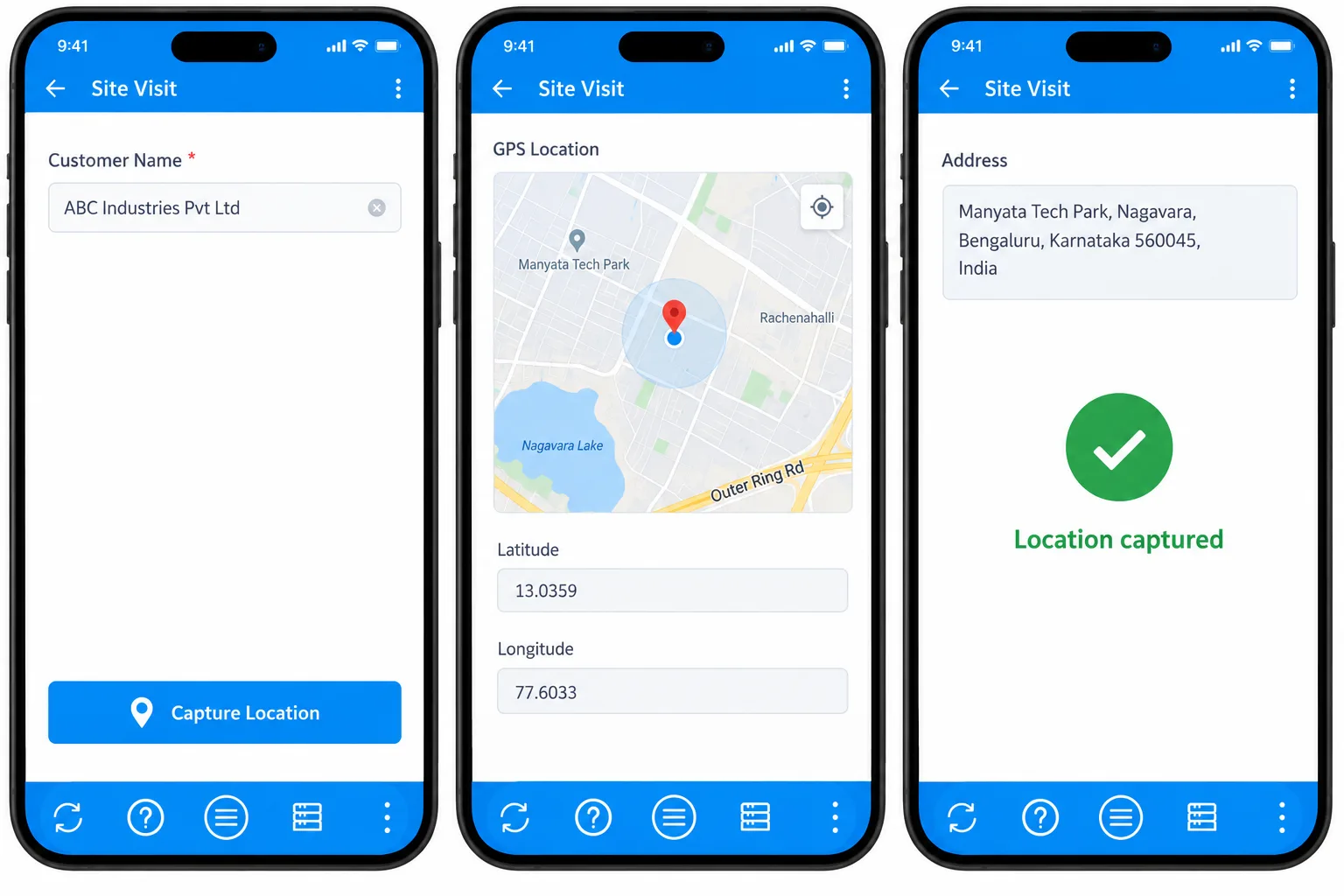
Already built the form in Google Forms? You don't have to start over. You can import your existing Google Form into Clappia — your questions carry over as fields - then add the map and location blocks on top.
Here's how the two compare on the capabilities that matter for location-driven work.
| Capability | Google Forms | Clappia |
|---|---|---|
| Automatic GPS capture | No | Yes |
| Map pin / picker | No | Yes |
| Geofencing | No | Yes |
| Live location tracking | No | Yes |
| GPS-stamped photos | No | Yes |
| Offline submission | No | Yes (default) |
| Workflows & approvals | No | Yes |
| Auto PDF reports | No | Yes |
If you only need a comparison-style view of switching, our guide on the Google Forms alternative with GPS location goes deeper on the migration side.
Priya, a facilities supervisor at a manufacturing plant.
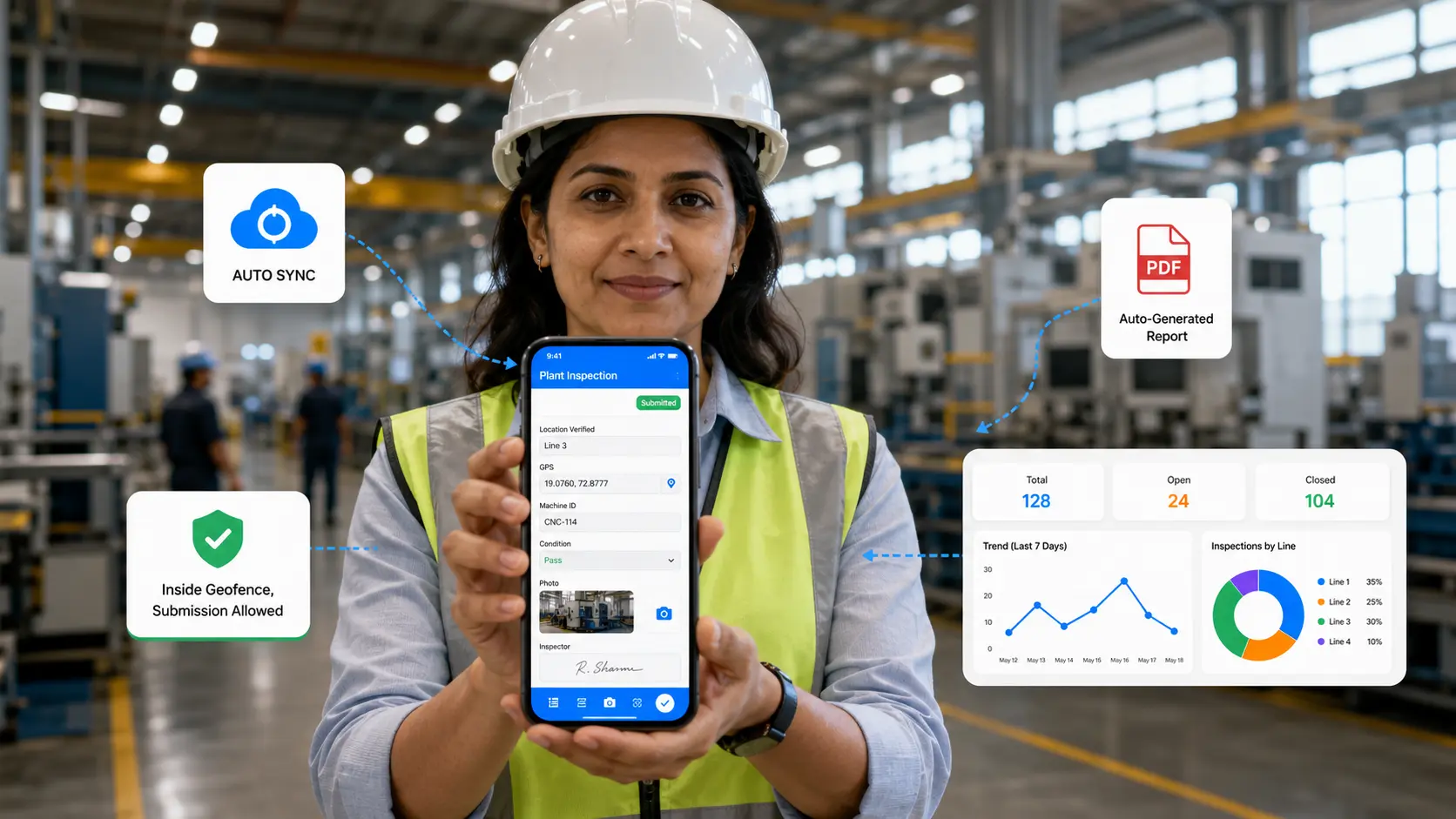
Her inspectors used to file checklists from Google Forms - sometimes without leaving the office. She rebuilt the inspection as a Clappia app with geofencing, so the form only submits inside the plant boundary. Each inspector captures machine photos and signs off on the device. On submission, a workflow routes the report to Priya for quality inspection approval and drops a branded PDF into the plant's WhatsApp group. Fake inspections stopped overnight.
Daniel, a last-mile delivery lead.
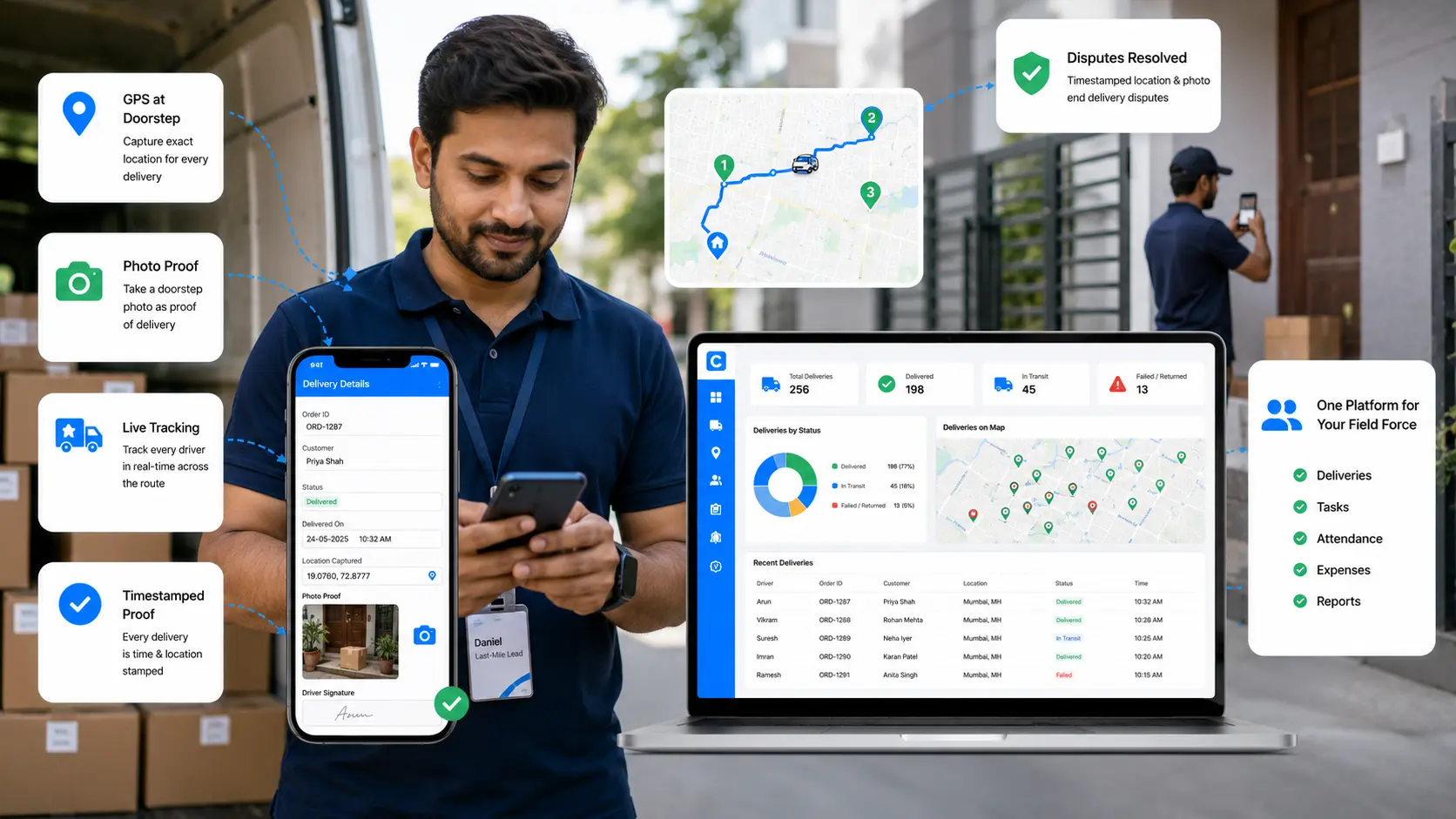
His drivers marked parcels "delivered" with no proof of location. Daniel built a delivery tracking app that captures GPS and a photo at the doorstep, with live tracking across the route. A dashboard shows every drop by location and status, and disputed deliveries now resolve with a timestamped pin instead of a phone call. His wider field force management runs on the same platform.
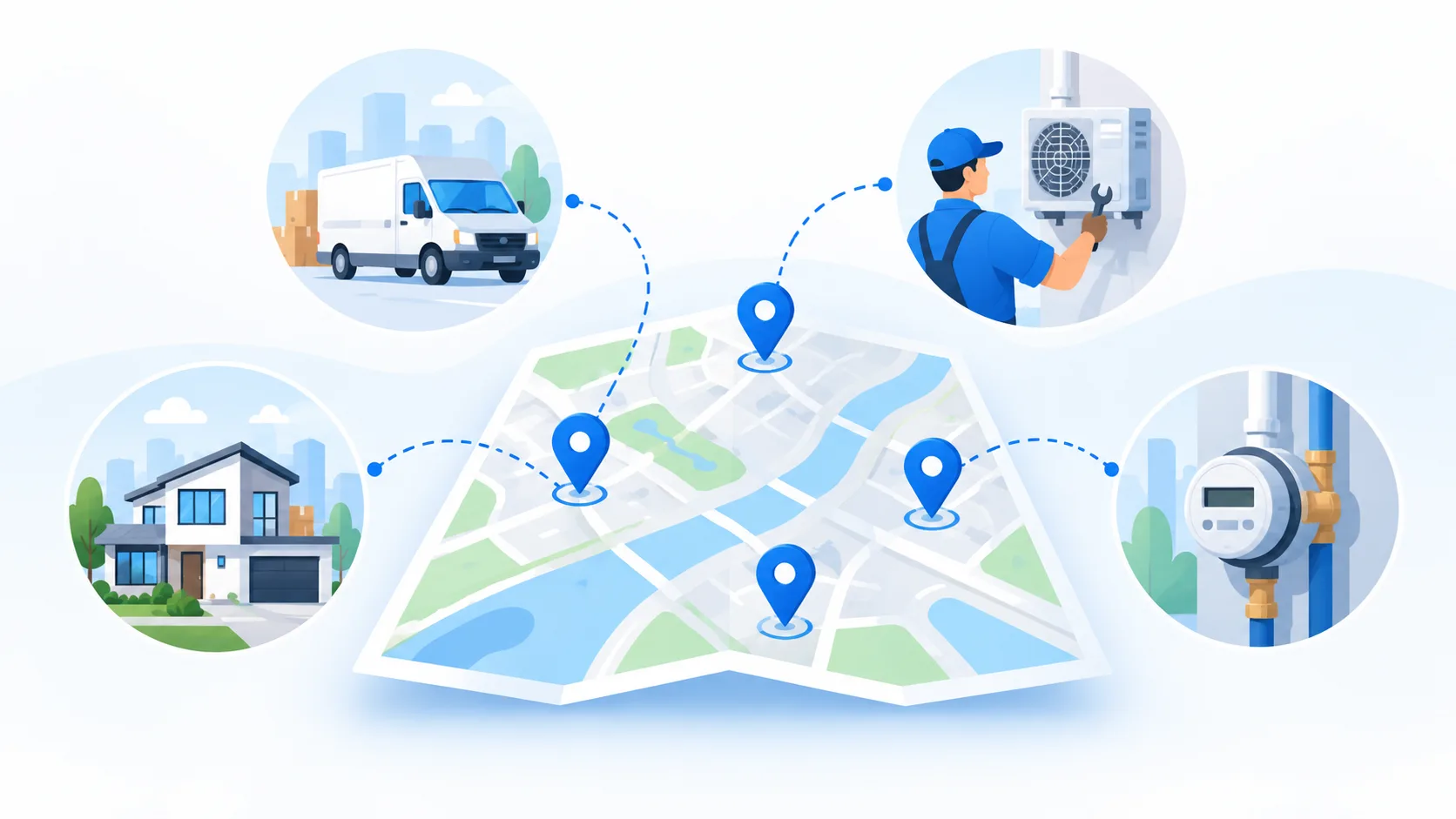
| Industry | Common use cases |
|---|---|
| Construction | Site inspections, snag lists, geotagged safety audits. |
| Logistics | Delivery confirmation, proof of location, live route tracking. |
| Manufacturing | Geofenced factory inspections and machine checks. |
| Field service | Job sign-offs with GPS, photos, and signatures. |
| Utilities | Meter reads and asset surveys in remote, offline areas. |
| Sales | Verified visit check-ins and territory coverage. |
Can Google Forms capture GPS location?
No. Google Forms cannot read a device's GPS or record coordinates on its own. You can add a short-answer field and ask respondents to type or paste their location, but there is no automatic capture and no way to verify what they enter.
Can I embed an interactive Google Map in a Google Form?
No. Google Forms does not support embedding a live, interactive Google Map or a map picker inside the form. You can share a static map link in the form description, but respondents cannot drop a pin or select a point on a map within the form itself.
Can users drop a pin on a map in Google Forms?
No. There is no pin-drop or map-selection field in Google Forms. To let users choose a point on a map, you need a form platform with a built-in GPS or map block, such as Clappia, where location is captured automatically on submission.
Does Google Forms work offline?
No. Google Forms needs an internet connection to load and submit. For teams collecting location in remote areas, an app that works offline by default and syncs later is more reliable for uninterrupted data collection.
How can I verify an employee was at a location using a form?Use geofencing. A geofenced form only submits when the user is inside a defined radius of the site, which confirms physical presence. Google Forms has no geofencing, so this needs a platform like Clappia built for GPS attendance.
Can I import my existing Google Form into Clappia?
Yes. If you already built the form in Google Forms, you can import it into Clappia and keep your questions as fields, then add map, GPS, and geofencing blocks on top. It's faster than rebuilding, and you get maps and offline capture the original form never had.
Google Forms will keep doing what it does best — quick questions and answers. But the moment your process depends on where, the workarounds start costing you accuracy and time.
The better move isn't cloning a template. It's building the exact app your operation needs: a form that records GPS on submission, enforces a geofence, captures photos and signatures, works offline, and turns every entry into a report delivered straight to Gmail, WhatsApp, or Slack. You can build it yourself with drag-and-drop blocks, on a free plan that never expires.
Ready to collect location data you can actually trust? Sign up and start building.
 Get Started – It’s Free
Build Custom Apps With GPS Location Without CodingGet Started - It's free!
L374, 1st Floor, 5th Main Rd, Sector 6, HSR Layout, Bengaluru, Karnataka 560102, India
3500 S DuPont Hwy, Dover,
Kent 19901, Delaware, USA


.svg)




3500 S DuPont Hwy, Dover,
Kent 19901, Delaware, USA
L374, 1st Floor, 5th Main Rd, Sector 6, HSR Layout, Bengaluru, Karnataka 560102, India