
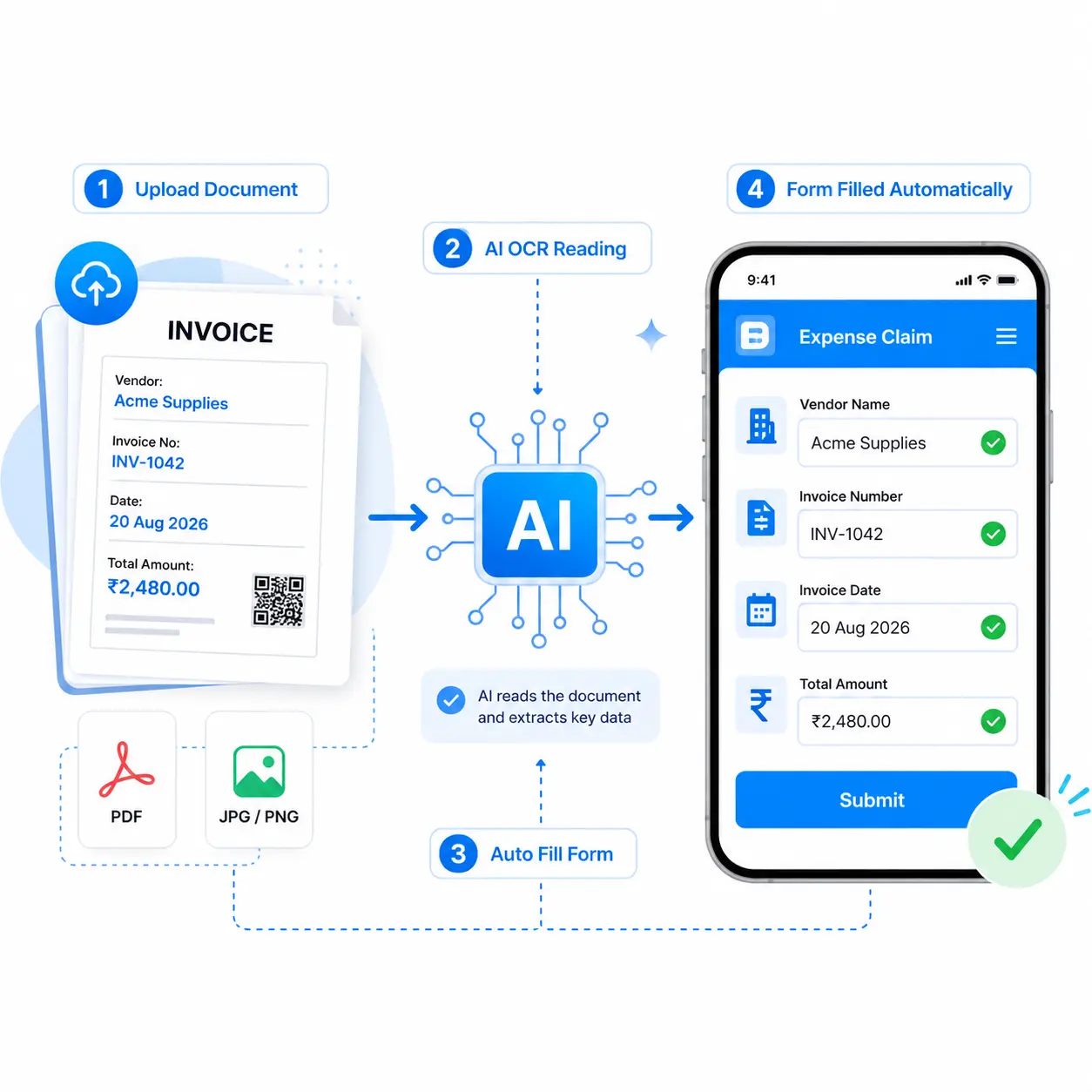
Google Forms with OCR would be useful for workflows where users upload a PDF, invoice, receipt, or image and expect the text inside the document to be extracted and automatically entered into the form fields. This can save significant manual data entry for invoices, expense claims, delivery challans, application forms, and other document-based workflows.
Unfortunately, Google Forms does not have built-in OCR to read an uploaded PDF or image and automatically fill other form fields with the extracted information. Its file upload field can collect the document, but it does not natively read the contents and populate fields such as vendor name, invoice number, date, or amount.
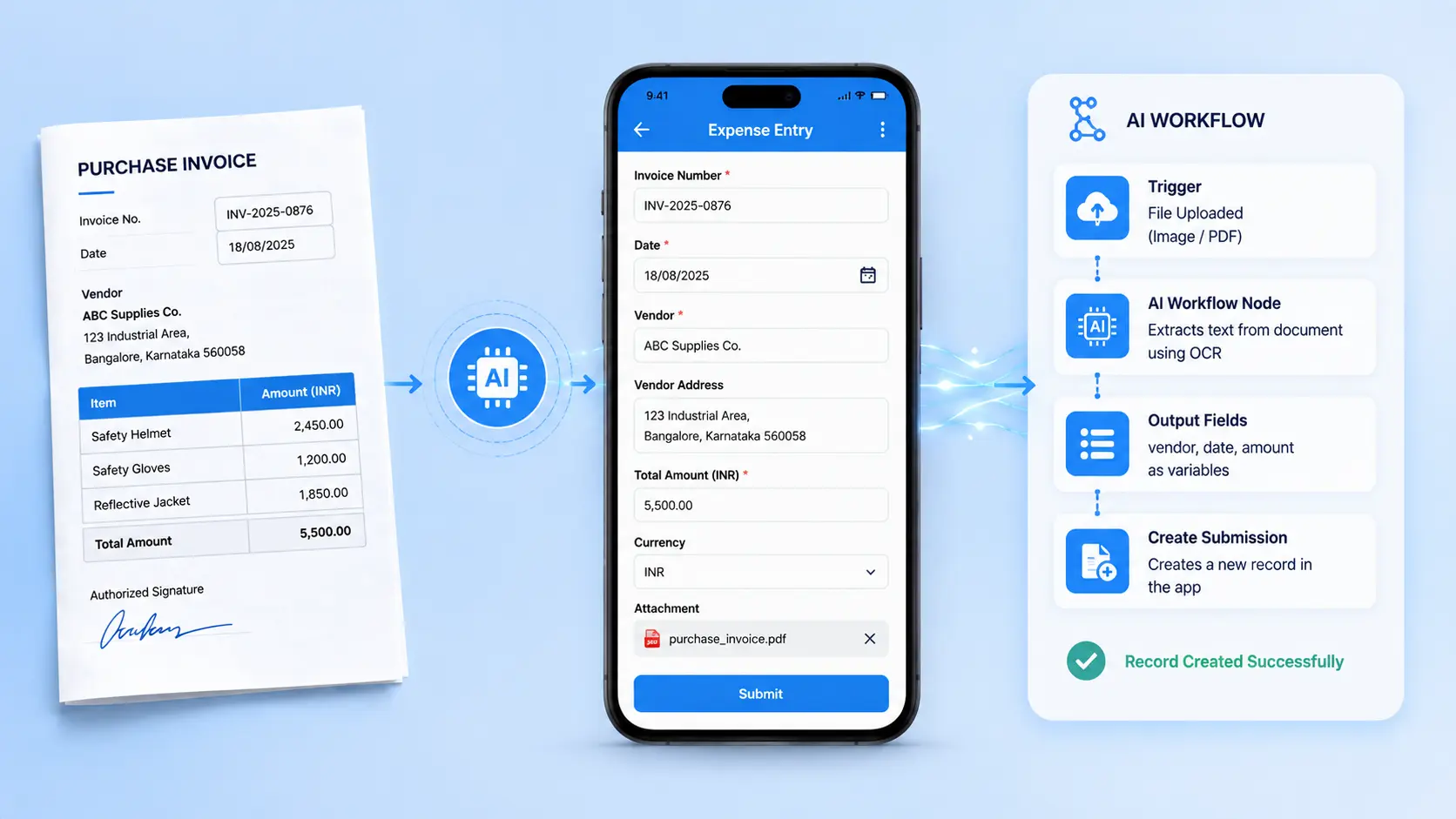
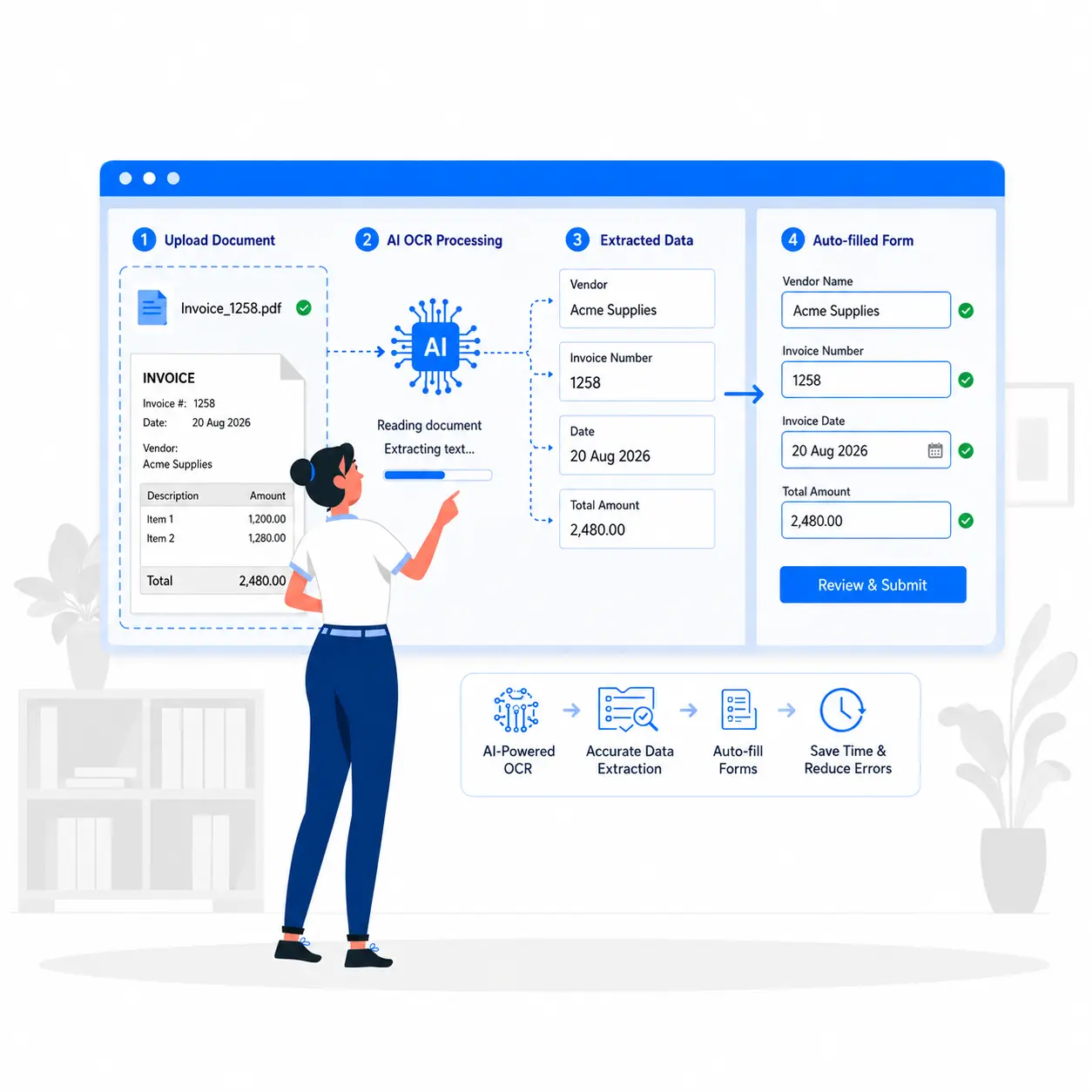
With Clappia, you can create a Google Forms alternative that does exactly this without writing code. Upload a PDF or image using the Camera, Images & Files block, use an AI Workflow node to extract the required text, and map the extracted values into your form fields. You can also import an existing Google Form into Clappia and add this document extraction workflow to it.
Before the build, it helps to see why Google Forms hits a wall the moment a form needs to read something instead of just collecting it.
Clappia does not ask you to stitch Zapier, an OCR API, and a script together. You pick one of four ways to create the app, then attach the same AI Workflow. Choose the path that matches what you already have.
If the form already lives in Google Forms, keep the questions and add OCR on top.
@ to attach the upload field, write plain-language instructions such as “Read the uploaded invoice and extract vendor name, invoice number, invoice date, and total amount,” then add Output Fields with those four names.This path preserves the form you already trained people on, then adds camera capture, OCR, and mobile apps that Google Forms cannot offer. The same Camera block is how Clappia handles photo capture that Google Forms never built in.
Start from a sentence instead of an import. Open Build with AI Assistant and describe the app:
“Create an expense claim form with a receipt camera upload, vendor name, amount, date, employee name, and an e-signature. After submit, read the receipt photo and fill vendor, amount, and date automatically.”
The Assistant lays out the fields. You still open Workflows and attach the AI Workflow node yourself: pick OpenAI, Claude, Gemini, Mistral, or Grok, write the extraction instructions in plain English, and name the Output Fields. No script editor. No JSON parsing step. The node stores each extracted value as a variable you pick with @.
If the target record already looks like a spreadsheet (Vendor, Invoice Number, Date, Amount, Status), create the app from Excel:
This is the fastest way to test with sample rows before you go live, the same idea as turning a Google Sheet into an operational app.
Build from a blank canvas when you want full control. Drag the Camera, Images & Files block, then the target fields (Single Line Text, Number, Date Selector). Optionally add GPS location and an e-signature so a field photo is tied to a person and a place.
Configure the workflow visually: Workflows > After Form Submission > AI Workflow node > Output Fields > Create Submission. Tell the AI to return empty values for anything it cannot see, then use two IF nodes so complete extractions file automatically and incomplete ones wait for review. That is the entire architecture.
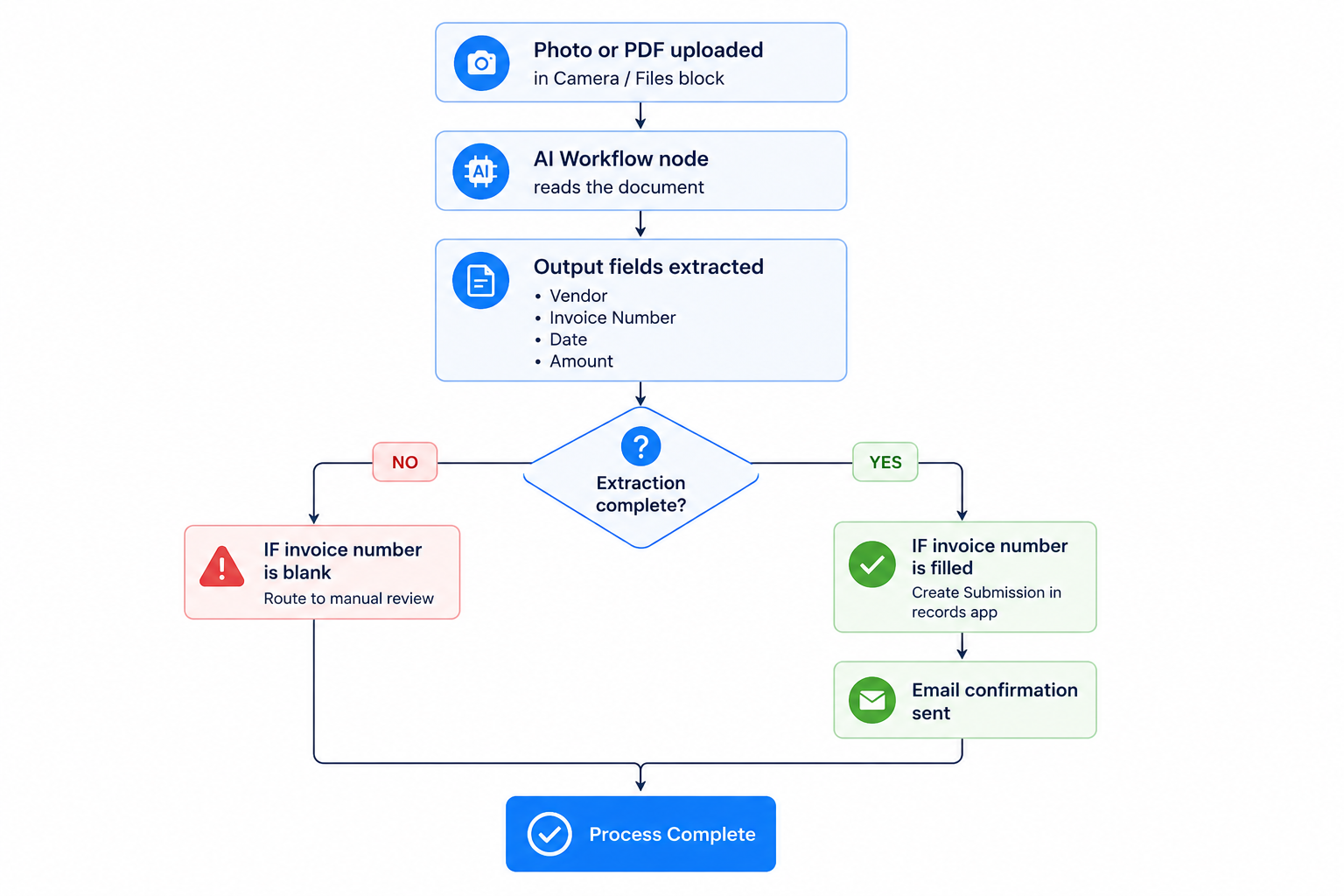
The flowchart is the finished Clappia path: upload, AI read, named output fields, then a yes/no split with two IF nodes. Nothing in that canvas requires writing a script.
The one thing that makes OCR reliable is the instruction, not the model. Tell the AI Workflow node exactly which named Output Fields you want back, in plain language, and it will hold that structure submission after submission. Guess at the format and you will get inconsistent output half the time.
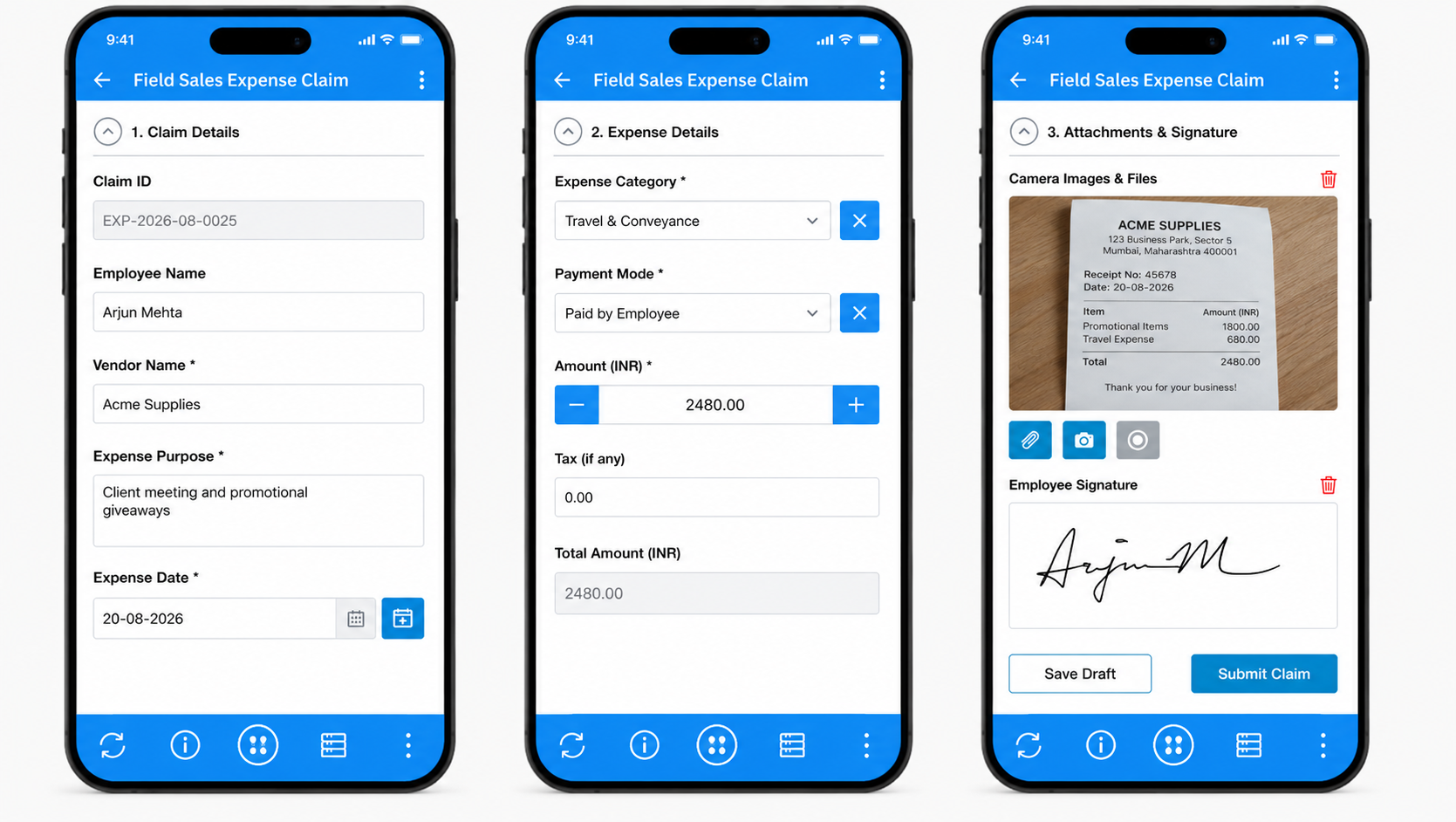
Scenario: A field sales team of 40 reps across 6 cities submits expense claims every week. Reps used to photograph receipts, email them to accounts, and wait days while someone retyped vendor names and amounts into a spreadsheet. The backlog regularly ran two weeks deep. Google Forms could collect the photo. It could not fill the claim.
How Clappia solves it: Each rep opens the Clappia mobile app, taps the Camera, Images & Files block, and photographs the receipt on the spot. Offline mode queues the submission until connectivity returns. When it syncs, the AI Workflow node extracts vendor, amount, and date into Output Fields, Create Submission logs the claim into the Finance team's Expense Ledger app, and an approval node can route amounts over a threshold. Accounts sees a structured record within seconds of the photo, not days later. The same pattern powers Clappia's AI expense reimbursement apps.
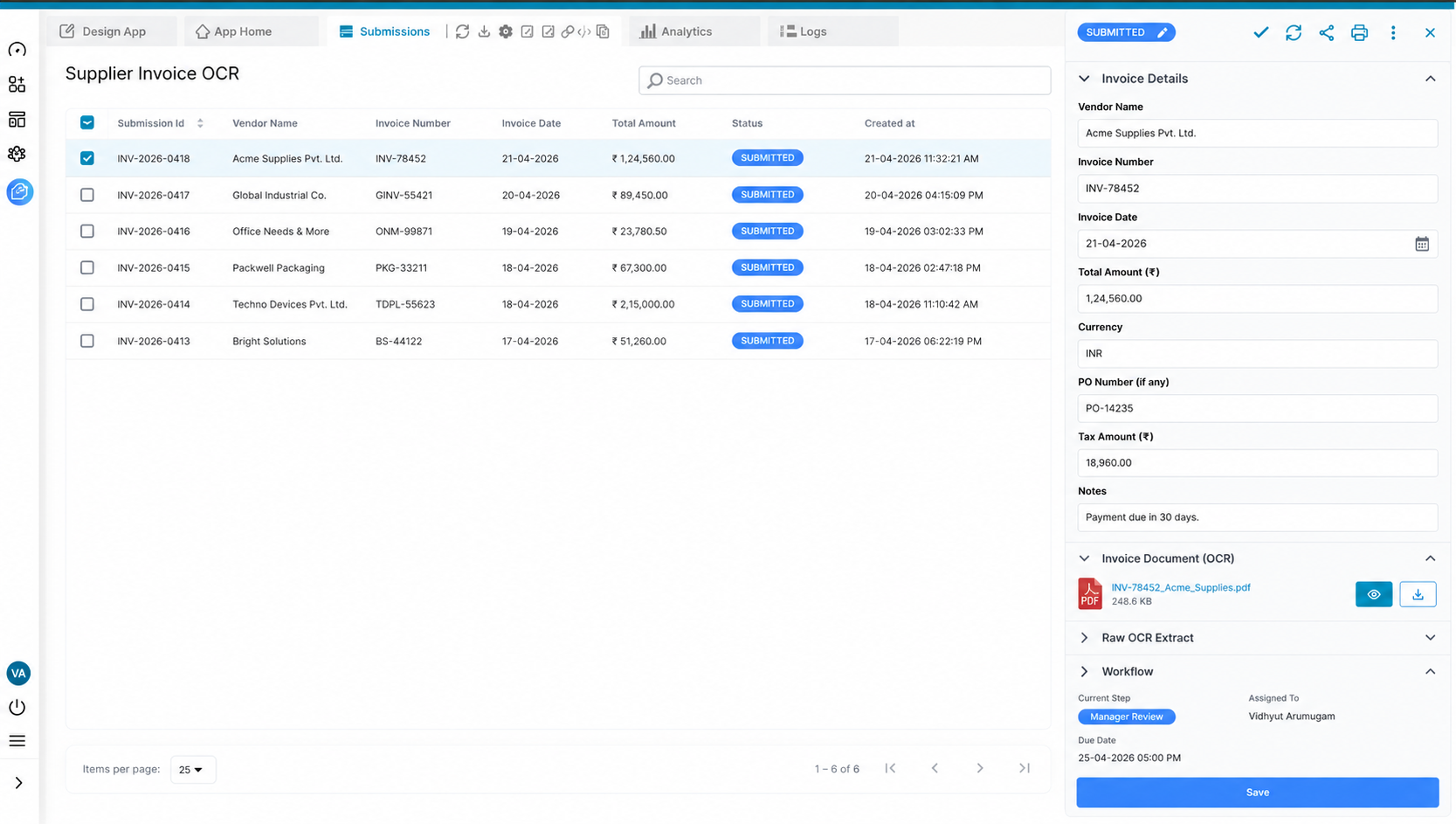
Scenario: A distribution company processes roughly 300 supplier invoices a month across three warehouses. One accounts clerk retyped every invoice number, vendor, and total into an Excel MIS. That job ate a full day each week and still produced the occasional transposed digit.
How Clappia solves it: The team uploads scanned invoices through the desktop app. The AI Workflow node reads each PDF, Output Fields capture vendor_name, invoice_number, invoice_date, and total_amount, and Create Submission writes each one into the Purchase Register app. A Clappia Analytics dashboard then shows spend by vendor in real time. For a deeper invoice-only walkthrough, see how to extract invoice data from PDFs without manual entry.
The workaround most teams try first is bolting an OCR add-on onto Google Forms. It is worth seeing why that approach breaks down next to a native workflow.
Ready to stop retyping what a camera can already read? Start building for free and turn your first scanned form, receipt, or invoice into a finished submission today. Your field and back-office teams will feel the difference within the first upload.
No. Google Forms' file-upload question only stores the file. It has no model that reads text from images or PDFs. Any “OCR in Google Forms” setup you find online is a third-party add-on wired on top of it.
Yes. Import your Google Form into Clappia, add a Camera, Images & Files block for the upload, and configure the AI Workflow node with Output Fields as described above.
The AI Workflow node supports OpenAI, Claude, Gemini, Mistral, Grok, and Llama. File analysis depends on the model. Some Gemini models are text-only, some Grok models read images but not documents, and current Llama models do not support file analysis. The configuration panel shows a warning when the selected model cannot read the file type.
Instruct the AI to leave that Output Field empty, then use two Condition nodes: one path when the key field is filled, and one path that sends blanks to manual review instead of creating a bad record.
Yes, on Clappia's free plan, which includes 100 users, 400 submissions a month, and unlimited apps. The AI Workflow node has a shared monthly output limit of 100 with the in-app AI block, or you can connect your own provider API key. Paid plans start at $6/user/month once you need more volume.
Yes. Add an e-signature block or a GPS location block alongside the OCR upload. They run independently of the AI workflow.
 Get Started – It’s Free
Build Custom Apps With GPS Location Without CodingGet Started - It's free!
L374, 1st Floor, 5th Main Rd, Sector 6, HSR Layout, Bengaluru, Karnataka 560102, India
3500 S DuPont Hwy, Dover,
Kent 19901, Delaware, USA


.svg)



3500 S DuPont Hwy, Dover,
Kent 19901, Delaware, USA
L374, 1st Floor, 5th Main Rd, Sector 6, HSR Layout, Bengaluru, Karnataka 560102, India