

.avif)
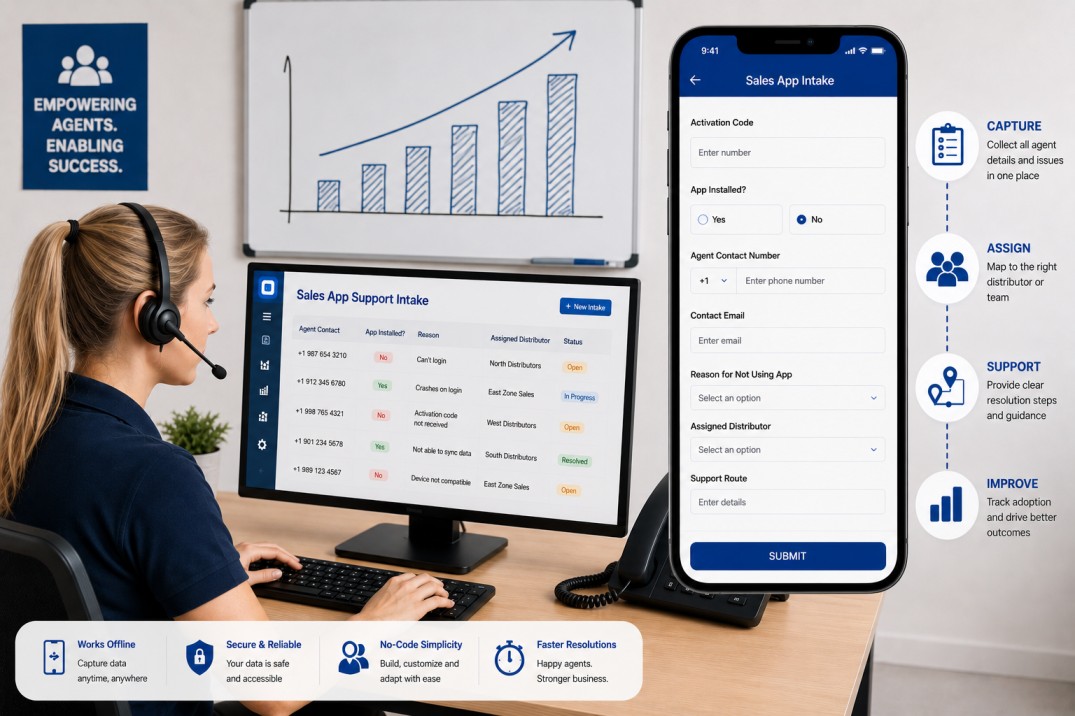
If your business manages periodic meter readings across multiple physical sites, whether that is a telecom network, a facilities management operation, an industrial plant, or any distributed infrastructure team, you already know the monthly data collection problem well. Readings arrive at all hours, some sites get submitted twice, others not at all, and the photos that are supposed to verify the readings are either missing or taken from a gallery weeks earlier. By the time anyone notices a gap, the reporting window has closed and the chase begins.
The good news is that all of these problems can be solved at the form level, before any incorrect data reaches your reporting layer. By building a time-gated energy reading app in Clappia, you can restrict submissions to a defined window each month (say, the 1st to the 13th), make the form visibly unavailable outside that window, require photo evidence of each meter, prevent the same site from being submitted twice in the same month, and automatically notify the right people the moment a reading is saved.
This guide walks through exactly how to build that system in Clappia, step by step, from the site master setup to the duplicate check, the display condition logic, the formula-computed meter reading, and the workflow notifications.
Energy or utility reporting typically follows a billing or audit cycle. Readings captured too late in the month are either excluded from that cycle or require manual correction downstream. Readings submitted without a hard cutoff tend to drift, with some sites submitting on the 20th, others on the 25th, making cross-site comparisons unreliable.
A time-gated form solves this at the source. When the form itself hides the input section after the cutoff date and replaces it with a clear notice explaining the window has closed, field teams cannot accidentally submit late data. There is no ambiguity, no need for a separate reminder campaign, and no manual filtering required on the backend to identify out-of-window submissions.
The most effective data quality control is one that operates at the point of entry, not after the fact in a spreadsheet.
Adding mandatory photo evidence on top of this creates an auditable record. Each submission carries a timestamped photo of the physical meter, which can be reviewed if a reading is disputed. Combined with a duplicate submission check, this gives operations teams high confidence that every site has exactly one verified reading per month.
The complete solution consists of three Clappia apps working together:
You do not need to build all three at once. The Site Master and Site-Month Log can start simple and be extended later. The Energy Reading app is where most of the logic lives and where this guide focuses most of its attention.
Before the main reading form can auto-populate site context, you need a reference app that holds your site records.
Create a new app in Clappia called something like 'Site Master'. Add the following fields, all as Single Line Text blocks unless noted:
Optionally, create a second 'Site Master (Contacts)' app that extends the above with operational contact details by role (technician, engineer, cluster lead, and so on). You could also add another section in the same app and add more fields to capture these details. This becomes useful when workflow notifications need to reach specific people per site.
Once the Site Master app has records, you can point your Energy Reading app's site picker at it using a Get Data from Other Apps block, which is covered in the next step.
You can always bulk upload data into this app if you already have existing records and do not want to manually fill it in.
Go back to your Clappia home screen and click "+ New App" again. Name this one "Energy Reading" (or whatever label suits your organisation). This is the primary form your field teams will use.
Inside the app builder, you will add fields across two sections. To create a section, click "Add Section" in the builder and give it a name. Sections are how Clappia groups related fields together, and they are important here because you will apply a display condition to an entire section at once, making all the fields inside it appear or disappear based on a rule.
Site Picker and Auto-Population
Add a Get Data from Other Apps block as the first field in this section. This block lets your form pull information from another app in your Clappia workspace, in this case, your Site Master app. When a field team member selects a site, the form automatically fills in the related fields from that record:
Making these fields read-only prevents accidental edits and ensures that the site metadata in every submission matches your master data exactly. Field staff only ever make one selection; the form does the rest.
Date and Month-Year Fields
Add a Date block labelled Reading Date. Set it to default to today's date. Then add a Formula block labelled Month - Year. This formula formats the selected date into a month and year string for use in the duplicate check and in reports:
TEXT({Reading Date}, "MMM-YYYY")
Note - In Clappia's formula editor, you can reference other fields in your form using field variables. To insert one, type @ inside the formula editor and either start typing the field name or select it from the list of fields that appears. Clappia wraps it in curly brackets automatically, for example {Reading Date}.
Fields used: Reading Date.
What the formula does: Converts the date value to a formatted string such as 'Jun-2025'.
What the user sees: A read-only text field showing the month and year derived from the date they entered. This is stored with the submission and used later to check for duplicates.
Unique Ticket or Reference Number
Add a Unique Sequential block labelled 'Reference Number' (or 'Ticket Number'). Set a prefix that is meaningful to your operations, for example 'ENR-' or 'TT-'. Clappia auto-increments this with each submission, giving every reading a traceable identifier you can reference in notifications and reports.
This is one of the most valuable safeguards in the system. Without it, a field team could accidentally submit a second reading for the same site in the same month, causing double-counting in your energy reports.
The duplicate check works by querying the Site-Month Log app (which you will configure in Step 7) each time the site picker is used. Here is how to set it up:
Because the Get Data from Other Apps block only queries after the site picker is populated, this validation only fires when a genuine match is found in the log, not on every form open. The result is that duplicate submissions are blocked at the point of entry without any manual review required.
This is the core of the guide. Add another section and this part of the form contains the meter reading inputs, but they are only visible when the current date falls within the allowed entry window. Outside that window, a red notice is displayed instead and the input fields are hidden.
The logic is built using display conditions on two separate sections: one for the notice (shown when the window is closed) and one for the actual inputs (shown only when the window is open).
Step 4a: Add the Entry Type Selector
Add a Single Selector block labelled Reading Type. For an energy reading app, the option is 'Energy'. If your app also captures other types of readings (such as fuel or water), add those options here. The display conditions on both sections below will reference this field so the right inputs are shown for the right reading type.
Step 4b: Configure the 'Window Closed' Notice
Add an HTML Text block. Write a short, clear message in red text explaining that the data entry window has closed for the current month. Something like: 'The energy reading window for this month has closed. Readings are only accepted between the 1st and 13th. Please contact your supervisor if you need assistance.'
Set the display condition for this block to:
{Reading Type} = "Energy" AND DAY(TODAY()) > 13
This means the red notice appears only when the reading type is Energy and today's date is after the 13th. At all other times, this block is hidden.
Step 4c: Configure the Energy Input Section
Create a new section (or group of fields) for the actual meter reading inputs. Set the display condition for the entire section to:
{Reading Type} = "Energy" AND DAY(TODAY()) <= 13
This is the inverse of the notice condition. When the date is on or before the 13th and the reading type is Energy, this section is visible. After the 13th, it disappears entirely, leaving only the red notice visible.
This approach means you never need to disable or republish the app at the end of the window. The form manages itself based on the live date every time it is opened.
Inside the Energy input section (which is now gated by the display condition), add the following fields:
Reading Date
Add a Date block labelled 'Select Reading Date'. This records the exact date the reading was taken, which may differ slightly from the submission date if a team member captures the photo on one day and submits the form the next.
Primary Meter Reading
Add a Number block labelled EB Meter Reading (or 'Primary Meter Reading' if you want a more generic label). This captures the numeric value shown on the main electricity or utility meter. Mark it as required.
Secondary Meter Reading in Hours and Minutes
If your sites use a secondary meter (such as a diesel generator hour meter), capture the reading in two parts. Add:
Splitting hours and minutes into two fields makes it easier to validate each component separately and to build a clean formatted output in the formula below.
Formatted Secondary Reading Formula
Add a Formula block labelled Final Generator Reading. This concatenates the hours and minutes into a single human-readable string:
{DG Meter Reading - Hours} & " Hrs " & {DG Meter Reading - Minutes} & " min"
Fields used: DG Meter Reading - Hours, DG Meter Reading - Minutes.
What the formula does: Joins the two numeric values with labels into a single text string.
What the user sees: A read-only field showing something like '142 Hrs 35 min'. This value is stored with the submission and is immediately readable in reports and notification emails without any post-processing.
Fuel or Consumable Balance
Add a Number block labelled In-Tank Balance (or 'Consumable Stock Level'). This records how much fuel or consumable material remains on site at the time of the reading. Mark it as required if this is a critical operational data point for your business.
Remarks
Add a Dropdown block labelled 'Remarks'. Populate it with predefined options that reflect the possible conditions a field team might encounter. Examples relevant across industries include:
Using a dropdown rather than a multi-text field keeps remarks consistent and filterable in your reports. Free-text remarks are difficult to aggregate; dropdown values can be counted, grouped, and used as workflow conditions.
Photo evidence is what separates a verifiable reading from an unverifiable one. Two photo fields are standard in this design:
Primary Meter Photo
Add a File Upload block labelled Primary Meter Photo. Enable camera capture so the app opens the device camera directly, reducing the risk of old gallery images being submitted. Allow up to 4 images so the team can capture multiple angles if the meter display is partially obscured.
Secondary Meter Photo
Add a second File Upload block labelled Generator / Secondary Meter Photo. Allow up to 3 images. Same camera-capture setting applies.
Both photo fields should be inside the same display-conditioned Energy section from Step 4, so they are only visible and required during the open window.
A Note on Photo Captions
If you want stored photos to carry contextual metadata automatically, you can use a Formula block to build an image caption string from the site name, site ID, and month-year fields. This caption can then be referenced in notification emails or reports, making it easy to identify which photo belongs to which site and month without opening each image individually.
This is the simplest app in the system but one of the most important. Create a new Clappia app called 'Site-Month Log'. Add three Single Line Text fields:
This app has no workflows of its own. It is purely a ledger that the Energy Reading app writes to and queries from.
Workflows can run automatically when a submission is saved or its status changes. Open the Workflow editor in the Energy Reading app (Design App > Workflows) and configure the following:
When a form is submitted: Write to Site-Month Log App Automatically
Add a 'Create Submission' workflow action under the 'New Submission Flow'. Map the following fields from the Energy Reading app to the Site-Month Log app:
This write happens the moment a submission is saved, so the duplicate check is effective for any subsequent attempt to submit for the same site in the same month.
Send Notifications
If you need staged escalation (for example, a reminder after 4 hours if no one has acknowledged the submission), you can add Wait nodes before subsequent email branches. These can be configured now and enabled or disabled depending on your team's needs.
Step 9: Configure Access, Permissions, and Mobile Use
Once the app is built, you need to decide who can access it and how. In Clappia, you control this at the app level in Design App > Distribute > User Access.
The app works fully on the Clappia mobile app (available for Android and iOS). For sites with unreliable connectivity, Clappia's offline mode allows field staff to open the form, fill it in without a signal, and sync the submission when they regain connectivity. This is particularly useful for remote infrastructure sites where internet access is intermittent.
The best-designed app will still produce poor data if field teams are not briefed on what is expected of them. Here are practical guidelines you can share with your teams before the first collection window opens:
| Tip | Why It Matters |
|---|---|
| Capture the full meter display in the frame | Partial photos make the reading unverifiable and may require a re-visit |
| Ensure the display is lit and readable before photographing | Dark or glare-affected photos are not useful as evidence |
| Do not use gallery photos from previous months | Camera-only capture is enforced in the app, but teams should understand why |
| Submit before the 13th, not on the last day | Connectivity issues on deadline day cause late or failed submissions |
| If remarks say 'Meter Not Working', still upload a photo | A photo of the faulty meter is evidence; no photo means no audit trail |
| Check the site name in the form before submitting | If the auto-populated site name looks wrong, do not submit. Contact a supervisor. |
A short training session of 15 to 20 minutes at the start of each new deployment goes a long way. Walk the team through the form on their own devices, simulate an out-of-window attempt so they see the red notice, and practice uploading a photo using the camera capture. Teams who understand the system are far less likely to create exceptions that need manual handling.
After the 13th, the Energy input section is completely hidden for all users. Anyone who opens the app after that date sees only the red notice. No data can be submitted, accidentally or otherwise, for that month's reading cycle.
Your Site-Month Log now contains one record per site for the month. Your Energy Reading app contains the actual reading submissions with photos. Your reports and dashboards, which you can build using Clappia's analytics features or by integrating with an external BI tool via API, reflect verified, photo-backed readings with no duplicates.
If a site genuinely missed the window due to access issues or equipment failure, the Remarks dropdown captures that. You can filter submissions by remarks to identify sites that need follow-up in the next cycle or that require a manual exception process outside the app.
| Field / Block | Type | Purpose | Display Condition |
|---|---|---|---|
| Site Picker | Get Data from Other Apps | Select site and auto-populate metadata | Always visible |
| Reading Date | Date | Date the reading was taken | Always visible |
| Month - Year | Formula | Formatted month-year for duplicate check | Always visible (read-only) |
| Reference Number | Unique Sequential | Auto-generated traceable ID | Always visible (read-only) |
| Duplicate Check | Get Data from Other Apps + Validation | Block repeat submissions for same site/month | Always active |
| Reading Type | Radio | Select reading category (e.g. Energy) | Always visible |
| Window Closed Notice | HTML Text (red) | Inform user the window has closed | Reading Type = Energy AND day > 13 |
| Primary Meter Reading | Number | Main utility meter value | Reading Type = Energy AND day <= 13 |
| Generator Hours Reading | Number | Hours component of secondary meter | Reading Type = Energy AND day <= 13 |
| Generator Minutes Reading | Number | Minutes component of secondary meter | Reading Type = Energy AND day <= 13 |
| Final Generator Reading | Formula | Formatted hours + minutes string | Reading Type = Energy AND day <= 13 |
| In-Tank Balance | Number | Fuel or consumable stock level | Reading Type = Energy AND day <= 13 |
| Primary Meter Photo | File Upload (camera) | Photo evidence of main meter | Reading Type = Energy AND day <= 13 |
| Secondary Meter Photo | File Upload (camera) | Photo evidence of secondary meter | Reading Type = Energy AND day <= 13 |
| Remarks | Dropdown | Predefined status or condition notes | Reading Type = Energy AND day <= 13 |
A time-gated energy reading app with photo evidence is one of those solutions that quietly eliminates a whole category of operational headaches once it is in place. The combination of date-based display conditions, camera-enforced photo uploads, automated duplicate prevention, and instant workflow notifications means that your monthly reading cycle runs itself within the parameters you set.
The pattern described in this guide is not limited to energy or utility readings. The same logic applies to any recurring field data collection task with a defined submission window: monthly fuel logs, quarterly equipment inspections, periodic safety audits, or any other scenario where you need exactly one verified submission per location per period.
If you are building this for the first time in Clappia, start with the Site Master and a minimal version of the Energy Reading app with just the display conditions and one photo field. Once that is working and tested with a small group of field staff, layer in the duplicate check, the formula fields, and the workflow notifications. Incremental deployment is much easier to troubleshoot than trying to launch the full system at once.
 Get Started – It’s Free
L374, 1st Floor, 5th Main Rd, Sector 6, HSR Layout, Bengaluru, Karnataka 560102, India
3500 S DuPont Hwy, Dover,
Kent 19901, Delaware, USA


.svg)




3500 S DuPont Hwy, Dover,
Kent 19901, Delaware, USA
L374, 1st Floor, 5th Main Rd, Sector 6, HSR Layout, Bengaluru, Karnataka 560102, India
.jpg)

